As a continuation of the previous post, I’m sharing the step-by-step screenshots that walk through the implementation of this integration where we push General Ledger Actuals from Oracle ERP Financials Cloud to Oracle EPM Planning Cloud.
Step 1. Create a data model
Go to : Fusion > Tools > Report & Analytics
That bring you to another console called OTBI Oracle Transactional Business Intelligence –
There click on Catalog > search for Custom folder > create the data model .
I called it « GLDataModel »
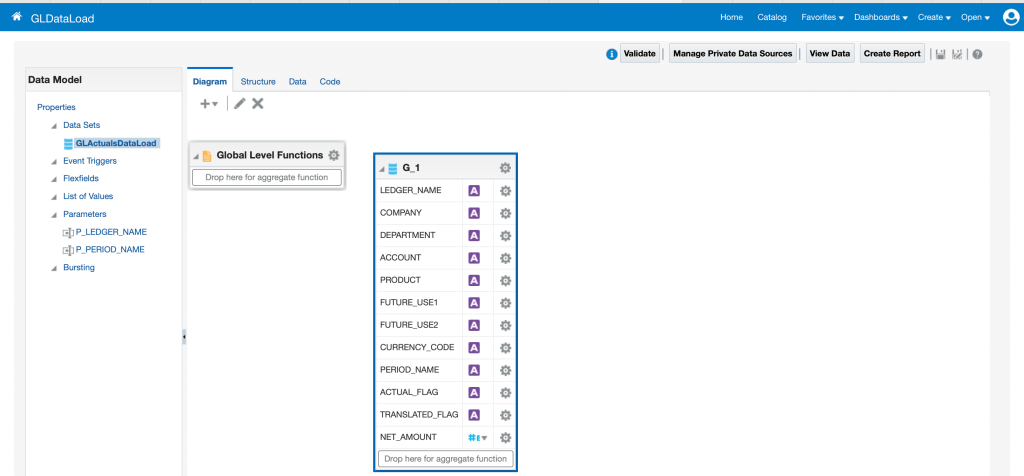
Based on the SQL query below and with ‘ApplicationDB_FSCM’ defined as the chosen data source.

Click on ‘Data’ tab, give values to the 2 defined parameters :P_LEDGER_NAME and :P_PERIOD_NAME to verify if data exists .
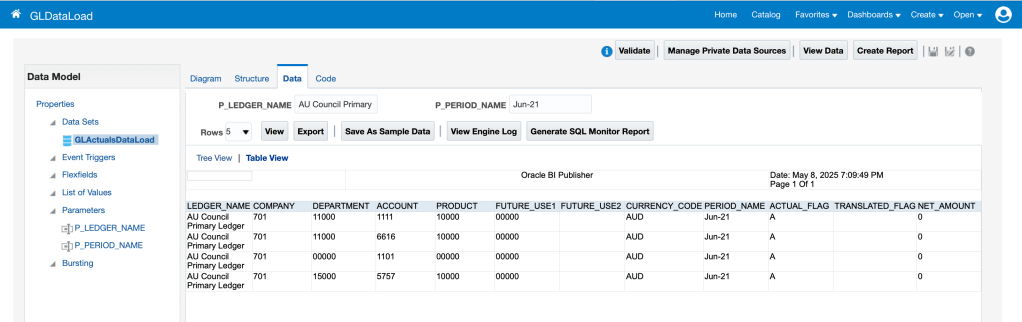
These parameters are a bind variables used in BI Publisher parameter prompts to pull datas .
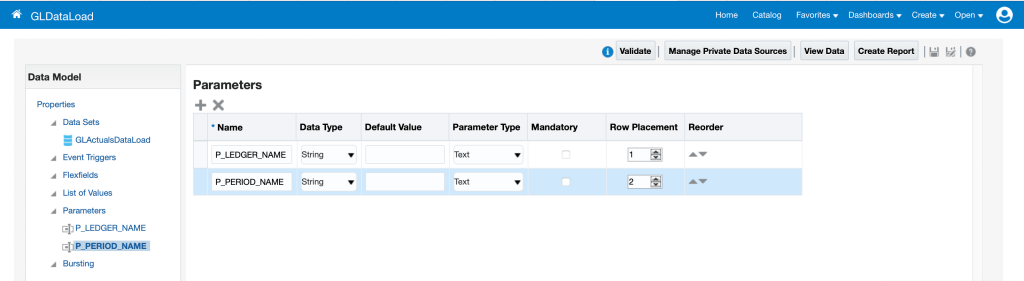
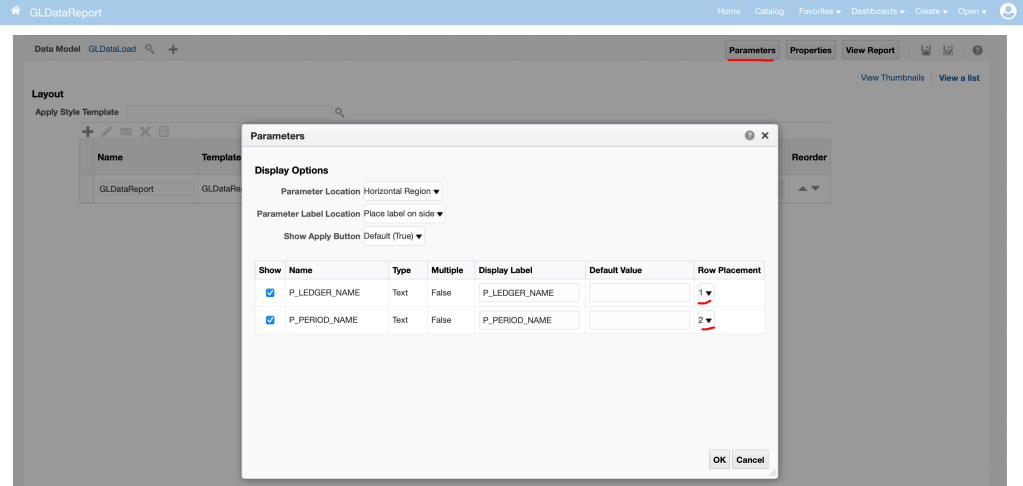
Also define a row placement for the 2 parameters:
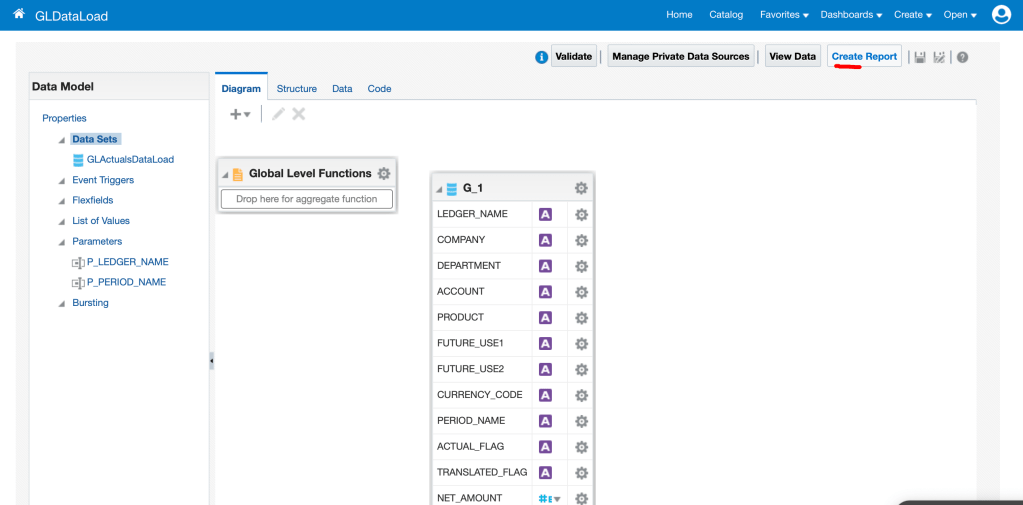
Step2. Create GLDataReport , that is a BIP report extract that use the defined data model « GLActualDataModel »
Click on ‘Create Report’ :
Select the Data Model:
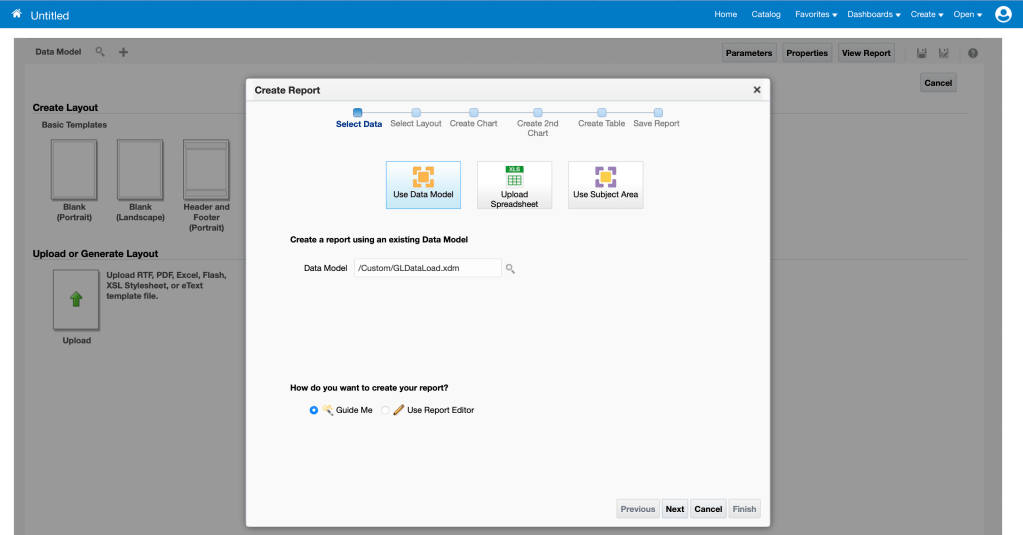

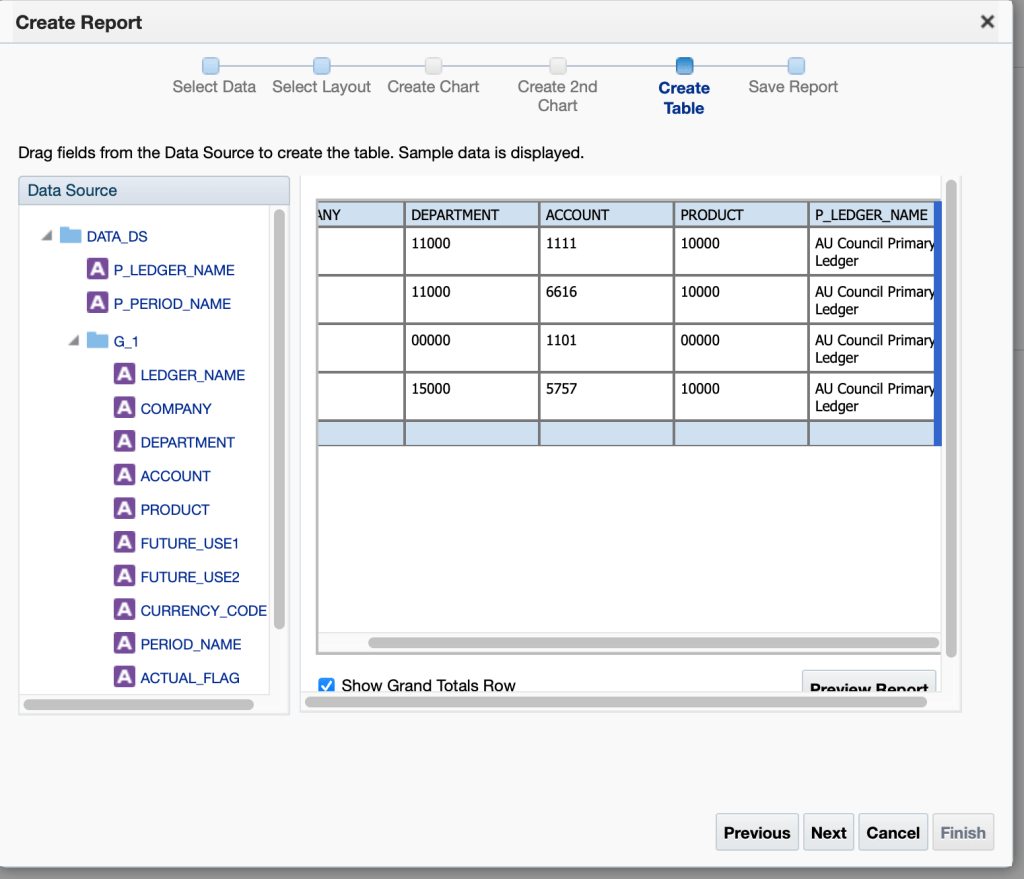
For any customization or create of new data model or report , build it and save it in the ‘Custom’ folder

Test the BIP report :
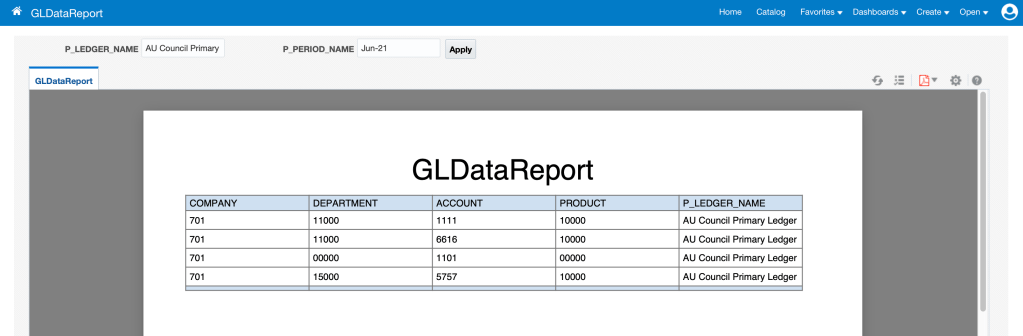
Now I will edit the report :

The output format need to be in .CSV format , else you run on issues.
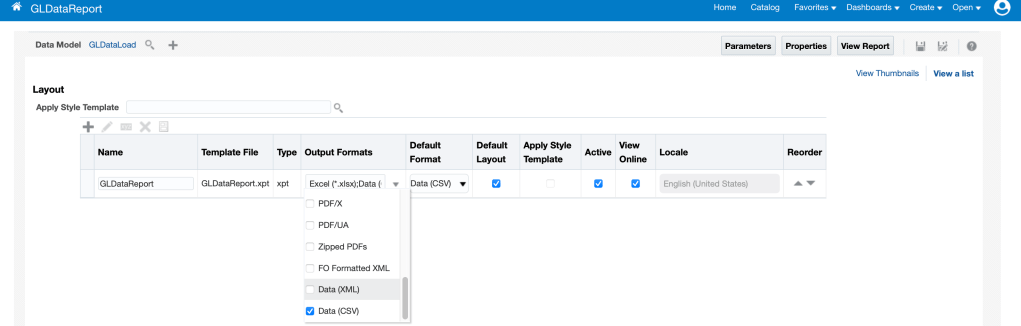
Same verify the order of parameters are same :
As best practice, click on ‘Preview Report’ button to check data before running it in EPM Data Exchange

Be sure to save the output as a CSV file, since it will be used in the next steps of the integration.
Step 4 & 5. Configuration on Oracle EPM Planning Cloud side
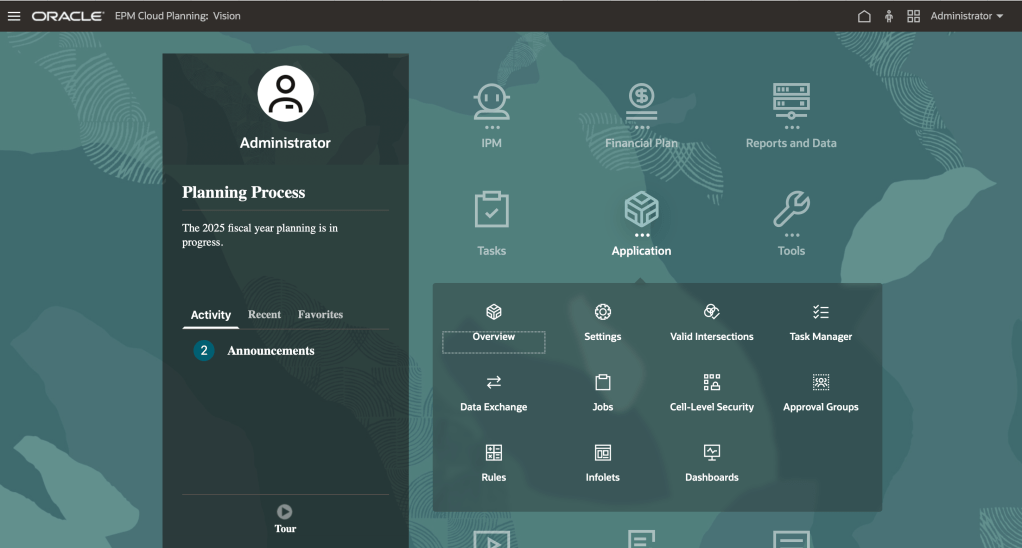
Click on Application> Data Exchange > Actions > (+) Application

Select Category : « Data Source » , Type : « Oracle ERP Cloud(Custom) , File : BIP report extract saved previously in csv format.

Create new source connexion and configure Oracle Financials Cloud credentials :


Go to the Options tab, select BIP Report as the execution method, then specify the report name created in Step 2, using the .xdo file extension.
Next, add the required parameters, ensuring their values follow the syntax illustrated below , add Parameter with values following the shown syntax.

Create the integration :
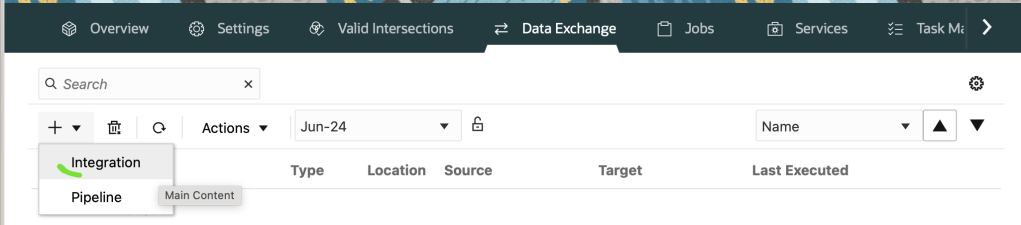
Due to a technical issue in my EPM Planning environment, I’ll walk through the integration steps without including screenshots.
Give name for your integration , select Source : Application_name already created previously, select Location: BIP ,select Target : EPBCS – Planning , Category : Actual (select Cube : OEP_CPX if you have a release before 25b).
You must load data into
OEP_CPXif you’re pushing GL actuals for project cost analysis.However , from 25b , the cube fields is removed.
The « Cube » field has been removed in 25B+ for simplification.
You no longer need to manually select a cube—it’s inferred from your dimension mapping and plan type configuration.
This reduces configuration errors and aligns better with modular Planning
Map dimensions like this :
LEDGER_NAME <> ACCOUNT
NET_AMOUNT <> AMOUNT ..
And setup the member mappings.
Now you can run the integration :
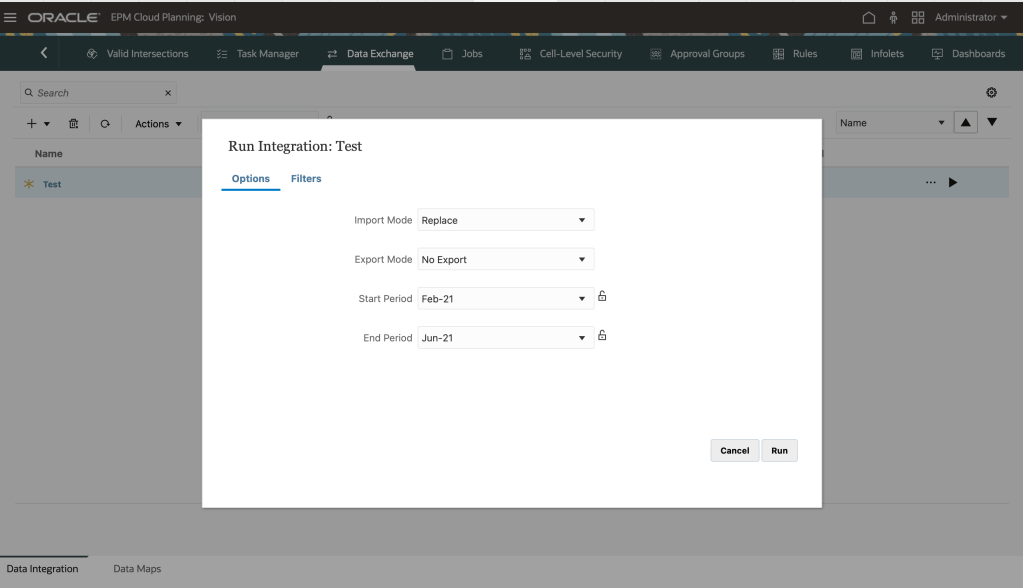
Once you execute the integration using BIP report execution method, in Fusion Financials side , a system job called ‘Generate Data File For Export’ is executed, like shown below:
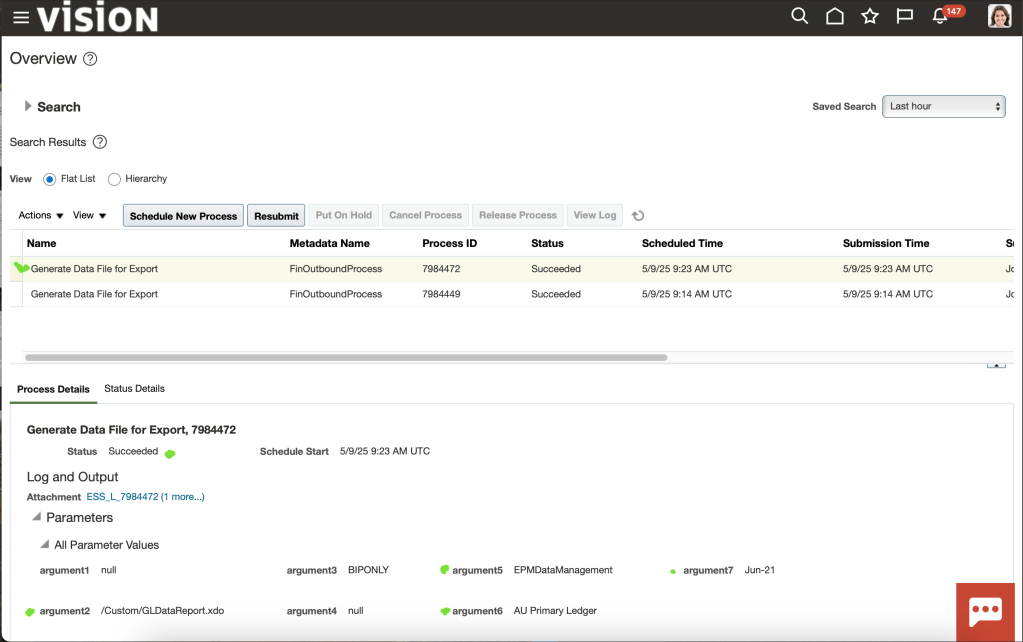
The integration of the GL Actuals data from Financials to Oracle EPM Planning was done successfully.
Here is the stack trace with detailed steps of the execution of this integration :


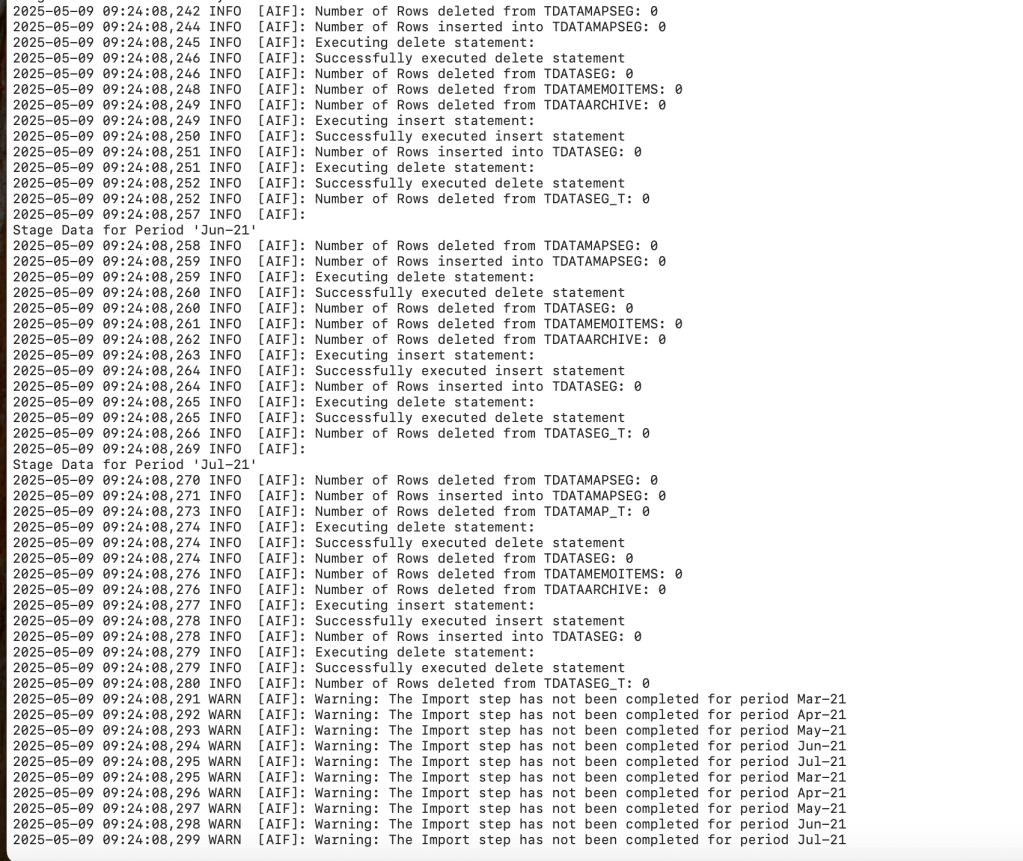
That’s all for this topic, I hope these two parts will serve as a helpful reference for similar integrations in the future.

 Sanae BEKKAR - My Blog -
Laisser un commentaire