Today’s post builds on the GenAI feature in EPM Cloud Narrative Reporting’s exploration, by focusing on a sample report from one of the three core Narrative Reporting use cases : Describe exception/anomalie.
For information, three use cases are supported today :
– Describe anomalie/exception ,
– Comparative Analysis ,
– Causality for Exception.

Let’s start with : Describe Exception sample report (Sample Report 13a (GenAI – Describe Exception)).

Let’s edit this report that describe an exception , like you see below it’s simple.
You find Grid on top and down below a text box that use the conditional text that return the generative AI text , generated based on the conditional text defined in the Grid.
Edit the Grid1 design :

In row , you have the following entities : Actual , Planned , Actual plan variance , Percent of total calculation count .
For this example, the condition based on is a negative variances , as well as a significant percent of total sales, that are :
Column C: The variance , Column D: Percent of total for sales.
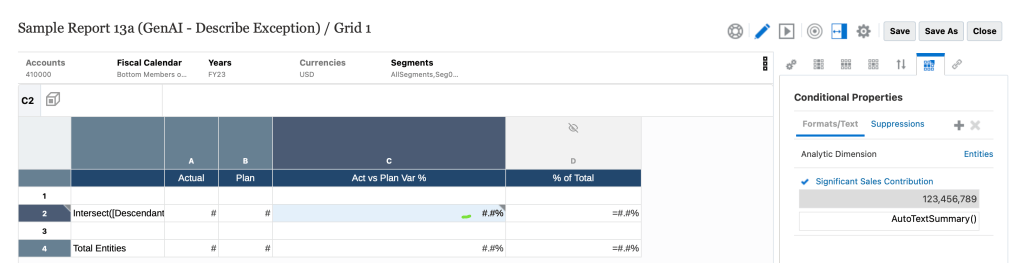
The conditional text has been applied to this variance cell ‘2C’, like shown here :

The conditional text is applied to the variance cell for significant Sales Contribution
The implemented logic is : If (Column D >=10 , %total sales of total entities is >=10%) AND (Column C<0 ,looking for a negative variance ).
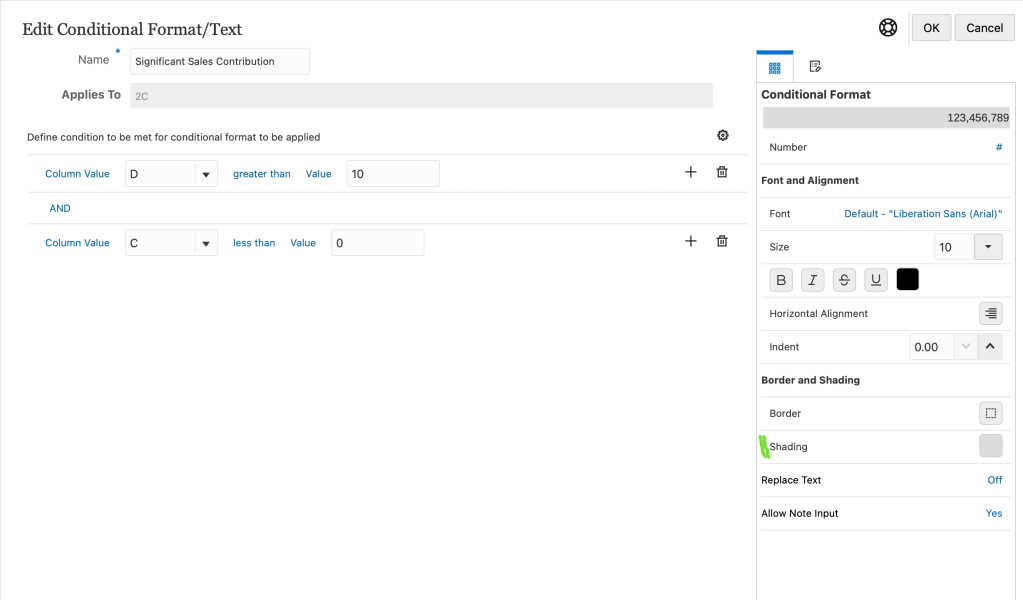
Some conditional formatting can be configured to see which numbers meet the condition in the final report with a different color, like Gray background for example .
Click on the second tab : Conditional text , you find an interesting function called function called AutoTextSummary() , that enable the GenAI for this describe exception use case.
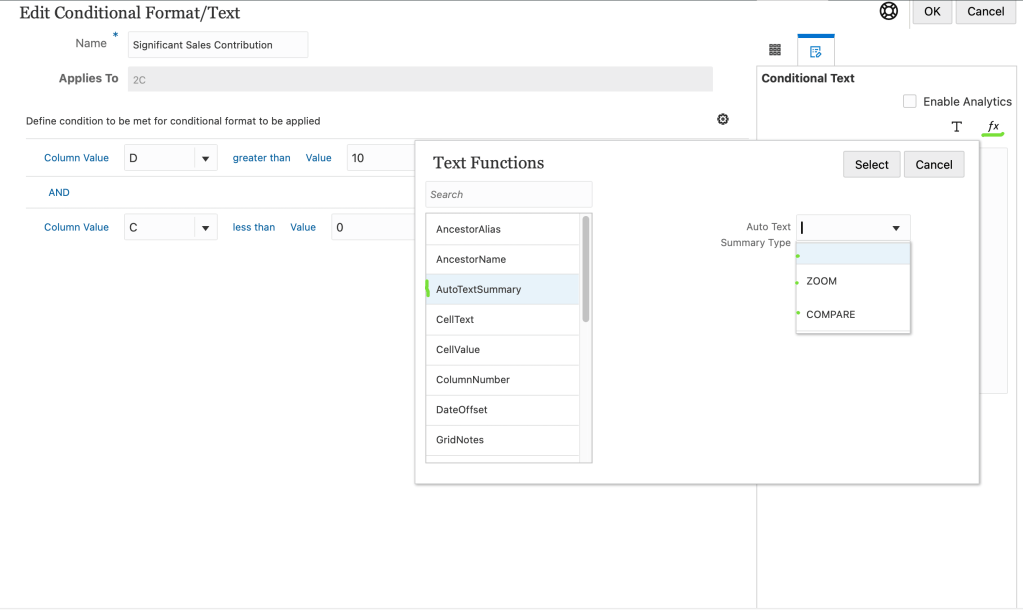
To insert text functions, AutoTextSummary has three parameters:
- Blank for Describe exception,
- ZOOM for Causality,
- COMPARE for The comparaison.
Let’s play a preview of that Grid :

You find two highlighted items that meet the condition [Greater than 10% of total sales AND negative variance].
Click the Run button to display the full report :

Here’s the full report :
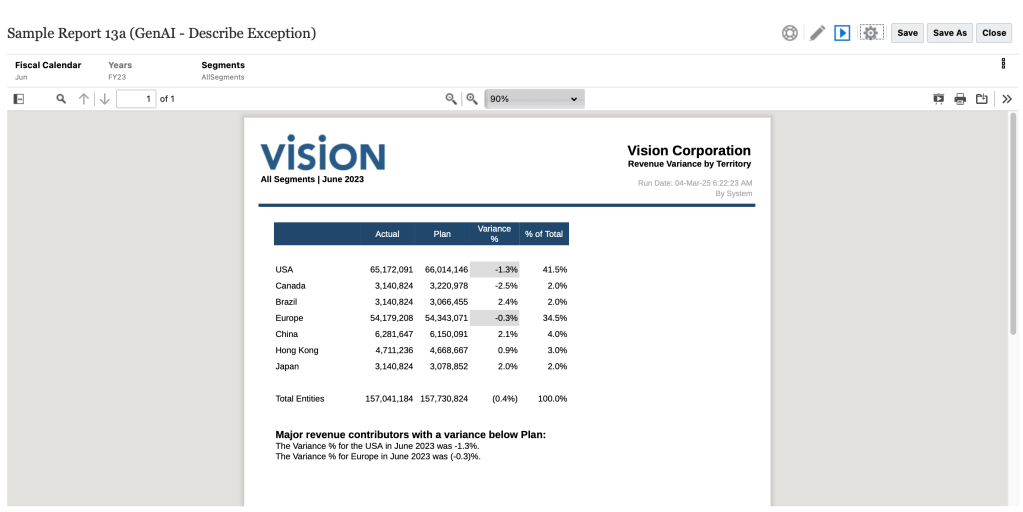
You find the two highlighted items and an additional paragraph ‘the Major revenue contributors with a variance below Plan’ , where it describe the exception that meet the condition : The variance % for USA in June 2023 was -1.3% and the variance % for Europe was -0.3%
Here some interesting Q & A related to this report:
Q1 : How can we customize and stylize the response statement if we assume that the default response is lacking and need to be aligned with the business needs?
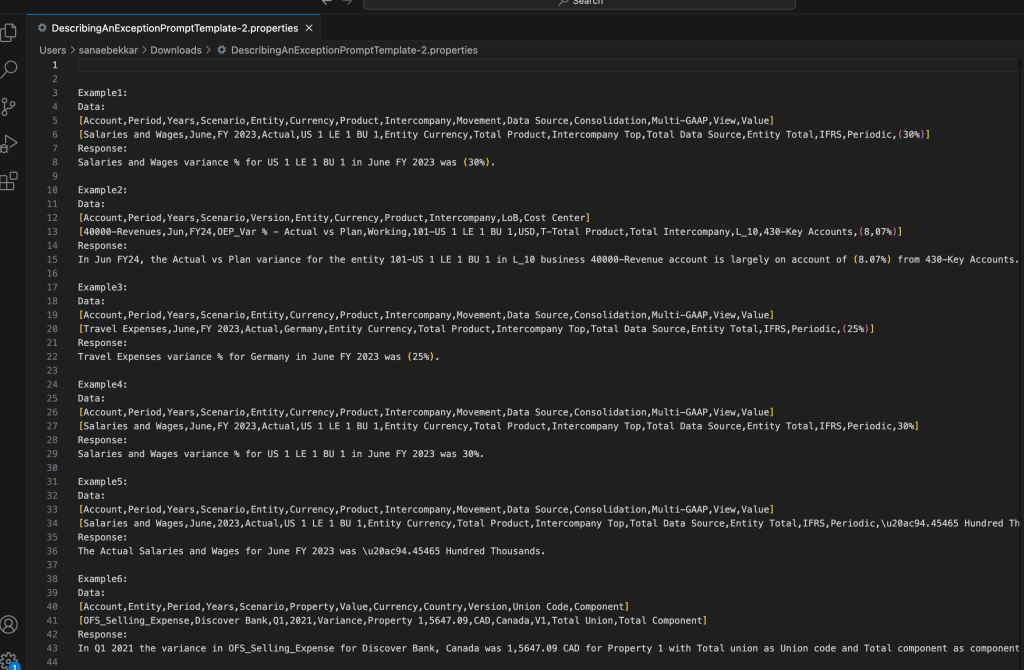
A1 : A feature exist that expose a part of the prompt , that allow user to modify the examples of the Prompt Template Properties File , in this use case is : DescribingAnExceptionPromptTemplate.properties and then you style the response in a way the business is used to. If user give 3 or 4 examples like the expected format, LLM is good to recognize the pattern and when you have a condition satisfied on a cell , it will style the response in the way the examples are given.
Q2: What can be done if the response not display certain expected metadatas ?
A2: You can give an examples which are better representative of the actual dimension names and the member names of the hierarchies actually.
Finally , some recommendations:
- Not cross the limit of the number of examples , 5 to 6 max for each use case.
- Not make too words per example, because that what will be passed with every request that goes to LLM .
- The number of dimensions in the first row should match the number of members in the second row of the example.
- « Value » is not just a dimension name ( 30% in example1/2nd row in the prompt file above) , it’s a data cell and it’s a standard keyword , DO NOT change this keyword.
- For each use case , there is a different property file with a different set of examples.
To summarize this use case : Describe exception/anomalie
- Sample Report: Sample Report 13a (GenAI – Describe Exception
- Conditional text formatting Function : AutoTextSummary()
- Properties file: DescribingAnExceptionPromptTemplate.properties
That’s it for today’s post. Stay tuned for the next one, where we’ll dive into the second use case: Comparative Analysis, along with further GenAI features.
![Avatar de [GenAI & Narrative Reporting , Oracle EPM Cloud] Use case .2. Comparative analysis – Sanae BEKKAR – My Blog –](https://sanaebekkar.com/wp-content/uploads/2023/05/cropped-pexels-photo-265216-1.jpeg?w=40)
 Sanae BEKKAR - My Blog -
Laisser un commentaire