You need to install the WebCenter Content User Interface application on WCCHOST1 and on WCCHOST2.
The WebCenter Content user interface artifacts are in a ZIP file called WccADFUI.zip, which you can obtain from the WebCenter Content Oracle home in the Oracle WebCenter Content (first) Middleware home.
The file location is WCC_ ORACLE_HOME/ucm/Distribution/WccADFUI/WccADFUI.zip.
In the reference topology, WCC_ORACLE_HOME is the /u01/oracle/products/fmw_ home/wcc_home directory on WCCHOST1 or WCCHOST2.
The WccADFUI.zip file includes these WebCenter Content user interface artifacts:
-The application EAR file, WccAdf.ear
-The domain extension configuration template
-Custom Oracle Weblogic Scripting Tool (WLST) commands for managing the connections to Oracle WebCenter Content Server
-Support scripts for deployment and management of the application
To install the WebCenter Content user interface application, perform these steps on WCCHOST1 and on WCCHOST2:
1. Create the directory WCCUI_MW_HOME/oracle_common/webcenter/wccadf in the WebCenter Content user interface (second) Middleware home.
In the reference topology, WCCUI_MW_HOME is the /u01/oracle/products/fmw_home directory on WCCUIHOST1 or WCCUIHOST2.
2. Copy the WCC_ORACLE_HOME/ucm/Distribution/WccADFUI/WccADFUI.zip file to the WCCUI_MW_HOME/oracle_common/webcenter/wccadf directory.
3. Expand the ZIP file in the WCCUI_MW_HOME/oracle_common/webcenter/wccadf directory.
Deploying the WebCenter Content User Interface Application to a New Domain
You need to deploy the WebCenter Content user interface application to a new WebLogic Server domain on WCCUIHOST1 and copy the domain configuration to WCCUIHOST2 before you can use the application with the Content Server application in the Oracle WebCenter Content domain.
After configuration of both domains is complete, you can use either the WebCenter Content user interface or the native 11g user interface with Content Server.
To deploy the WebCenter Content user interface application to a new domain, you need to perform these tasks:
1.Registering the MDS Repository
To register the Oracle Metadata Services (MDS) repository in the WebCenter Content user interface application, perform these steps on WCCHOST1:
1. Run WLST from the WebCenter Content user interface Middleware home:
WCCUI_MW_HOME/oracle_common/common/bin/wlst.sh
In the reference topology, WCCUI_MW_HOME is the /u01/oracle/products/fmw_home directory.
2. Run the following commands in offline mode:
wls:/offline> archive = getMDSArchiveConfig(‘WCCADF_EAR_LOCATION’)
wls:/offline> archive.setAppMetadataRepository(repository=’mds-mds_repo_name’, partition=’partition_name’, type=’DB’, jndi=’jdbc/mds/mds_repo_name’)
wls:/offline> archive.save()
In the getMDSArchiveConfig command, WCCADF_EAR_LOCATION is the directory where the WccADFUI.zip file was expanded, WCCUI_MW_HOME/oracle_ common/webcenter/wccadf in the reference topology.
In the archive.setAppMetadataRepository command, mds_repo_name is the name of the repository, and partition_name is a name for the partition to be created.
For example:
archive = getMDSArchiveConfig(‘/u01/oracle/products/fmwhome/ADFMW/oracle_ common/webcenter/wccadf/WccAdf.ear’) archive.setAppMetadataRepository(repository=’mds-WCCUIMDSREPO’, partition=’MDS_ PARTITION’, type=’DB’, jndi=’jdbc/mds/WCCUIMDSREPO’) archive.save()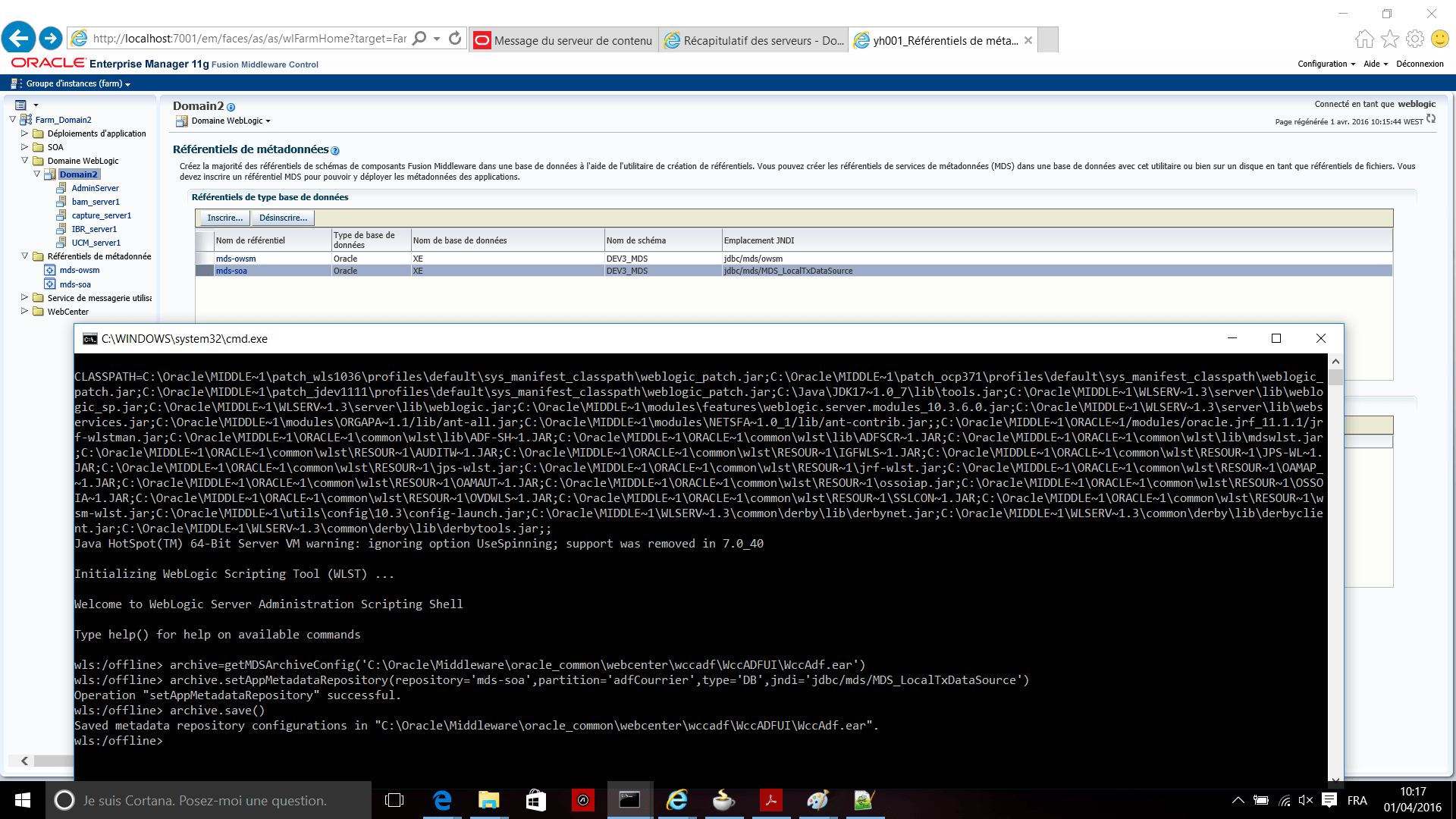
2. Running the Configuration Wizard on WCCUIHOST1 to Create a Domain
To run the Fusion Middleware Configuration Wizard on WCCUIHOST1 to create a domain:
1. In the WebCenter Content user interface Middleware home, copy the WebCenter Content user interface domain template, oracle.ucm.cs_adf_template_ 11.1.1.jar, from the directory to the following directory:
WCCUI_MW_HOME/oracle_common/common/templates/applications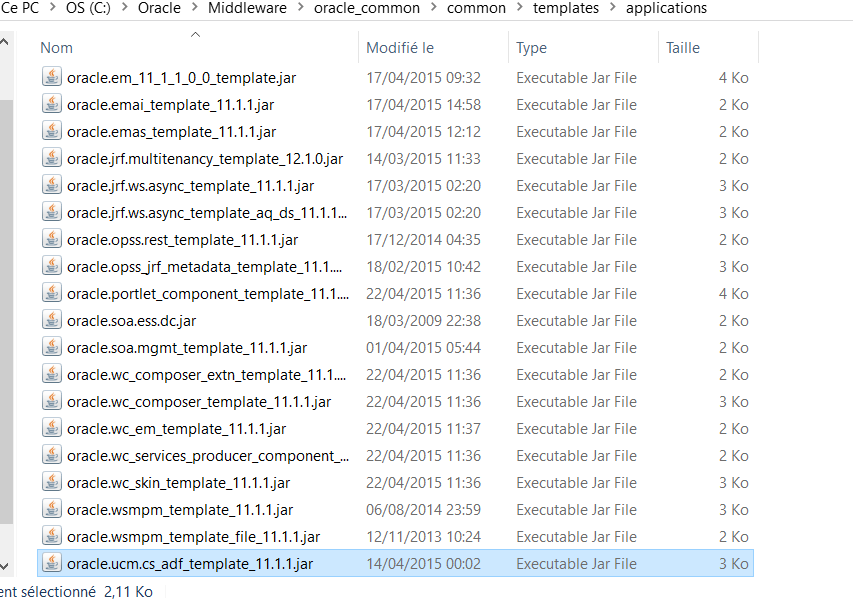
In the reference topology, WCCUI_MW_HOME is the /u01/oracle/products/fmw_home directory.
2. Run the Configuration Wizard in the WebCenter Content user interface Middleware home:
WCCUI_MW_HOME/oracle_common/common/bin/config.sh
3. On the Welcome screen, select Create a new WebLogic Domain, and click Next.
4. The Select Domain Source screen opens
On the Select Domain Source screen, perform the following steps:
a. Select Generate a domain configured automatically to support the following products.
b. Select the following products:
– Basic WebLogic Server Domain (this should be selected automatically)
– Oracle WebCenter Content – Web UI
– Oracle Enterprise Manager (selected automatically)
– Oracle JRF (selected automatically)
c. Click Next.
5. On the Specify Domain Name and Location screen, enter the name of the new domain, such as WCCUIDomain, and the domain and applications directories:
-Domain name: WCCUIDomain
-Domain location: /u01/oracle/config/domains
-Application location: /u01/oracle/config/applications
The Configuration Wizard adds a subdirectory with the domain name to the domain location, to make the WCCUI_ASERVER_HOME directory, and to the application location, to make the WCCUI_APPLICATION_HOME directory.
Make sure that these directories match the directory and shared-storage mount points recommended in Chapter 4, « Preparing the File System for an Enterprise Deployment. » The Managed Server domain directory for WebCenter Content user interface should be under the local volume for each server.
Click Next.
6. On the Configure Administrator User Name and Password screen, enter the user name and password to be used for the domain’s administrator.
Click Next.
7. On the Configure Server Start Mode and JDK screen, perform the following steps:
-For WebLogic Domain Startup Mode, select Production Mode.
-For JDK Selection, select JROCKIT SDK1.6.0_version.
Click Next.
8. On the Select Optional Configuration screen, select the following:
-Administration Server
-Managed Servers, Clusters and Machines
-Deployments and Services
Click Next.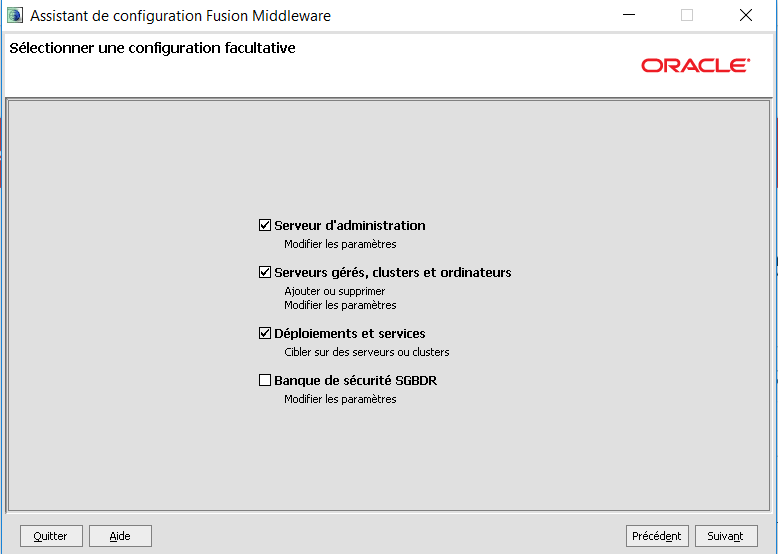
9. On the Configure the Administration Server screen, enter the following values:
-Name: AdminServer
-Listen address: All Local Adress.
-Listen port: 7001
The default port number for the Administration Server is 7001. If you are configuring the WebCenter Content user interface domain on the same machine as the Oracle WebCenter
Content domain, use a different port number.
-SSL listen port: N/A
-SSL enabled: Leave this checkbox unselected.
Click Next.
10. On the Configure Managed Servers screen, configure WLS_WCCUI1 Click Next.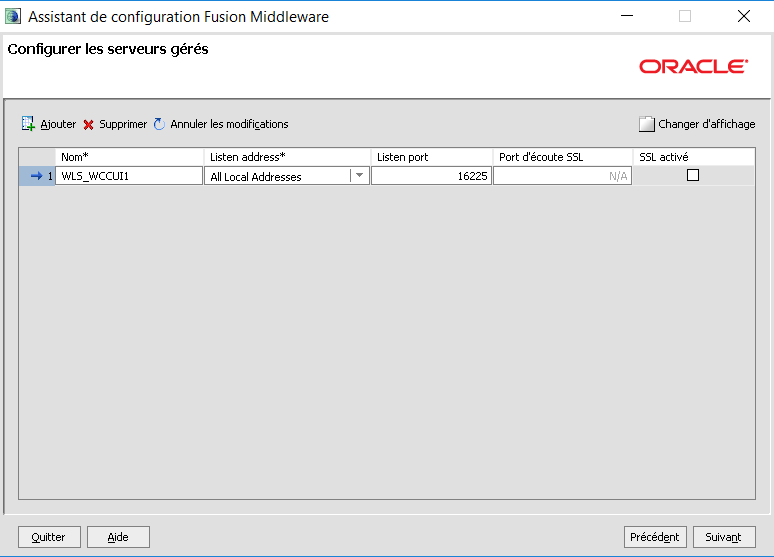
11. On the Configure Clusters screen, configure WCCUI_Cluster .
Click Next.
12. On the Assign Servers to Clusters screen, assign each Managed Server to WCCUI_ Cluster.
Click Next.
13. On the Configure Machines screen, open the Unix Machine tab and then click Add to add the WCCUIADMINHOST, WCCUIHOST1 machines.
The machine names do not need to be a valid host names or listen addresses. Each name is a unique identifier of a Node Manager location.
Click Next.
14. On the Assign Servers to Machines screen, assign the Administration Server and Managed Servers to a machines.
Click Next.
15. On the Target Deployments to Clusters or Servers screen, click Next.
16. On the Target Services to Clusters or Servers screen, click Next.
17. On the Configuration Summary screen, click Create.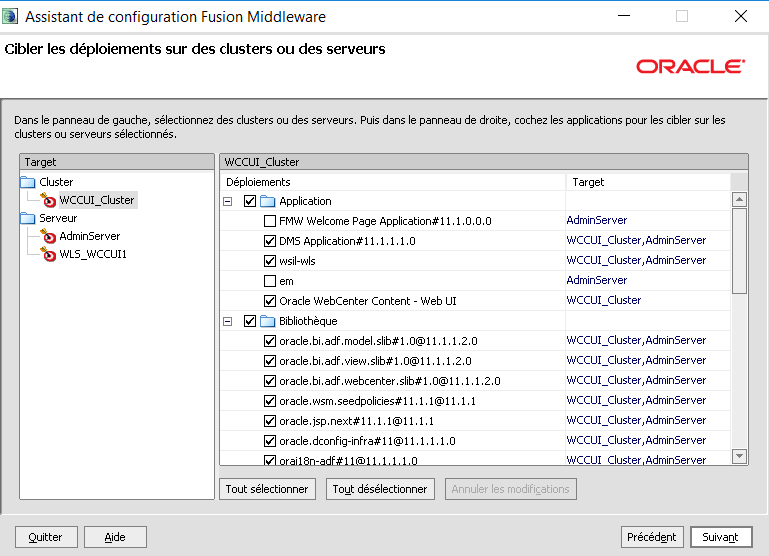
18. On the Create Domain screen, click Done.
This procedure will create a new domain and a Managed Server for the WebCenter Content user interface application. You will not need any data sources to be set up for this application.
You can access the WebCenter Content user interface through the following URL:
The WebCenter Content user interface application runs on port 16225 by default.
Additional Verification :
Creating boot.properties for the Administration Server on WCCUIHOST1
Create a boot.properties file for the Administration Server on WCCUIHOST1. This file enables the Administration Server to start without prompting you for the administrator user name and password.
To create a boot.properties file for the Administration Server on WCCUIHOST1:
1. Create the following directory structure on WCCUIHOST1:
mkdir -p WCCUI_ASERVER_HOME/servers/AdminServer/security
In the reference topology, WCCUI_ASERVER_HOME is the /u01/oracle/config/domains/WCCUIDomain directory.
2. In a text editor, create a file called boot.properties in the directory created in the previous step, and enter the following lines into the file:
username=admin_user password=admin_password
Starting Node Manager on WCCUIHOST1
To start Node Manager on WCCUIHOST1, set the StartScriptEnabled property to true, and then start Node Manager using startNodeManager.sh.
To start Node Manager on WCCUIHOST1:
1. Run the setNMProps.sh script, which is located in the WCCUI_ORACLE_COMMON_ HOME/common/bin directory, to set the StartScriptEnabled property to true before 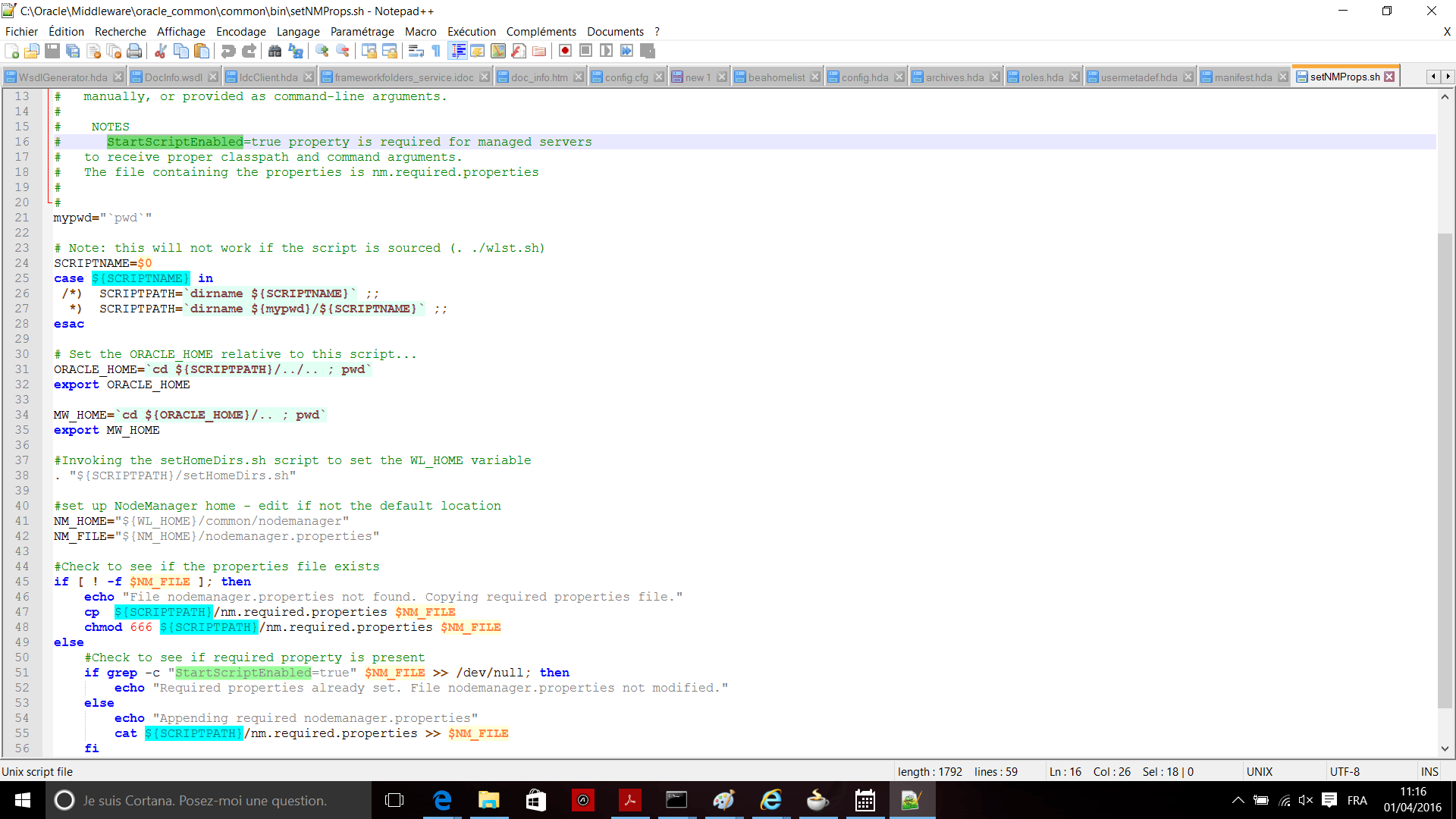
starting Node Manager:
cd WCCUI_ORACLE_COMMON_HOME/common/bin
./setNMProps.sh
In the reference topology, WCCUI_ORACLE_COMMON_HOME is the /u01/oracle/products/fmw_home/oracle_common directory.
2. Start Node Manager:
cd WCCUI_WL_HOME/server/bin
export JAVA_OPTIONS=-DDomainRegistrationEnabled=true
nohup ./startNodeManager.sh > nm.out&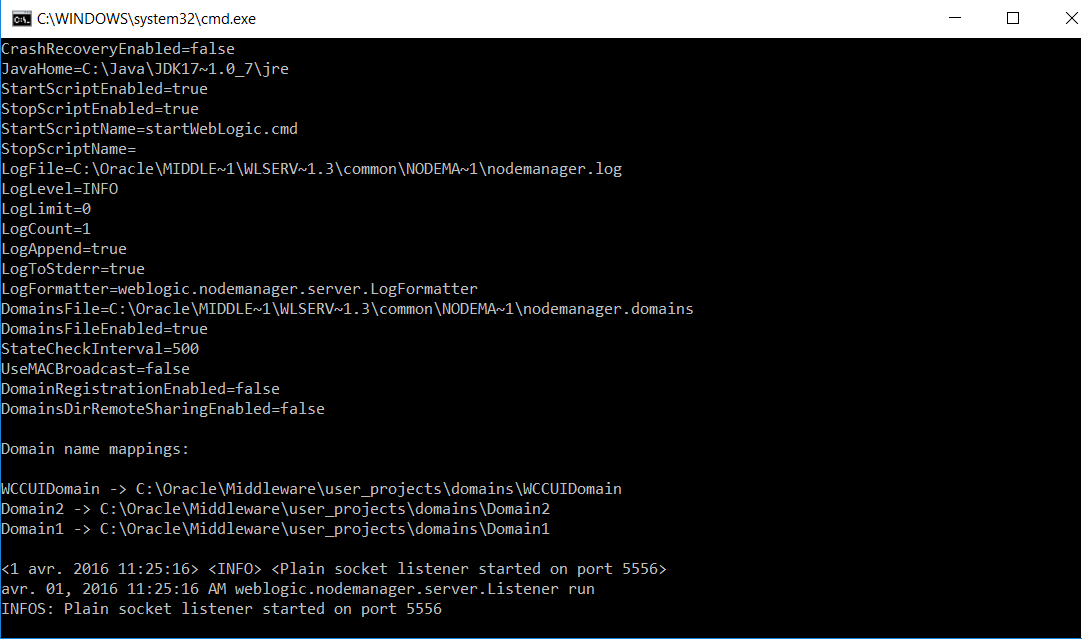
In the reference topology, WCCUI_WL_HOME is the /u01/oracle/products/fmw_ home/wlserver_10.3 directory.
Note: It is important to set the -DDomainRegistrationEnabled=true parameter whenever Node Manager is started, to manage the Administration Server. If there is no Administration Server on the machine and the machine is not an Administration Server failover node, then you can start Node Manager with the following script (without the export command).
nohup ./startNodeManager.sh > nm.out&

 Sanae BEKKAR - My Blog -
Répondre à vivadating Annuler la réponse.