UCM Services as Web Services

Web services reside as a layer on top of existing software systems such as application servers, .NET servers, and Oracle Content Server.
Web services can be used as a bridge to dissimilar operating systems or programming languages.
Web services are adapted to the Internet as the model for communication and rely on the HyperText Transfer Protocol (HTTP) as the default network protocol.
Thus, using web services, you can build applications using a combination of components. Oracle Content Server provides some web services built into the core product.
Oracle WebLogic Server provides SOAP capabilities, and Oracle Content Server supports several SOAP requests through Oracle WebLogic Server.
Additionally, the WSDL Generator component is installed (enabled) by default with Oracle Content Server.
The core enabling technologies for web services are XML, WSDL, SOAP, and UDDL:
■ XML: Data: The eXtensible Markup Language (XML) is a bundle of specifications that provides the foundation of all web services technologies. Using the XML structure and syntax as the foundation allows for the exchange of data between differing programming languages, middleware, and database management systems.
■ SOAP: Communication: The Simple Object Access Protocol (SOAP) provides the Oracle Content Server communication for web services interfaces to communicate to each other over a network. SOAP is an XML-based communication protocol used to access web services. Web services receive requests and return responses using SOAP packets encapsulated within an XML document.
■ UDDI: Registry: The Universal Description Discovery and Integration (UDDI) service provides registry and repository services for storing and retrieving web services interfaces. UDDI is a public or private XML-based directory for registration and lookup of web services.
The XML, WSDL, SOAP, and UDDI technologies work together as layers on the web services protocol stack. The web services protocol stack consists of these layers:
■ The service transport layer between applications (HTTP). While several protocols are available as a transport layer (for example, HTTP, SMTP, FTP, BEEP), the HTTP protocol is most commonly used. The WSDL Generator component relies on the HTTP protocol as the transport layer.
■ The messaging layer that provides a common communication method (XML and SOAP).
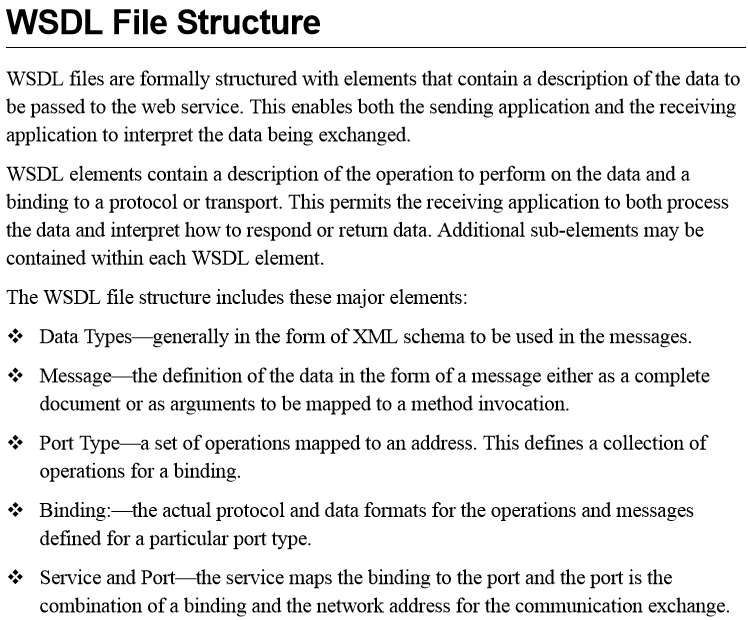
■ The service description layer that describes the public interface to a specific web service (WSDL).
■ The service discovery layer that provides registry and repository services for storing and retrieving web services interfaces (UDDI).
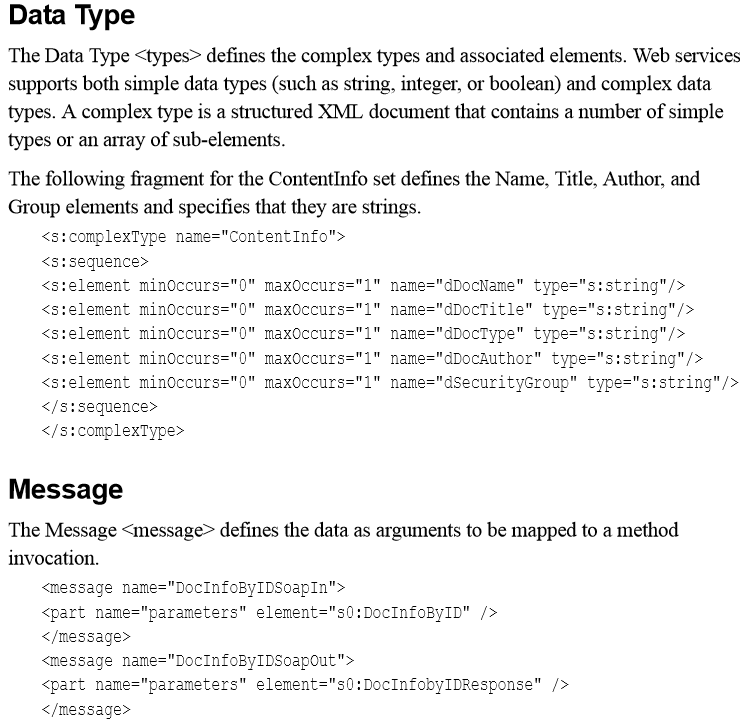
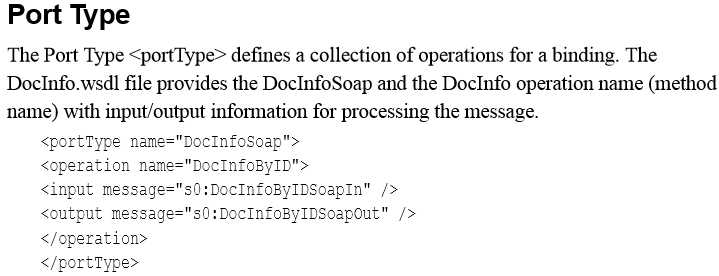
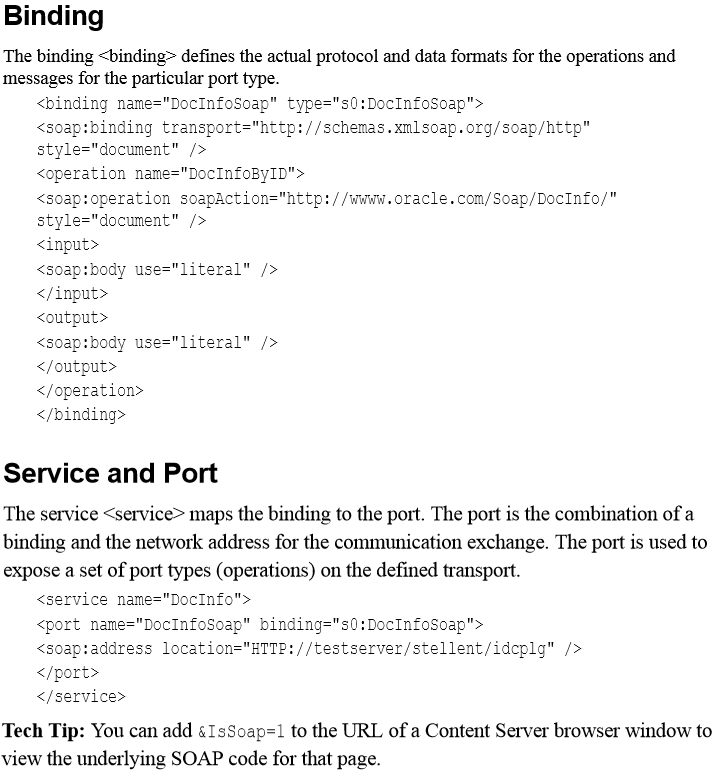
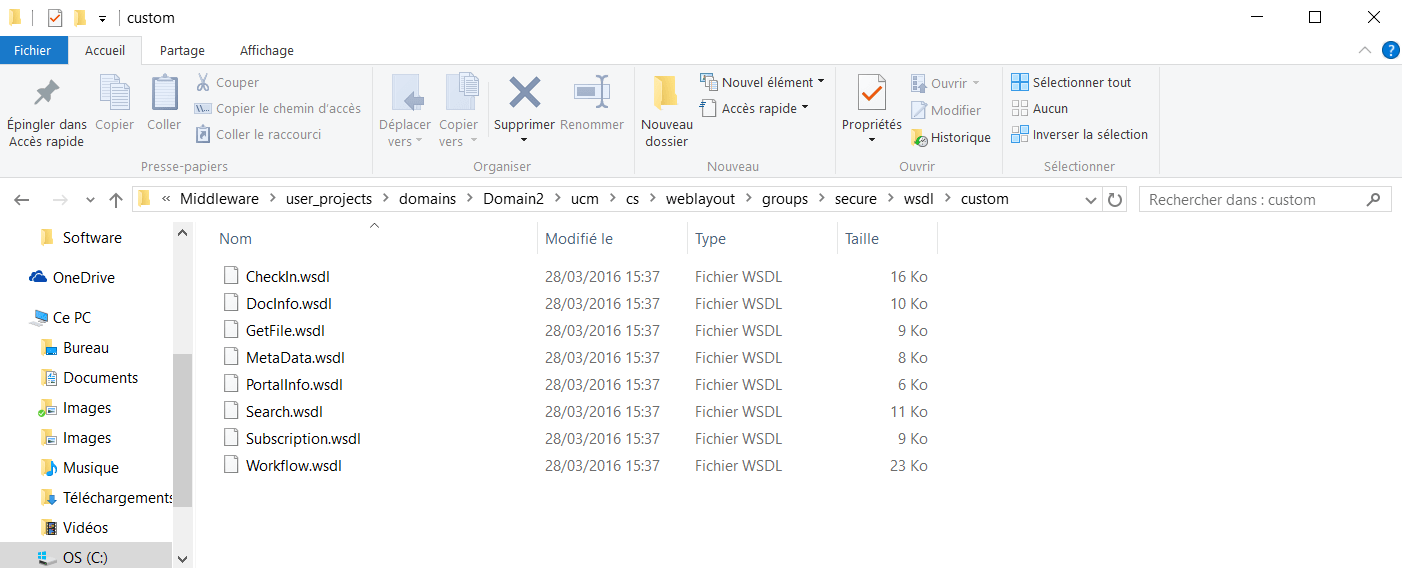
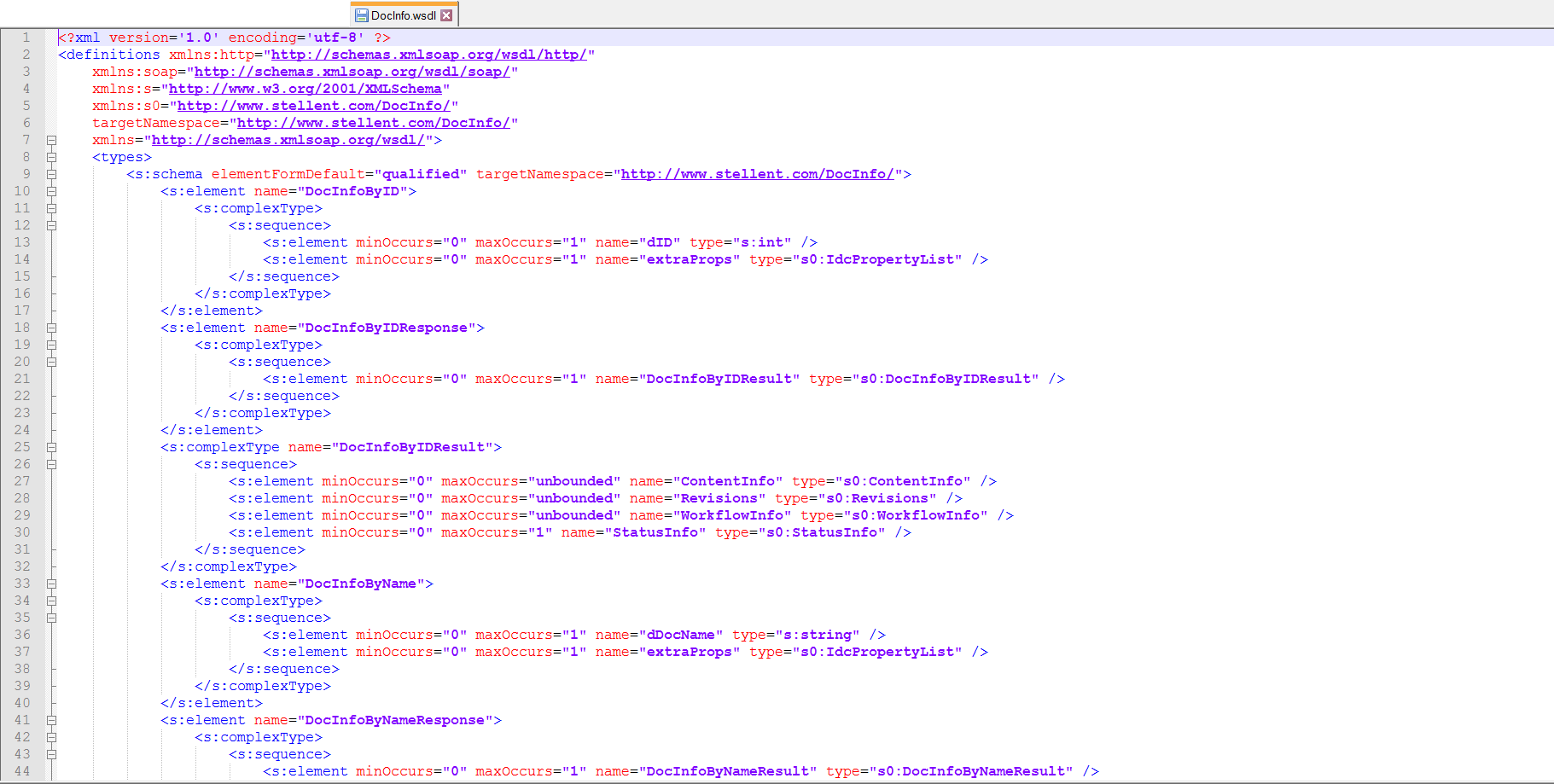
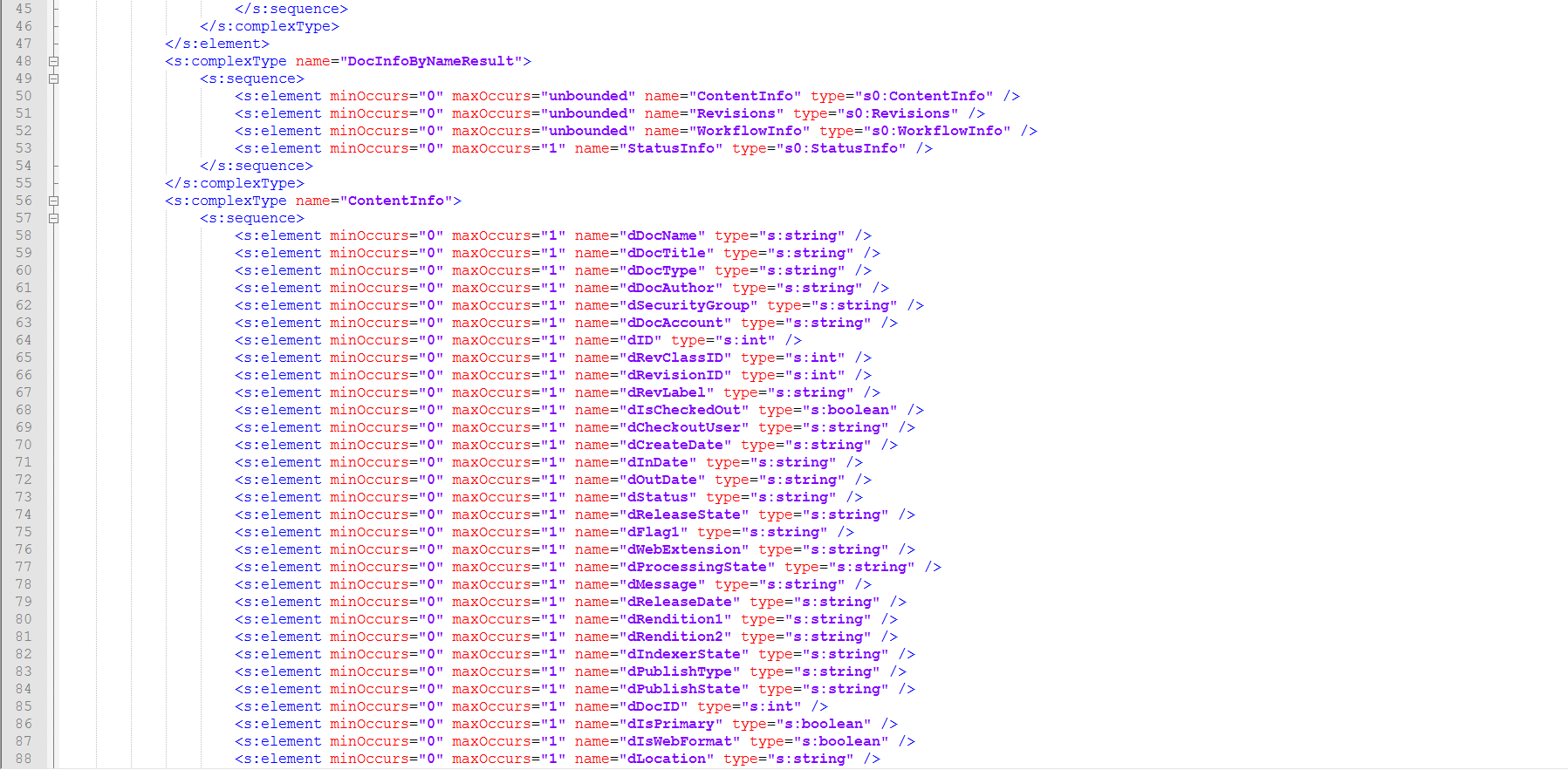
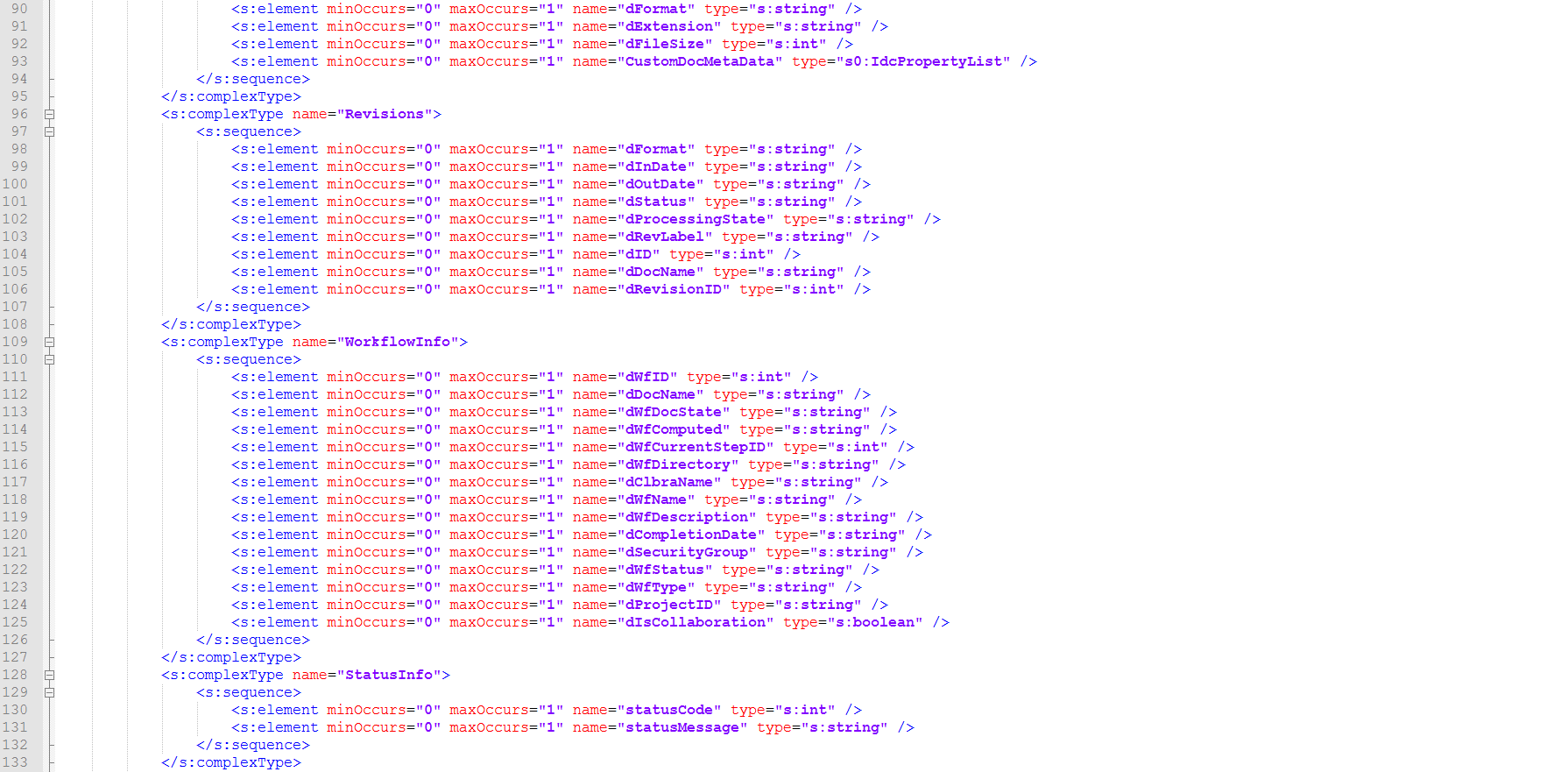
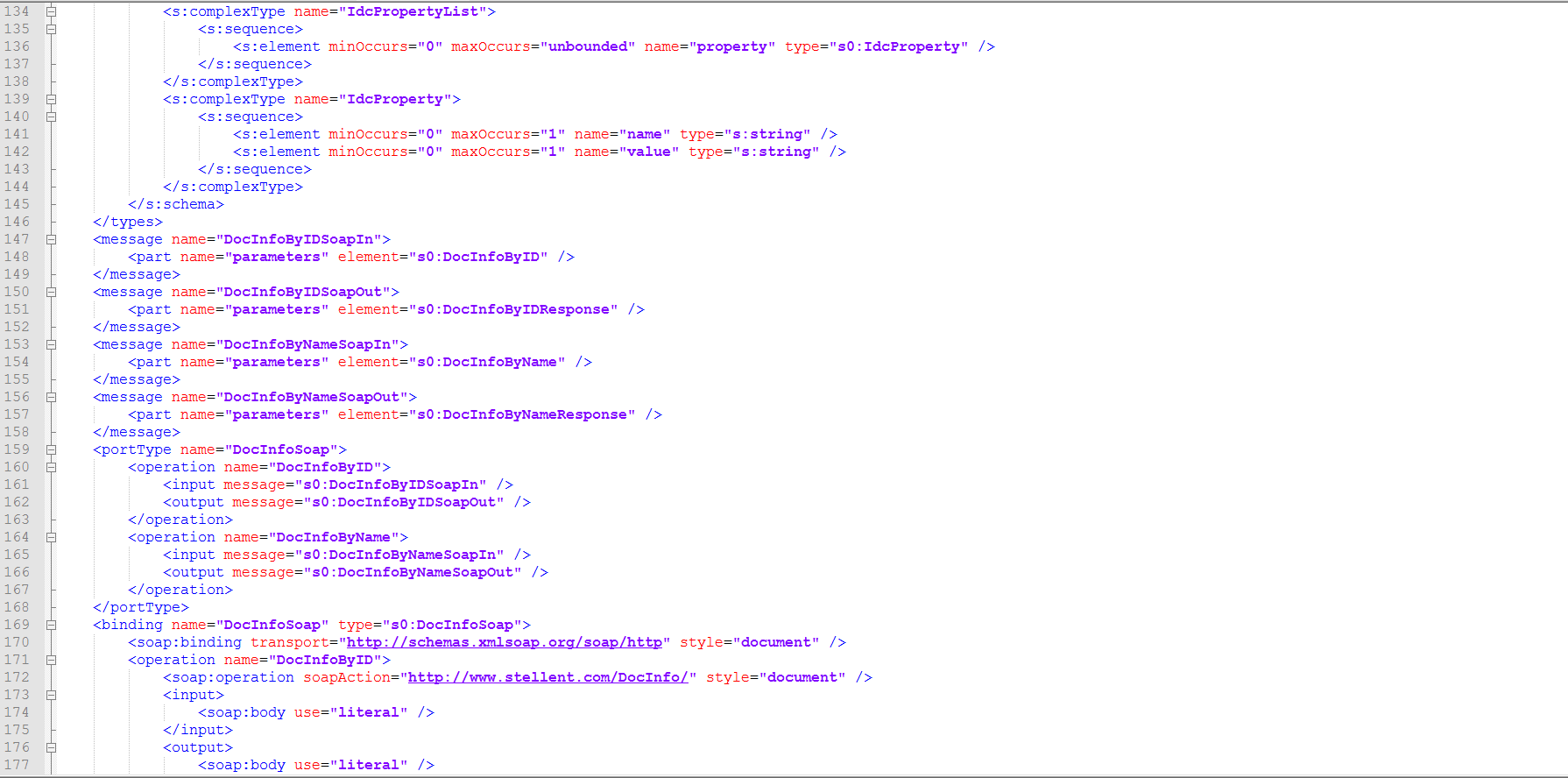
The following code presents the complete DocInfo.wsdl. along with the CheckIn.wsdl , GetFile , Search.wsdl are found in the :

GENERATING WSDL FILES
The WSDL Generator component must be installed to generate WSDL files .
When the Content Server is restarted after installing and enabling the WSDL Generato component , several folders and related HDA files are generated that expose several Services as web services.
Two directories are created in the :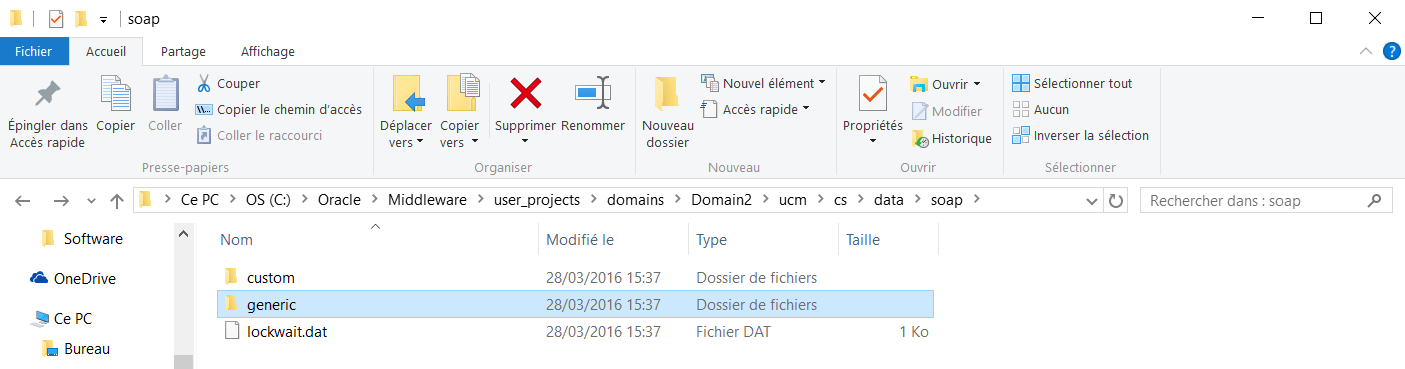
The /generic directory: contains a generic.hda file
and the /custom directory contain the wsdl_custom.wsdl.
Administrators ca customize or add WSDL files using SOAP WSDL administration page.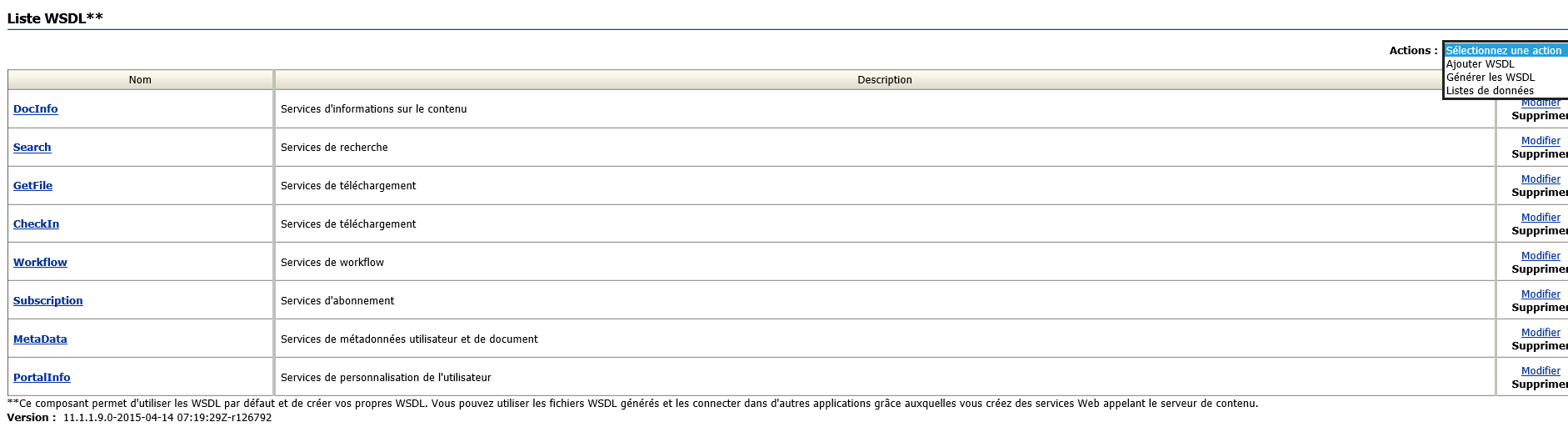
In addition to the WSDL files provided with the WSDL Generator component , you can generate additional WSDL files for any Content Server Service.
To create and edit a custom WSDL file with the Soap Custom WSDL administration pages:
1. In a web browser, log in to Oracle WebCenter Content Server as an administrator.
2. From the Administration tray or menu, choose Soap Wsdls.
This option displays the Wsdl List page.
3. From the Actions menu, choose Data Lists.
This option displays the Data Lists page
Data Lists are global lists of data that can be used with complex types, service parameters, or other Data Lists. When a Data List is specified as a parameter or a subtype of a complex type, all the subtypes of the Data List will appear as data types. Data Lists are defined once but can be referenced multiple times with different WSDLs and services. All the Data Lists have a prefix of « d: » in the data type list.
4. Choose Add Data List from the Actions menu.
The Add Data List page is displayed.
5. Enter the following information:
Name: UserMetaFields
Description: User Metadata Fields
6. Click Add.
7. In the Data List Elements Name column, enter the following names for user metadata fields:
-dName
-dFullName
-dPassword -dEmail
-dUserAuthType
For each name, choose field:string from the menu in the Type column, and make sure Enabled is selected
8. Click Update.
You are returned to the updated Data Lists page. Note that UserMetaFields now appears at the bottom of the list.
9. Choose Wsdl List from the Actions menu.
The Wsdl List page is displayed again
11. Enter the following information:
Name: UserInfo
Description: User Services
12. Click Add.
The Wsdl Information page is displayed
13. Choose Add Complex Type from the Actions menu.
The Add Complex Type page is displayed.
14. Enter the following Complex Type information:
Name: UserAttribInfo
Type: Choose resultset from the menu.
15. Click Add.
The Wsdl Information page is displayed again
16. Click Edit on the UserAttribInfo line.
The Complex Type Information/Complex Type Elements page opens.
17. Enter the following Complex Type Elements, and choose the Type value for each one from the menu.
18. Click Update in the Complex Type Elements section.
You are returned to the updated Wsdl Information page. Note that User AttribInfo now appears as a complex type.
19. Choose Add Service from the Actions menu.
The Add Service page opens.
20. Enter the following information:
Name: AddUser
IdcService: ADD_USER
ADD_USER : Service used to create a new user.
The most likely error is when the user name is not unique. Location: IdcHomeDir/resources/core/tables/std_services.htm
Additional Required Service Parameters
■ dName: The user name.
■ dUserAuthType: The user authorization type. This value must be set to either Local or Global.
Optional Service Parameters
■ dFullName: The full name of the user.
■ dPassword: The password for the user.
■ dEmail: The email address for the user.
Optional Attribute Information Optional attribute information is specified in a result set that contains the user’s attribute information and references the roles the user belongs to and the accounts the user has access to.
Attribute information consists of a list of three comma-delimited strings.
The first string indicates the type of attribute, the second the name of the attribute, and the third is the access number for accounts or default entry for role.
■ Attribute Type: When defining a role, the first string specifies that this is a role attribute, the second string is the name of the role, and the third is the default entry of 15.
When defining an account, the first string specifies that this is an account attribute, the second string is the name of the account, and the third is the access level.
– For a role attribute, the information is in the form:
– role,contributor,15
– For an account attribute, the information is in the form:
– account,books,1
■ Attribute Name: A user can belong to multiple roles and accounts, so there can be multiple role and account information strings separated by commas in the attribute information column.
If the user is to have the admin role, define the user attribute information as follows:
@ResultSet UserAttribInfo
2
dUserName
AttributeInfo
jsmith
role,contributor,15
@end
If the user is to belong to both the contributor and editor roles and have Read permission on the books account, define the user attribute information as:
@ResultSet UserAttribInfo
2
dUserName AttributeInfo
jsmith role,contributor,15,role,editor,15,account,books,1
@end
■ Access Number: These access numbers can be assigned to the user.
– 1: Read only
– 3: Read and write
– 7: Read, write, delete
– 15: Administrative permissions
Example
■ IdcCommand command file format:
IdcService=ADD_USER dName=specialuser dUserAuthType=LOCAL
■ HDA format with optional parameters:
@Properties LocalData
IdcService=ADD_USER
dName=jsmith
dUserAuthType=LOCAL
dFullName=Jennifer Smith
dPassword=password
dEmail=jsmith@example.com
@end
@ResultSet UserAttribInfo
2
dUserName
AttributeInfo
jsmith
role,admin,15,role,contributor,15
@end
21. Click Add.
The Wsdl Information page opens.
22. Choose Edit for the AddUser service.
This option displays the Service Information page.
23. Choose Update Request Parameters from the Actions menu.
The Request Parameters page is displayed.
24. Enter the following information, selecting the Type from the menu.
25. Click Update.
You are returned to the updated Service Information page. Note that DataList and CustomUserData now appear in the Request Parameters section.
26. Click Update.
You are returned to the updated Wsdl Information page, showing the service that you just added.
27. Click Update again.
You are returned to the updated Wsdl List page. UserInfo appears at the bottom of the list.
28. Choose Generate Wsdls from the Actions menu.
A confirmation message displays after the Wsdls are generated successfully.
29. Click Back.
You are returned to the Wsdl List page.
30. Click the UserInfo link in the Name column.
The source code for the generated Wsdl file is displayed


 Sanae BEKKAR - My Blog -
Répondre à Krystin Manry Annuler la réponse.