Today’s article presents a high-level architecture and data flow for integrating Oracle ERP Cloud General Ledger (GL) Actuals with Oracle EPM Planning Cloud using EPM Data Exchange. I’ll also highlight key best practices to ensure a reliable and maintainable integration process.
First, I’ll start by outlining some important prerequisites to keep in mind before setting up the integration:
- For ERP–EPM integration, do not use an SSO account. The service account must authenticate with a username and password, ensuring stable, automated access. SSO users can cause interruptions due to session or MFA policies. To avoid downtime, make sure the password does not expire.
- The integration user must have an assigned Oracle GL job role, such as Financial Analyst, General Accountant, or General Accounting Manager. This role is required to access General Ledger features. Additionally, the user must have UCM access to handle file uploads properly.
Scenario & Requirements
Integrate BI Publisher (BIP) report that extracts General Ledger actuals from Oracle Financials Cloud [typically target the GL_BALANCES, GL_CODE_COMBINATIONS, and GL_LEDGERS tables] into Oracle Planning EPM Cloud.
Data types:
From Oracle Financials Cloud ERP : GL Actuals,
To Oracle Planning EPM Cloud : Actuals in financials planning cubes
Goal : For Budget vs actual comparison forecasting.
Integration tool : Data Integration – for secure and automated flow
For info. Planning in Oracle EPM Cloud is a budgeting and forecasting solution that integrates financial and operational planning processes and improves forecast accuracy.
High Level Design Architecture:

Here more details for each step of the integration flow :
On Oracle ERP Cloud side :
- Step 1 . Define data extract SQL
The SQL queries are used to extract or pull data based on specific business requirements.
To develop and test these queries, you can either use SQL Developer for building and debugging, or enter the query directly into BI Publisher, where it can be used to extract data and preview results within the data model.
To identify the correct tables, columns, primary keys, indexes, and views, refer to the official Oracle guides
- Tables and views for Financials : https://docs.oracle.com/en/cloud/saas/financials/25b/oedmf/index.html
- Tables and Views for SCM :
https://docs.oracle.com/en/cloud/saas/supply-chain-and-manufacturing/24d/oedsc/index.html
- Step 2. Create Data Model for BIP report extract.
Data model can be any data , like one data retrieved from a single data source.
a data model can be one or multiple tables joined , also can be complex including parameters triggers , joins and views.
Bind parameters are automatically detected. that why this params need to be included into the data model to pull data.
Also has to be specified into the report extract that you will use in the data model.
A sample data is required to build a report layout and review the report definition. And used for creating an application .
The row placement order is important and the same order should be defined in the report definition.
|| Section about « BI Publisher » :
- Step 3. Create an ESS job ( if in asynchronous mode).
Basically , you have 2 mode of execution :
- via BIP report
- ESS job
Using BIP report, it runs in a synchronous mode, which has a timeout limit about 5min within Oracle ERP Cloud.
This method is suitable for smaller data where you have small set of data.
If you have a huge set of data and to overcome the timeout restrictions , then you can use the execution method as ESS job which executes BIP report in Asynchronous mode without encountering the time restrictions
||+Add screenshot
On Oracle EPM Cloud side :
- Step 4. Create the integration fro Oracle ERP Cloud – GL to Oracle EPM- Planning
4.1. Setup a source connection in EPM Data Exchange and target.
Select as source connection : Oracle ERP Cloud , then , enter : Connection name, service URL(must include only base url ) , username/password, then , test connection to ensure that is successful.
Then, update the target application by setup options : connection name , execution method : BIP report || ESS job(if asynchronous) , Report name (.csv format , if BIP report selected as an execution method , params list (created in the extract BIP report).
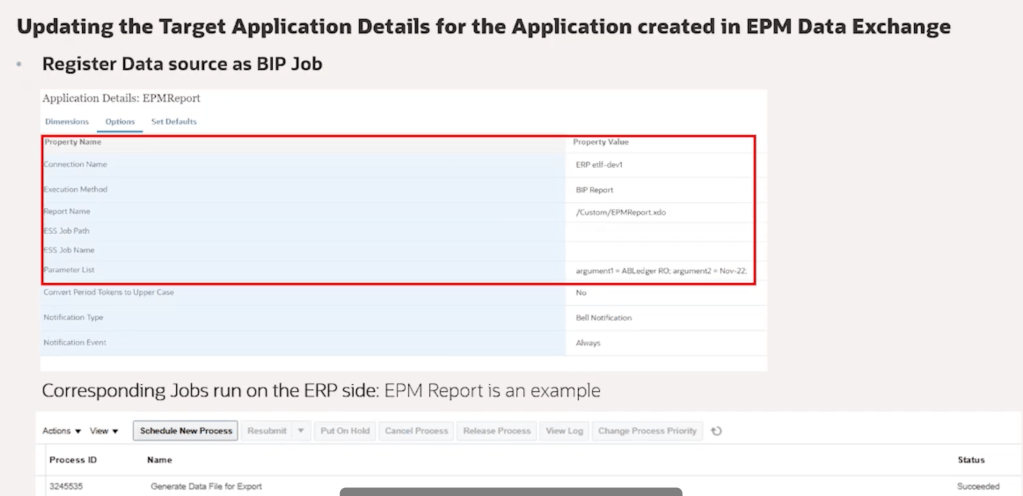
4.2 .Create a target application using the exported BIP report extract in CSV format.
Best Practice.1. To avoid data mismatches caused by changes in the report header or misalignment with the CSV file, it is recommended to create a new target application in EPM Data Exchange instead of modifying the existing application’s options. If a structural change is required, such as a different header layout, Set it up as a new integration instead of changing the existing one—this helps avoid errors and makes it easier to manage in the run.
Best Practice.2. Make sure the parameters listed in the target application match those in the BIP report, and that the row placement order is the same. This helps prevent any data issues during the load.
4.3 . Create an integration to import data from Oracle ERP Cloud into Oracle EPM Cloud. Then, perform dimensional and member mapping according to your business requirements.
- Step 5. Run the integration
By clicking on the play button.Once you execute the integration using BIP report execution method corresponding in the Oracle ERP Cloud side , an ESS job called « Generate Data File for Export » will be executed. This ESS job serves as the process ID you can use to monitor and track the job status within ERP.
If you found this guide helpful, don’t miss the next part where I continue with the detailed steps and final configuration to complete this integration.
👉 Read Part 2 here:

 Sanae BEKKAR - My Blog -
Laisser un commentaire