In today’s article, I’ll guide you through the essential steps to set up your procurement implementation consultant user account quickly and accurately.
As a Procurement Implementation Consultant in Oracle Cloud, your main role is to design, configure, and deploy procurement solutions such as Purchasing, Self Service Procurement, Supplier Portal, and Sourcing.
You work closely with business teams to map their procurement processes into Oracle Procurement Cloud app , ensuring efficient supplier management, requisitioning, purchase order creation, and approvals, while following best practices , streamlining requisition-to-purchase operations, and enabling seamless end-to-end procurement processes to support a successful go-live.
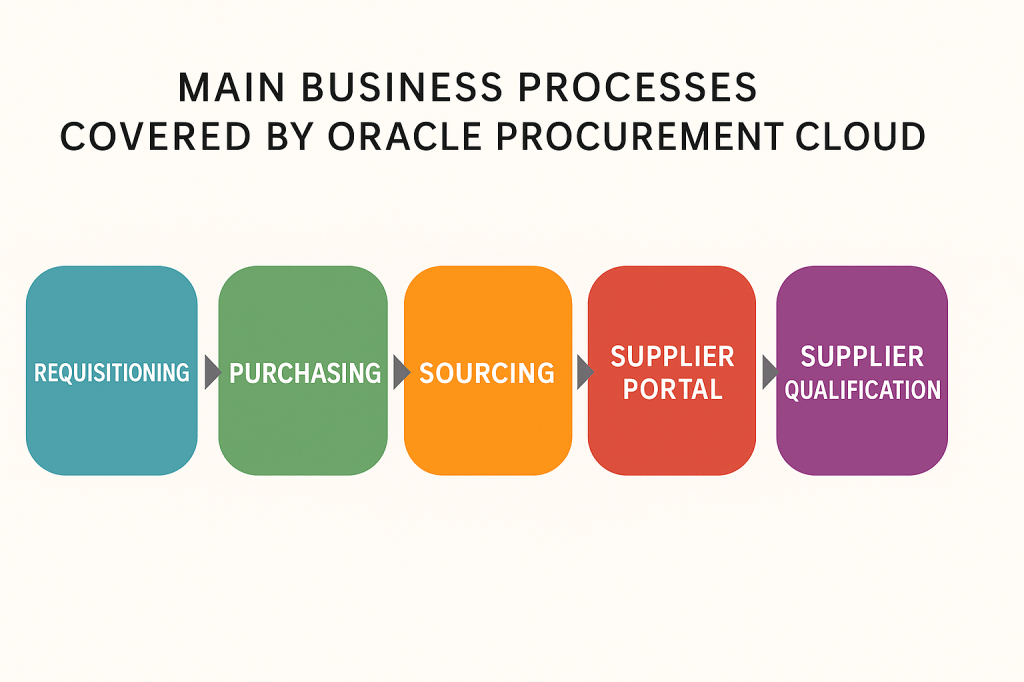
Here is the main business processes (high level design) for Oracle Procurement Cloud app:
Now let’s see how to configure the job role for a new Oracle Procurement consultant .
Step .1. As an IT security manager , you create a new user account .
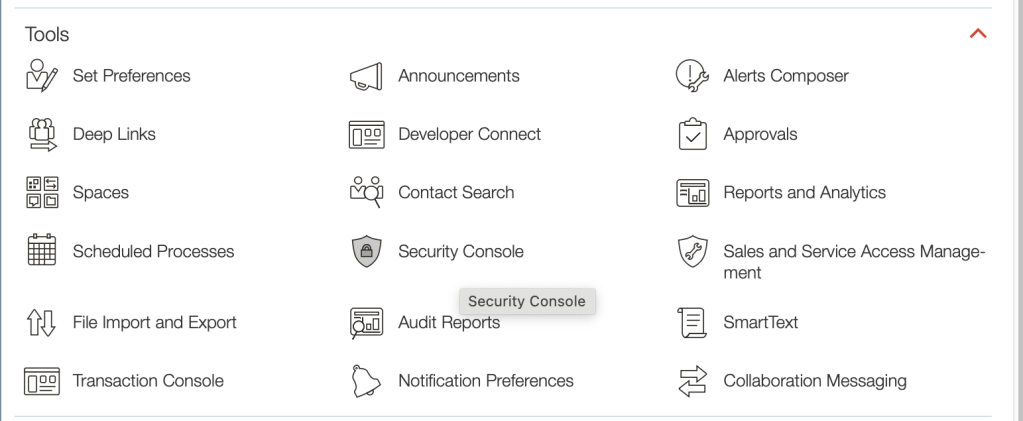
- Access to Tools > Security Console
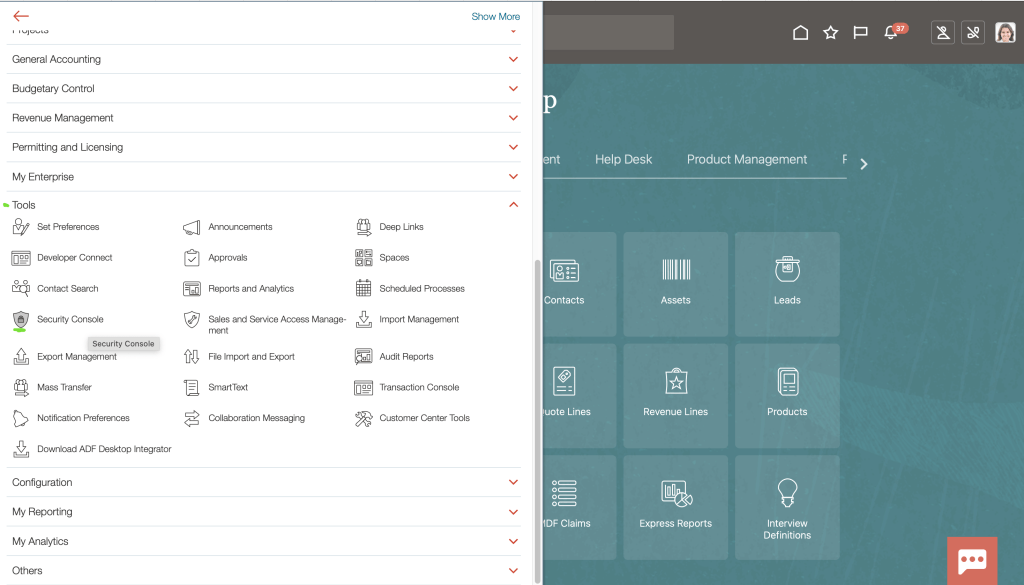
This is the UI for a security admin :
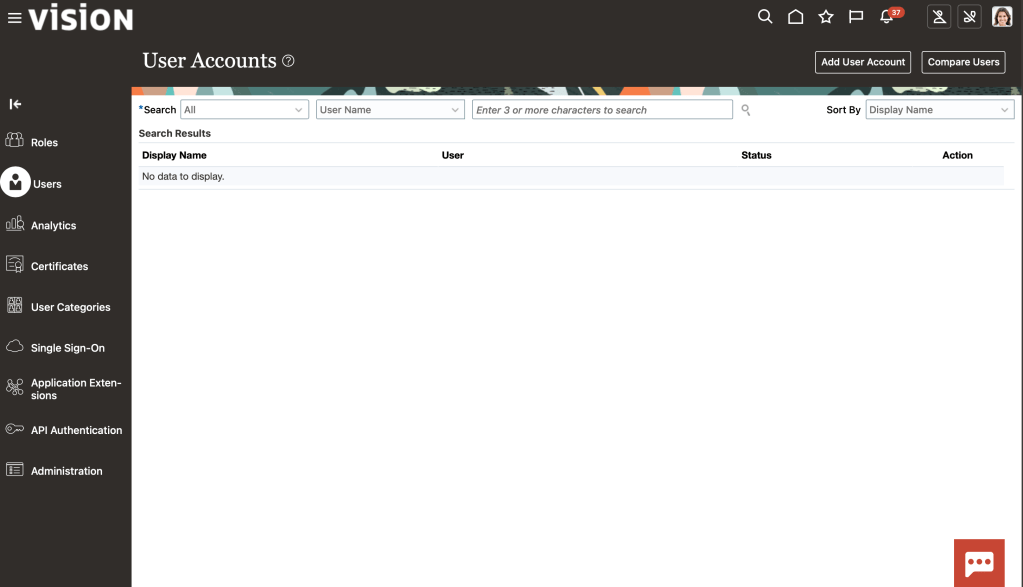
- Then, click Users > Add User Account button
Enter the required information into each field of the form.
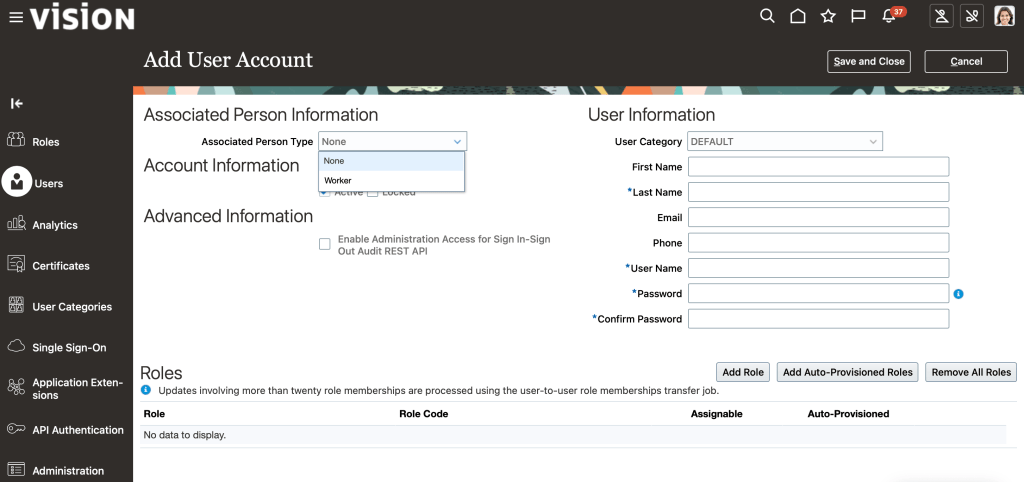
* If Internal worker , then select in Associated person type: worker.
- Step .2. Add a couple of roles : Click « Add Role » >
- Select the standard one : Application implementation consultant (more details about this job role : https://docs.oracle.com/en/cloud/saas/applications-common/25a/oacsm/Application_Implementation_Consultant_job_roles.html#Privileges) .
- Other roles can be added , like : Application implementation manager and can have also access to security console by having this role : IT Security Manager
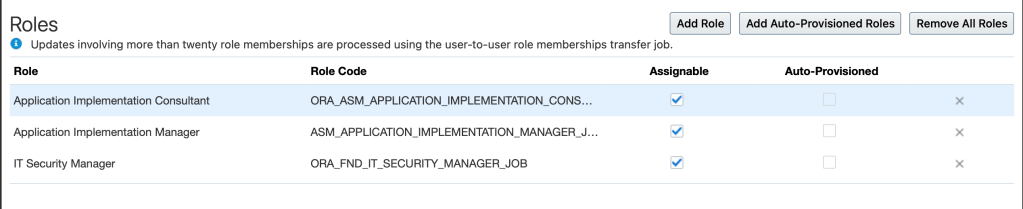
* If you are a procurement manager or inventory manager , you can query those specific roles: PROCUREMENT MANAGER , INVENTORY MANAGER ,etc.
- Step .3. Connect a consultant using your credentials (username/password)
Here how looks like the console:
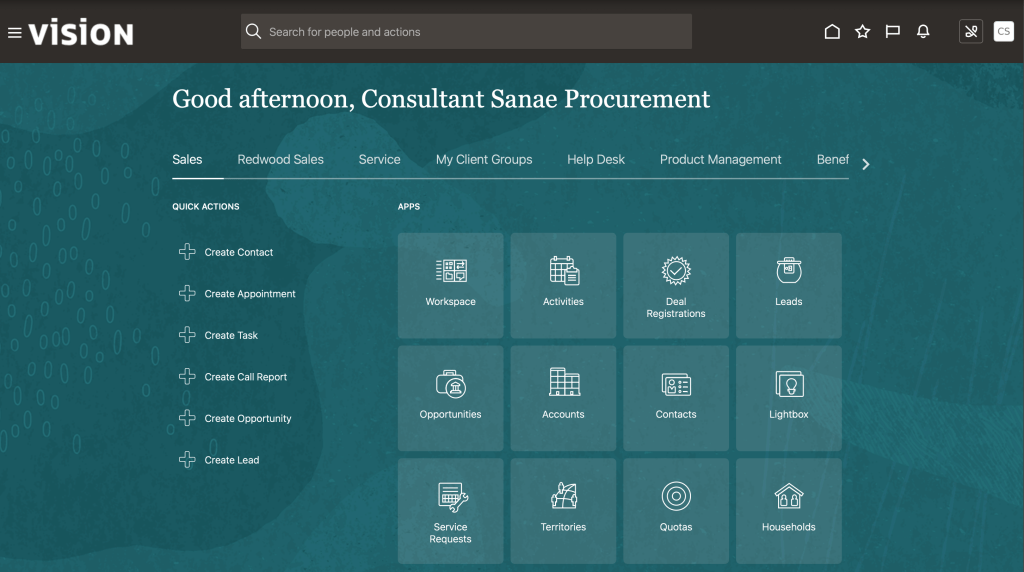
If you go to Tools , you find : Security Console , as an IT Security Manager.
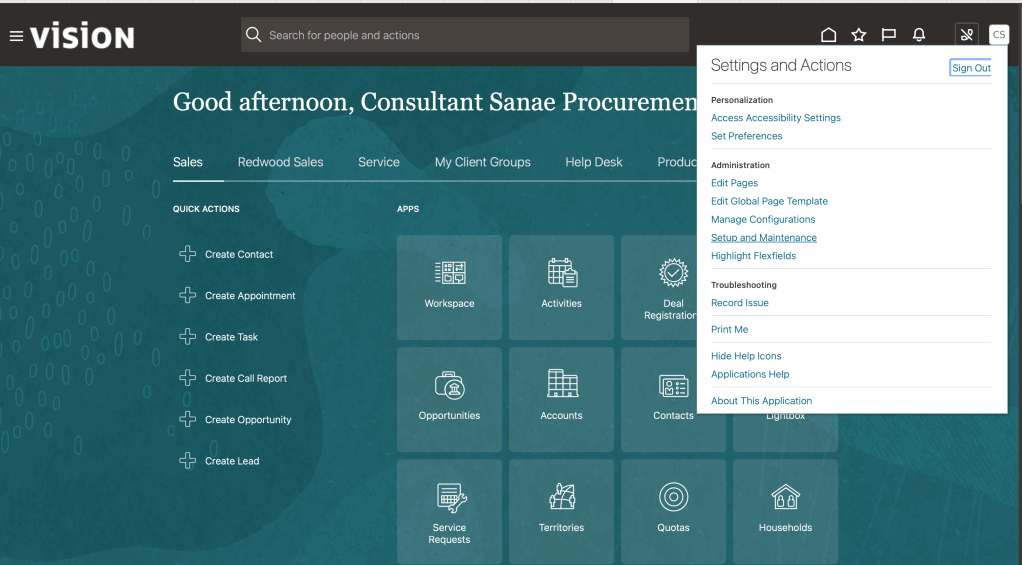
Same as application implementation consultant , you access to « Setup and maintenance « , like shown here :
- Step .4. Now go to: Actions > Offerings > click ‘Opt in Features’
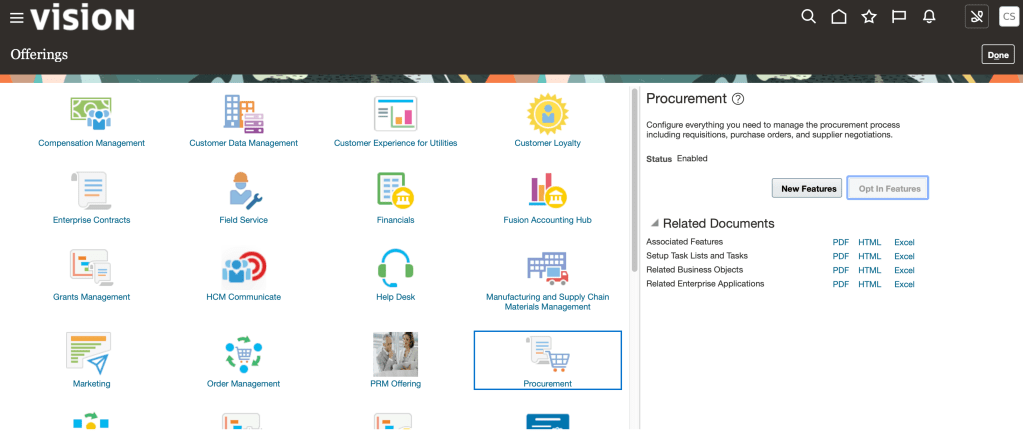
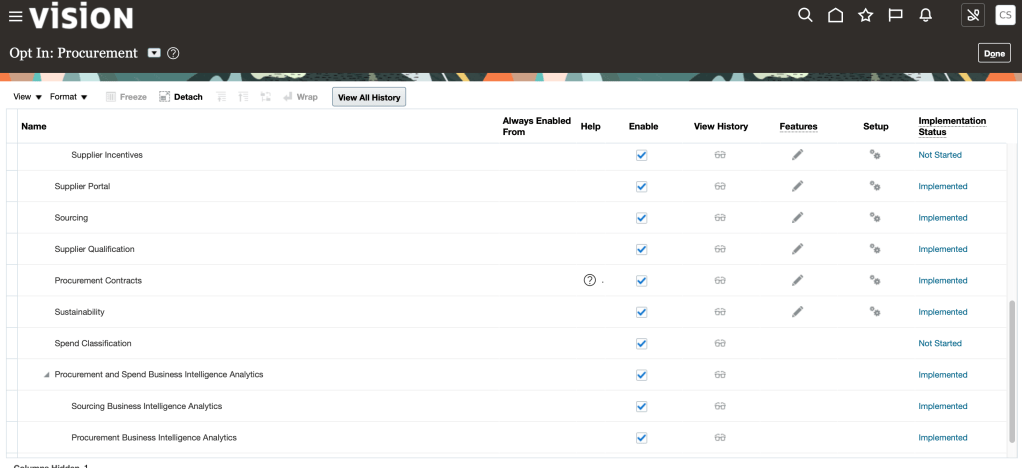
You can enable or disable features accordingly , like enable or not Supplier portal , sourcing module , supplier qualification for example.
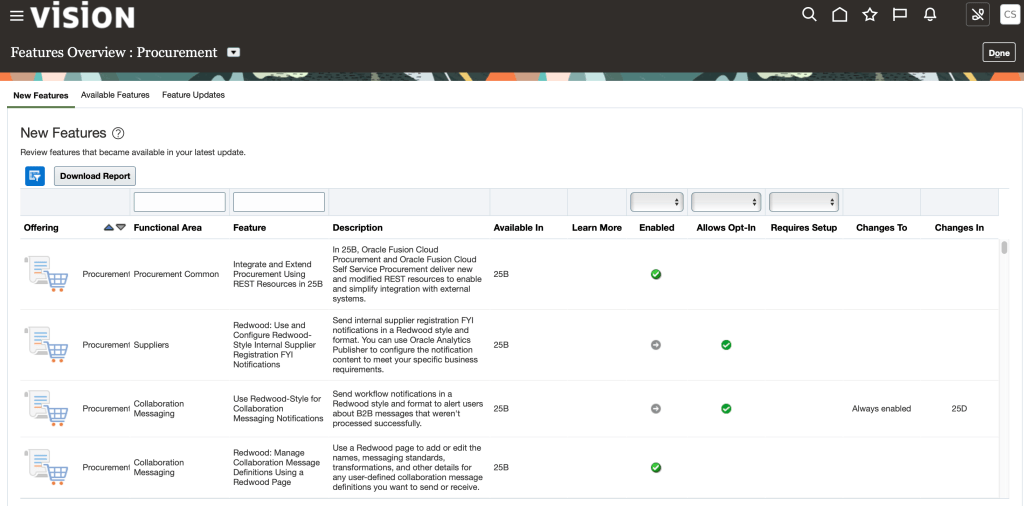
Also, you get the new features introduced in a particular quarterly update.
Now return back to Offerings to start your implementation journey.
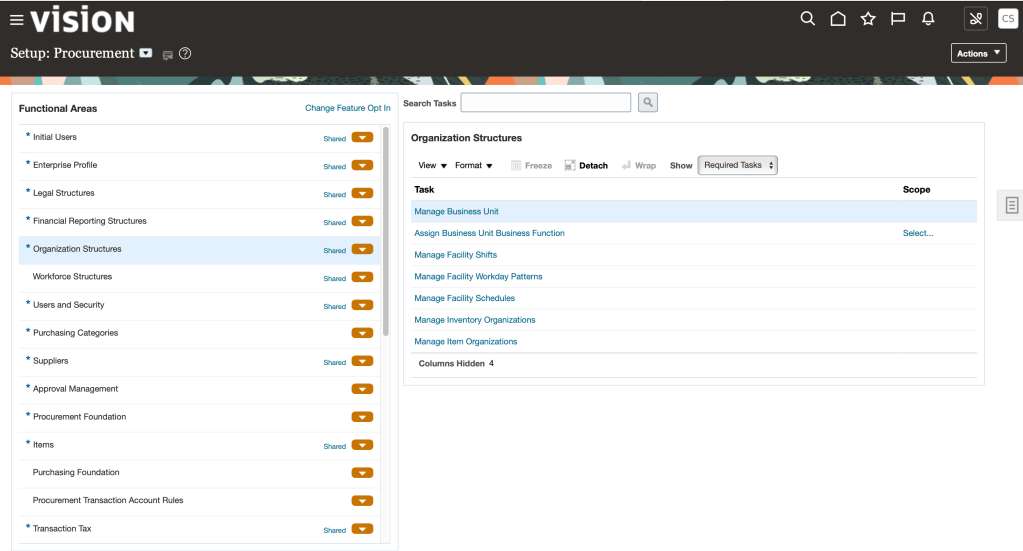
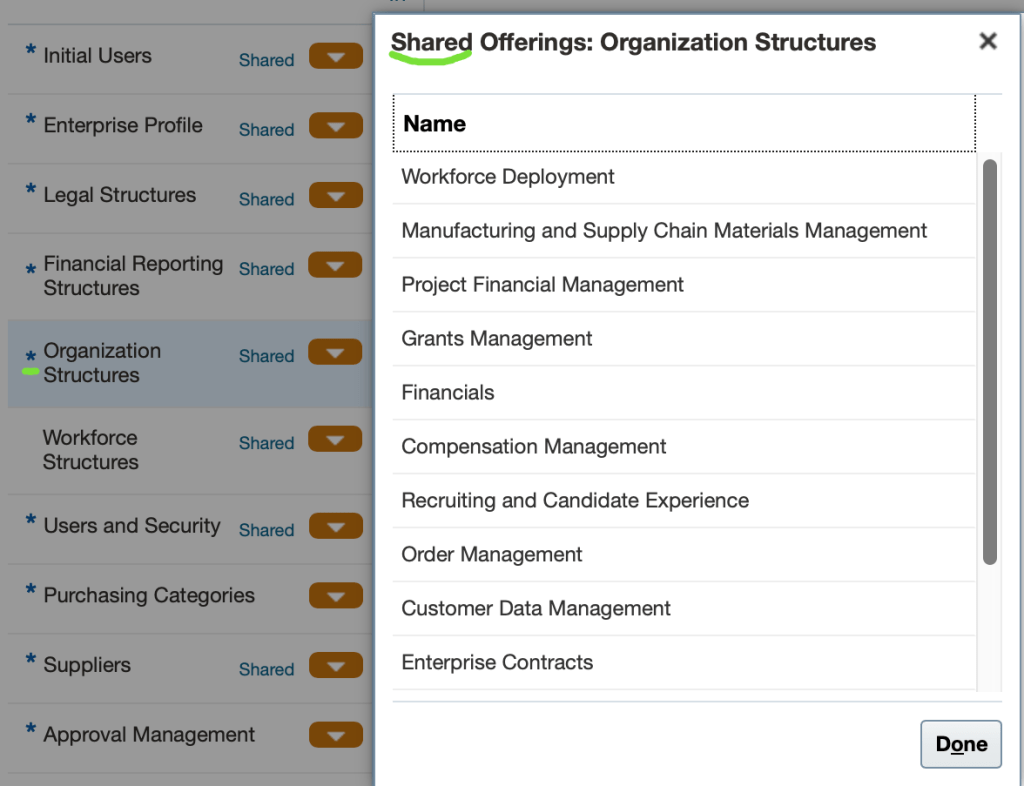
* Shared means shared mode , for example « Organizational Structures » is shared with other features,
 Sanae BEKKAR - My Blog -
Laisser un commentaire