To provide an example of a RESTful web service, I have extended the previous recipe’s invoice service to have full CRUD functionality.
The interface now looks like this:
Resource: http://localhost:9000/invoiceservice/v1/invoice
Supported Methods:
POST invoice – Create Invoice.
GET invoice/{id} – Get (Read) Invoice.
PUT invoice/{id} – Update Invoice.
DELETE invoice/{id} – Delete Invoice.
The invoice document is as follows:
{« Invoice »:
{ « id »: 12345,
« companyName »: « Test Company »,
« amount »: 100 }
}
The service’s implementation is very basic.
The create (POST) method is not idempotent, and it will create new invoice objects on each successful request with IDs of the form invN, where N is a sequence number that starts from 0, for example, inv0, inv1, and so on.
The GET, UPDATE, and DELETE methods will all return HTTP status 404 if an invoice with the specified ID has not previously been created.
The invoices are stored in a Java HashMap, so they will not persist when the server is restarted, and the HashMap is empty on startup.
Tip REST Clients There are many good and free options here.
IDEs such as Eclipse and IntelliJ have a good REST client plugin. Browser-based REST clients are also very good; for Chrome, there is the Postman plugin, and for Firefox, the RESTClient add-on.
When choosing which to use, consider that you will need to amend the proxy settings, at least temporarily, in order to route requests via SoapUI’s proxy. You could also go for a command line option and use something like cURL (http://curl.haxx.se/docs/manpage.html).
Choose whichever option is most convenient for you, but for this recipe I will illustrate the use of Firefox’s RESTClient plugin:
Download the RESTClient add-on in Firefox by going to Tools Menu | Add-ons, search for RESTClient, and click on Add to Firefox. Restart Firefox, and RESTClient should be available in the Tools menu.
Click on the client to open it in a new Firefox tab.
Next, we need to configure Firefox’s proxy settings to point to SoapUI’s proxy:
1. Open Preferences | Advanced | Network.
2. Under Connection, next to Configure how Firefox connects to the Internet, click on Settings.
3. Select Manual proxy configuration and enter the SoapUI proxy details as shown in the following screenshot.
4. Click on OK.
Now, we are ready to use the RESTClient via the SoapUI proxy. As a first test, request the WADL like before, by selecting a method of GET, adding a URL of http://localhost:9000/invoiceservice/v1?_wadl, and clicking on Send. You should see the WADL in the RESTClient response body and see the SoapUI proxy Recorded Requests incremented to 1.
Nothing happened?
Make sure the service is still running; otherwise, connection refused messages will occur.
The server exists after 10 minutes, which is easily adjustable in the source code for the Server class.
Note that other requests via the Firefox browser will also increment the recorded requests. Any unwanted requests can be filtered out later.
Before we try posting or putting any invoice data, we need to change the request’s content type to application/json; otherwise, status 415 Unsupported Media Type messages will occur. To do this:
1. Click on the RESTClient’s Headers menu and select Custom Header.
2. In the Request Header pop up, enter Name as Content-Type and Value as application/json, and then click on OK.
3. You should see Content-Type: application/json in the Headers section on the next page.
Now, let’s do some actual requests! First, let’s create an invoice.
Set the following values:
Method: POST
URL: http://localhost:9000/invoiceservice/v1/invoice
Body: {« Invoice »:
{ « id »: 12345, « companyName »: « Test Company », « amount »: 100 }
}
You should see the Response Header status code 200 OK and a Response Body of:
{ « Invoice »:
{ « id »: « inv0 », « companyName »: « Test Company », « amount »: 100 }
}
Next, update the invoice:
Method: PUT
URL: http://localhost:9000/invoiceservice/v1/invoice/inv0
Body:
{
« Invoice »: {
« id »: 12345,
« companyName »: « Real Company »,
« amount »: 200
}
}
You should see the Response Header status code 200 OK and a Response Body of:
{
« Invoice »: {
« id »: « inv0 »,
« companyName »: « Real Company »,
« amount »: 200 }
}
Next, get the invoice, method GET, and URL http://localhost:9000/invoiceservice/v1/invoice/inv0. You should see a response of status code 200 OK and the same body as earlier.
Now, delete the invoice, method DELETE, and URL http://localhost:9000/invoiceservice/v1/invoice/inv0.
You should see a response of 200 OK without any response body.
Lastly, try to get that invoice again and you should see a response of status code 404 Not Found.
Now, to generate the SoapUI test artefacts, perform the following steps:
1. Go back to SoapUI and click on Done. The window should change and present you with a tree view of all the requests you submitted.
2. Next, click on Generate services and select Services + TestSuite. Then, enter a name for the TestSuite, for example, TestSuite Rest Discovery.
3. Click on OK to create TestCase.
4. A Success pop up should be displayed; click on OK to close discovery, and you should see all the generated requests, TestSuite, TestCase, and TestSteps for each of the requests in a new project called Project 1. Finished!
How it works…
SoapUI sets up its own proxy to listen to all HTTP traffic routed through it.
When you make a request through the REST client, SoapUI is able to extract the details and build up a list of sample requests.
Then, when you have finished recording, SoapUI uses the list of requests to generate test artifacts in the same way it would if the requests had come from another source, for example, a WADL.
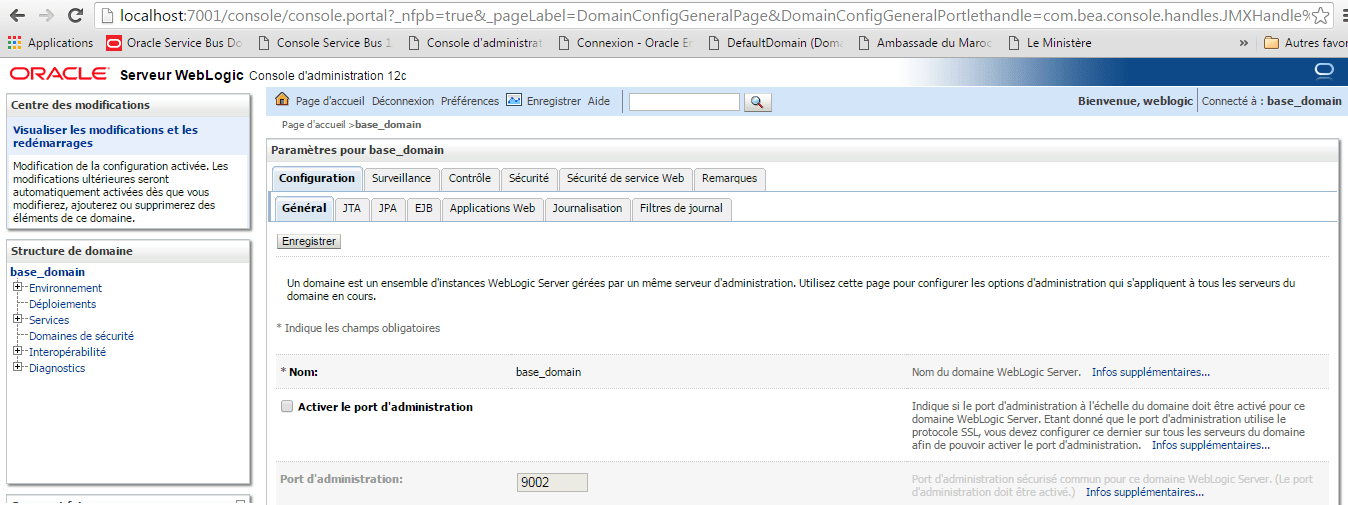
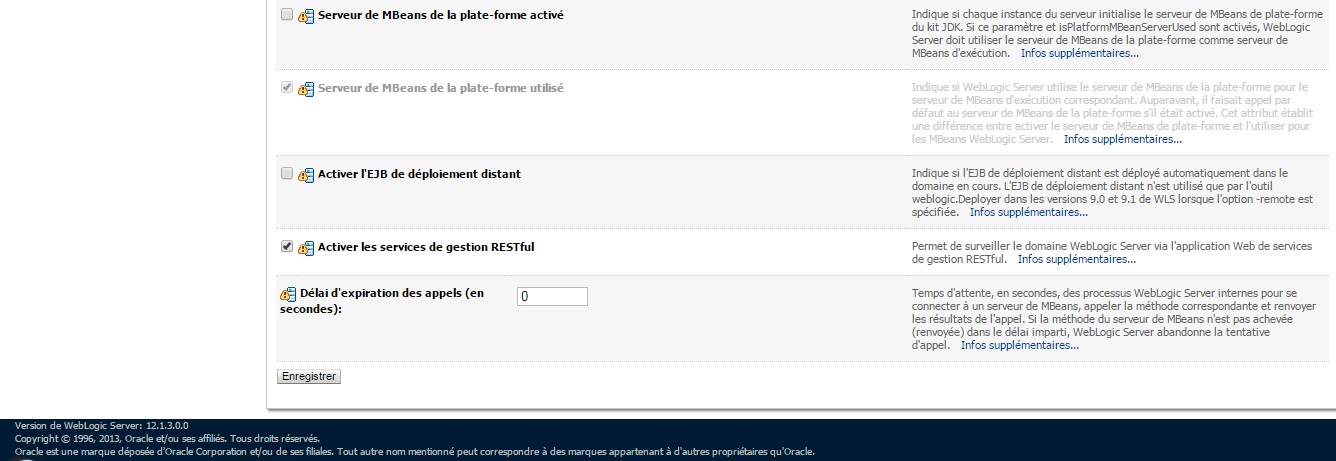
To Enable REST Web Service using WebLogic :
 Sanae BEKKAR - My Blog -
Laisser un commentaire