Running Archiver as a Standalone Application
The following information details how to run Archiver as a standalone application, which is required to create collections.
To run Archiver in Windows:
To run Archiver on a Windows operating system:
1. Select the application from the Windows Start menu, then choose Programs, then Content Server, then instance, then Analyzer.
A login window or application window opens.
2. If required, enter the administrator login name and password, then click OK. The Main Archiver window opens.
To run Archiver in UNIX:
To run Archiver on a UNIX operating system:
1. Navigate to the DomainHome/ucm/cs/bin/ directory.
2. Enter ./archive
3. If required, enter the administrator login name and password. The Main Archiver window of the application opens.
Archiving Content Server content consists of three elements:
the archive itself,
a collection,
and a batch file.
Understanding Importing
Files Using the Import function of Archiver, you can move archives into the Content Server repository according to specified rules and at specified times.
The data in the files can be mapped to fields in the receiving Content Server instance, but care should be taken that the correct rules are applied during import.
The Content Server instance to which you are importing must have the same metadata fields, security groups, and accounts as the instance that the archive was exported from. Errors can result if there are mismatches.
Before beginning the import process, consider the following points:
■ Determine the method to be used, either manual or automatic.
■ Determine the rules to be used for updating.
■ Determine the mapping and import options.
■ Test your process by importing selected revisions.
Import Uses
Typical uses for the Import function include:
■ Placing data archived from an intranet on an extranet for vendor or customer viewing.
■ Changing metadata for a large number of content items.
For example, if an employee leaves the organization, you could export all of their content items and then import them with another user specified as the Author.
■ Restoring content that was inadvertently deleted or configuration information that was inadvertently changed.
■ Copying files, content types, and user attributes from a development Content Server archive to a production instance.
Import Methods
You can import archives in the following ways:
■ Manual: A one-time import initiated from Archiver by an administrator.
■ Automatic (Replication): Import from a local archive is initiated automatically, about once per minute.
An import rule
defines how revisions are added, replaced, or deleted during import.
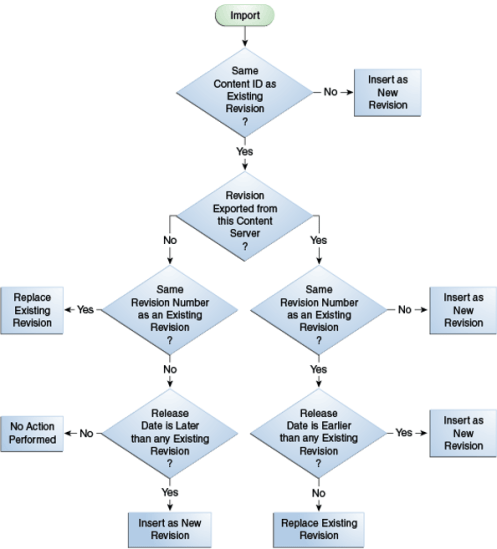
■ During import, Archiver compares each revision being imported with the existing revisions in the importing Content Server instance.
The import rule specifies which action to take (add, replace, delete, or ignore), depending on comparison of the following information:
– Content ID
– Original Content Server
– Revision number
– Release date
■ Only one import rule can be selected for each import of an archive.
Use the Update import rule to replace existing revisions and insert new revisions.
■ If an imported revision has a different Content ID (dDocName) than any existing revision, the imported revision is inserted as a new revision.
■ If an imported revision has the same Content ID (dDocName) as an existing revision, the imported revision is inserted, ignored, or replaces the latest existing revision.
 Sanae BEKKAR - My Blog -
Laisser un commentaire