You can configure Oracle Fusion Middleware to secure communications with WebCenter Content using SSL, which is an industry standard for securing communications. Oracle Fusion Middleware supports SSL version 3, as well as TLS version 1.
Configuring WebCenter Content for Two-Way SSL Communication
WebCenter Content uses the Oracle WebLogic Server secure socket layer (SSL) stacks for two-way SSL configurations.
■ For the inbound Web service bindings, WebCenter Content uses the Oracle WebLogic Server infrastructure and, therefore, the Oracle WebLogic Server libraries for SSL.
■ For the outbound Web service bindings, WebCenter Content uses JRF HttpClient and, therefore, the Oracle Sun JDK libraries for SSL.
Due to this difference, start Oracle WebLogic Server with the following JVM option:
1. Open the following file:
■ On UNIX operating systems, open $MIDDLEWARE_HOME/user_ projects/domains/domain_name/bin/setDomainEnv.sh.
■ On Window operating systems, open MIDDLEWARE_HOME\user_ projects\domains\domain_name\bin\setDomainEnv.bat.
2. Add the following lines in the JAVA_OPTIONS section, if the server is enabled for one-way SSL (server authorization only):
-Djavax.net.ssl.trustStore=your_truststore_location
For two-way SSL, the keystore information (location and password) is not required. To enable two-way SSL for WebCenter Content to invoke another application:
1. On the client side, provide the keystore location.
a. From the SOA Infrastructure menu, choose SOA Administration, then Common Properties.
b. At the bottom of the page, click More SOA Infra Advanced Configuration Properties.
c. Click KeystoreLocation.
d. In the Value column, enter the keystore location.
e. Click Apply.
f. Click Return.
2. On the client side, provide the keystore location in DOMAIN_ HOME\config\soa-infra\configuration\soa-infra-config.xml.
<keystoreLocation>absolute_path_to_the_keystore_location_and_the_file_name </keystoreLocation>
3. During design time in Oracle JDeveloper, update the reference section in the composite.xml file with the oracle.soa.two.way.ssl.enabled property.
<reference name= »Service1″ ui:wsdlLocation= ». . . »> <interface.wsdl interface= ». . . »/> <binding.ws port= ». . . »> <property name= »oracle.soa.two.way.ssl.enabled »>true</property> </binding.ws> </reference>
4. In Oracle Enterprise Manager Fusion Middleware Control Console, select WebLogic Domain, then domain_name.
5. Right-click domain_name and select Security, then Credentials.
6. Click Create Map.
7. In the Map Name field, enter a name (for example, SOA), and click OK.
8. Click Create Key.
9. Enter the following details: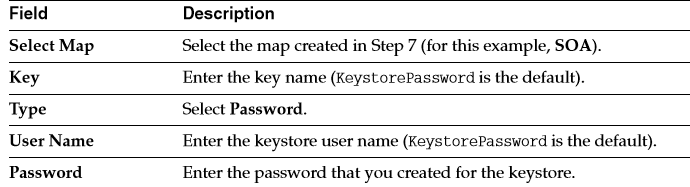 10. Set the keystore location in Oracle Enterprise Manager Fusion Middleware Control Console. See Step 1 for instructions.
11. Modify the composite.xml syntax to use https and sslport to invoke Oracle WebCenter Content. For example, change the syntax shown in bold:
<?xml version= »1.0″ encoding= »UTF-8″ ?> <!– Generated by Oracle SOA Modeler version 1.0 at [4/1/09 11:01 PM]. –> <composite name= »InvokeEchoBPELSync » revision= »1.0″ label= »2009-04-01_23-01-53_994″ mode= »active » xmlns= »http://xmlns.example.com/sca/1.0″ xmlns:xs= »http://www.w3.org/2001/XMLSchema » xmlns:wsp= »http://schemas.xmlsoap.org/ws/2004/09/policy » xmlns:orawsp= »http://schemas.example.com/ws/2006/01/policy » xmlns:ui= »http://xmlns.example.com/soa/designer/ »> <import namespace= »http://xmlns.example.com/CustomApps/InvokeEchoBPELSync/BPELProcess1″ location= »BPELProcess1.wsdl » importType= »wsdl »/> <import namespace= »http://xmlns.example.com/CustomApps/EchoBPELSync/ BPELProcess1″location= »http://hostname:port/soa-infra/services/default/EchoBPEL Sync/BPELProcess1.wsdl » importType= »wsdl »/>
to use https and sslport:
location= »https://hostname:sslport/soa-infra/services/default/EchoBPELSync /BPELProcess1.wsdl » state= »on »
 Sanae BEKKAR - My Blog -
Laisser un commentaire