Keep these considerations in mind when you define security groups:
■ Define security groups before anyone checks in files that must be secure.
■ The number of security groups should be kept at a minimum to provide optimum search performance and user administration performance.
If your security model requires more than 50 security classifications, you should enable accounts and use them to control user permissions.
This number varies depending on Search Performance and User Admin Performance.
■ Put all files that share the same access into one security group.
■ Set up a logical naming convention for your security groups.
Search Performance : is affected by the number of security groups a user has permission to access.
To return only content that a user has permission to view, the database WHERE clause includes a list of security groups.
The WHERE clause either includes all of the security groups the user has permission to access, or it includes all of the security groups the user does not have permission to access. Which approach is taken depends on whether the user has permission to more than 50% or fewer than 50% of the defined security groups.
For example, if 100 security groups are defined, and a user has permission to 10 security groups, the 10 security groups will be included in the WHERE clause.
In contrast, for a user with permission to access 90 security groups, the WHERE clause includes the 10 security groups the user does not have permission to access.
Therefore, if a user has permission to almost 50% of the security groups, the search performance is less efficient.
If a user has permission to all or none of the security groups, the search performance is more efficient.
User Admin Performance : The total number of security groups multiplied by the total number of roles determines the number of rows in the RoleDefinition database table, which affects the performance of the User Admin application for operations involving local users.
To determine the approximate time required to perform an operation in the User Admin application, such as adding a security group or changing permission for a role, use the following formula:
(# of security groups) X (# of roles) / 1000 = Time of operation in seconds
For example, using a PC with a 400 MHz processor, 128 MB of RAM, it took approximately 10 seconds to add a security group, or role, or both, using the User Admin application when the RoleDefinition table has 10,000 rows.
As the number of security groups increases, administration performance is affected more than consumer search performance
For example, use department names if you are setting up an intranet, and use levels of security (internal, classified, and so forth) if you are setting up an extranet.
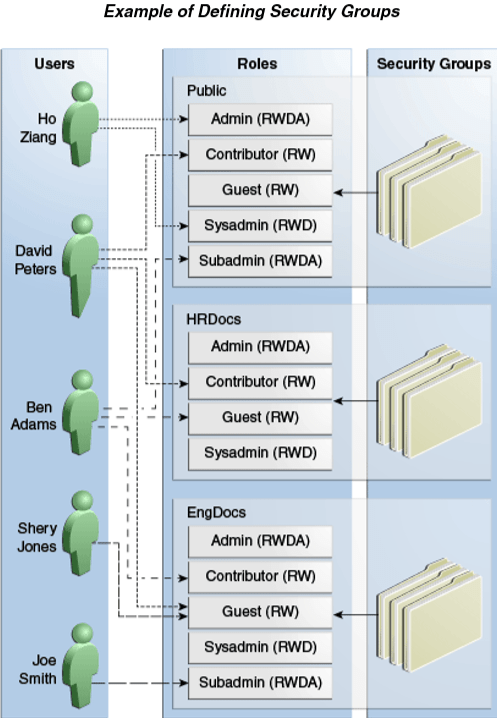
For example, the following figure shows three defined security groups (Public, HRDocs, and EngDocs). They are associated with five users assigned different roles (Admin, Contributor, Guest, Sysadmin, Subadmin) and specific sets of permissions (Read, Write, Delete, Admin).
Adding a Security Group on Content Server
To create a security group and assign permissions:
1. From the User Admin window, choose Security, then Permissions by Group.
2. In the Permissions By Group window, click Add Group.
3. In the Add New Group window, enter a group name and description.
4. Click OK.
5. Set permissions for the security group:
a. Select the security group.
b. Select the role to edit.
c. Click Edit Permissions.
d. After enabling the permissions that you want the role to have for the group, click OK to close the Permissions by Group page.
Deleting a Security Group on Content Server
To delete a security group:
1. Make sure that no content items are assigned to the security group you want to delete. You cannot delete a security group if content still exists in that security group.
2. From the User Admin window, choose Security, then Permissions by Group.
3. In the Permissions By Group window, select the group you want to delete.
4. Click Delete Group.
5. Click Yes. The security group is deleted.
6. After you have deleted the security group, click OK to close the Permissions by Group page.
 Sanae BEKKAR - My Blog -
Laisser un commentaire