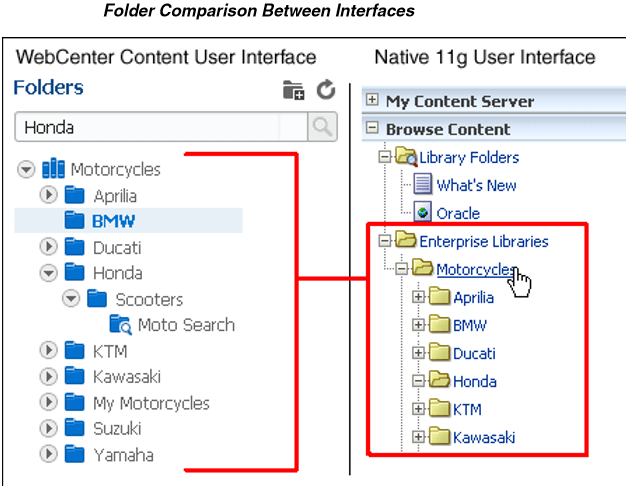
The folders in the WebCenter Content user interface are not visible in the native 11g user interface by default but can be enabled.
If enabled, folders as used in the WebCenter Content interface are displayed in the Browse Content tray under Folders. Using folders differs between the WebCenter Content and native 11g user interfaces.
Folders and Files
Folders is the name given to the current WebCenter Content feature that provides a hierarchical folder interface, similar to a conventional file system, for organizing and locating some or all of the content in the Content Server repository.
This feature is supported by the FrameworkFolders component in WebCenter Content.
Users can easily view the relationship between folders and subfolders and can browse
to a group of content items.
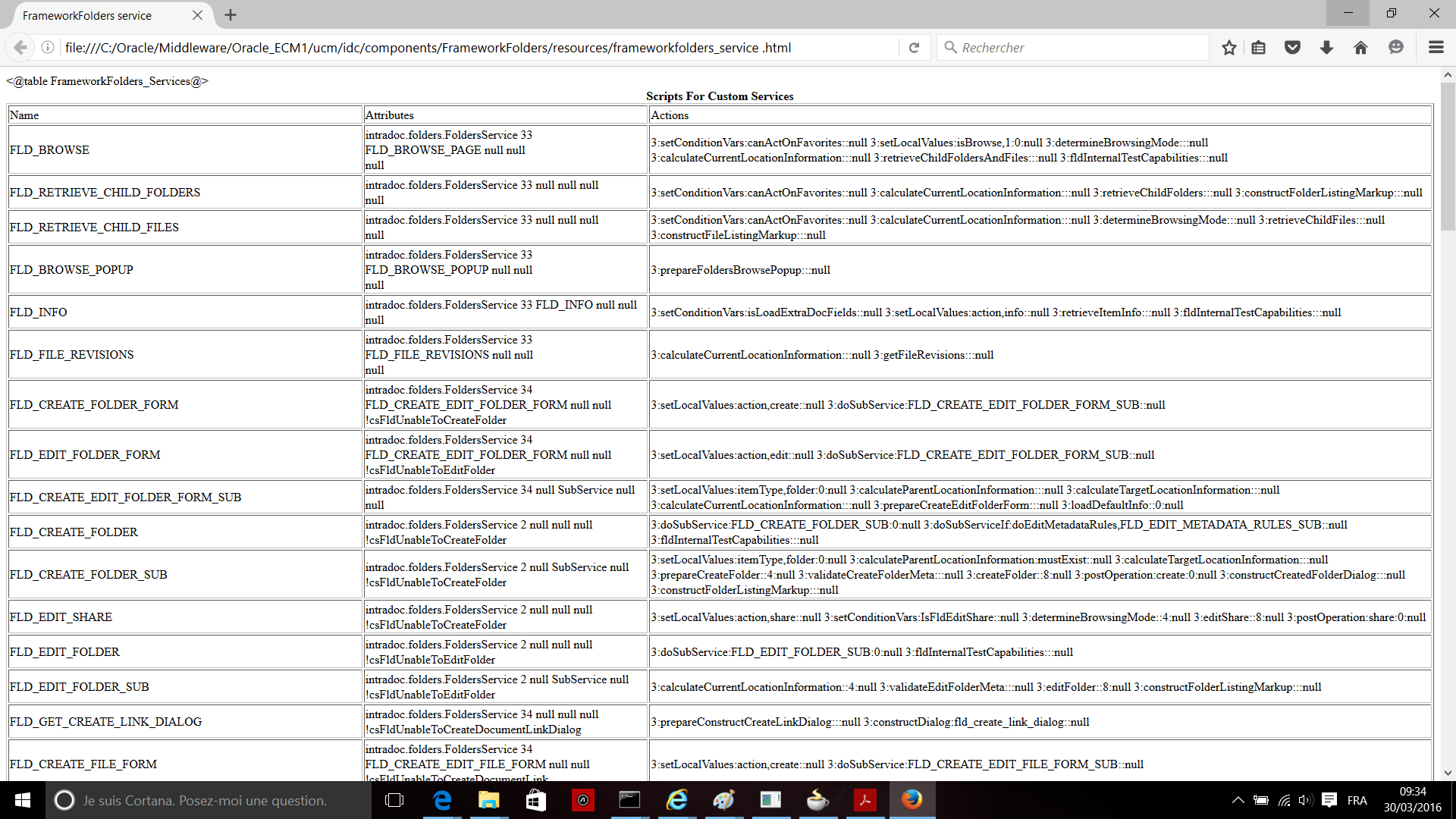
Individual Folders service types are noted in each service description. The following services are listed:
■ FLD_BROWSE
■ FLD_BROWSE_POPUP
■ FLD_COPY
■ FLD_CREATE_FILE
■ FLD_CREATE_FILE_FORM
■ FLD_CREATE_FOLDER
■ FLD_CREATE_FOLDER_FORM
■ FLD_DELETE
■ FLD_EDIT_FILE
■ FLD_EDIT_FILE_FORM
■ FLD_EDIT_FOLDER
■ FLD_EDIT_FOLDER_FORM
■ FLD_EDIT_METADATA_RULES
■ FLD_EDIT_METADATA_RULES_FORM
■ FLD_FOLDER_MIGRATION_STATUS
■ FLD_FOLDER_SEARCH
■ FLD_FOLDER_SEARCH_FORM
■ FLD_GET_CHOOSE_DESTINATION_DIALOG
■ FLD_GET_CREATE_LINK_DIALOG
■ FLD_GET_CREATE_SHORTCUT_DIALOG
■ FLD_GET_RENAME_FILE_DIALOG
■ FLD_GET_RENAME_FOLDER_DIALOG
■ FLD_INFO
■ FLD_LOAD_SOFT_LINKS_FOR_DOCUMENT
■ FLD_MIGRATION_FOLDER_DATA
■ FLD_MOVE
■ FLD_PRE_CHECKIN
■ FLD_PROPAGATE
■ FLD_PROPAGATE_FORM
■ FLD_REINDEX_FOLDER_CONTENTS
■ FLD_RETRIEVE_CHILD_FILES
■ FLD_RETRIEVE_CHILD_FOLDERS
■ FLD_SUBSCRIBE
■ FLD_TEST_USER_CAPABILITIES
■ FLD_UNFILE
■ FLD_UNSUBSCRIBE (**See Ebook : Services Reference for Oracle WebCenter Content )
Example – FLD_INFO
FLD_INFO Service that returns information about a particular folder or file in Folders.
Service Class: intradoc.folders.FoldersService Location: IdcHomeDir/components/frameworkfolders/resources/frameworkfolders_ service.htm
Required Service Parameters
■ path: The path to the folder or file whose information is being requested. This parameter must be specified if no fFolderGUID or fFileGUID parameter is specified.
■ fFolderGUID: The GUID of the folder whose information is being requested. This parameter must be specified if no path or fFileGUID parameter is specified.
■ fFileGUID: The GUID of the file whose information is being requested. This parameter must be specified if no path or fFolderGUID parameter is specified.
Results
■ ResultSets:
– FileInfo: Information about the link to the document (file). Also the metadata associated with the document itself.
– FolderInfo: Information about the folder.
– TargetInfo: Information about the target (shortcut).
■ filePath: (string) The full path to the item if the item is a document link.
■ folderPath: (string) The full path to the item if the item is a folder.
■ targetPath: (string) The full path to the target item if the item is a shortcut.
Using Folders, users can perform the following actions with the privileges defined by Content Server’s standard security model:
■ Browse to locate content items for check-in, check-out, and to view and change
folder and item information.
■ Create new folders and subfolders.
■ Create new content items in a folder or add existing repository content to a folder.
■ Add shortcuts to folders or content items in one or more locations. Shortcuts act as
placeholders for the referenced content item.
■ Move or copy folders or files to other locations.
■ Rename a folder or file.
■ Remove a file from the folders hierarchy. This does not affect the associated
content item. ■ Delete a folder or file. When deleted, the folder or file and any shortcuts to it are
removed from the folders hierarchy. Any content items associated with the files
are set to expired in the repository.
■ Make a folder ReadOnly. Making a folder read only prevents renaming, moving,
or deleting the folder; however, content can still be checked into the folder.
■ Create a query folder that contains content items returned by the query associated
with the folder. For more information about query folders.
■ Create a retention query folder and assign retention rules for the content items
returned by the query.
■ Assign folder security and values for content items created in the folder. Specified
metadata values can be propagated to the contents of a folder or propagation can
be blocked for a given folder.
The Folders interface follows several conventions familiar to users of file systems:
■ Use standard Windows naming conventions when creating folders. Do not use the
following characters:
? #& /\* » |< > :^
■ Content Server can store multiple files of the same name as separate content items.
However, in the Folders interface, file names in a given folder must be unique (in
the same way that a folder in Windows cannot contain two files with the same
name).
Important: All services have at least one required parameter. The IdcService parameter takes the name of the service as its argument. If other parameters are required, they are noted in the description of the service.
Updating Folders_g Component Configuration
You can update configuration settings for the Folders_g component with the Advanced Component Manager or the Configure for Instance screen, whether the component is enabled or disabled.
The best practice is to keep the default settings unless there is a good business case to make any changes.
To update the configuration using the Advanced Component Manager:
1. Choose Administration from the Content Server tray or menu, then choose Admin Server, then Component Manager.
2. On the Component Manager page, click advanced component manager and choose Folders_g from the Update Component Configuration list.
3. Click Update. The Update Component Configuration page appears.
4. If the component is not enabled, look at the Disabled Components list to find the name of the component to configure, then select the component name and click Enable.
5. Make your configuration changes, then click Update.
If you want to cancel your changes, click Reset. If you want to change the settings to their original configuration, click Revert to Install Settings.
6. Restart the Content Server instance.
**https://docs.oracle.com/middleware/11119/wcc/CSSRG.pdf
 Sanae BEKKAR - My Blog -
Laisser un commentaire