The first step in installing the WebCenter is to set up :
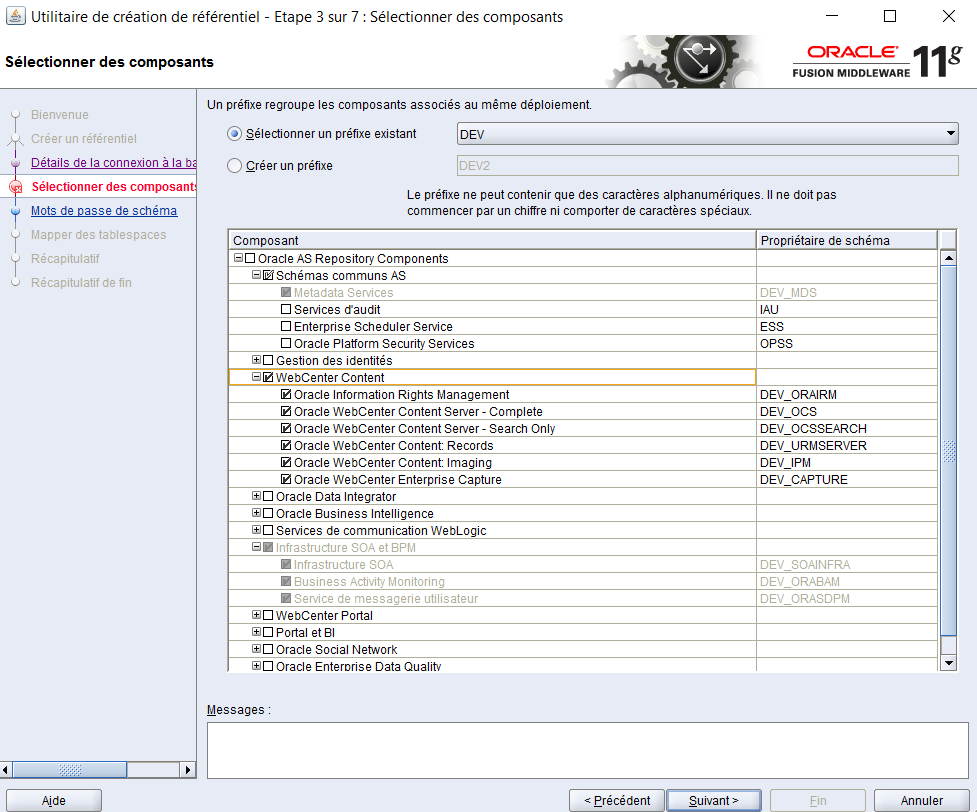
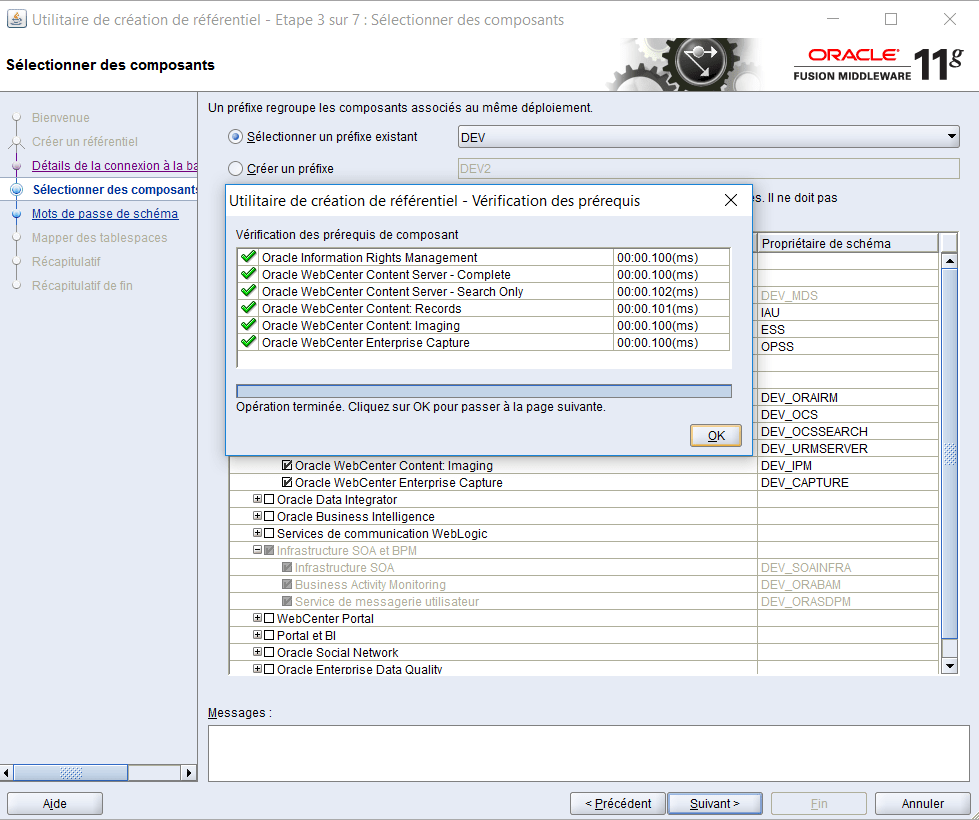
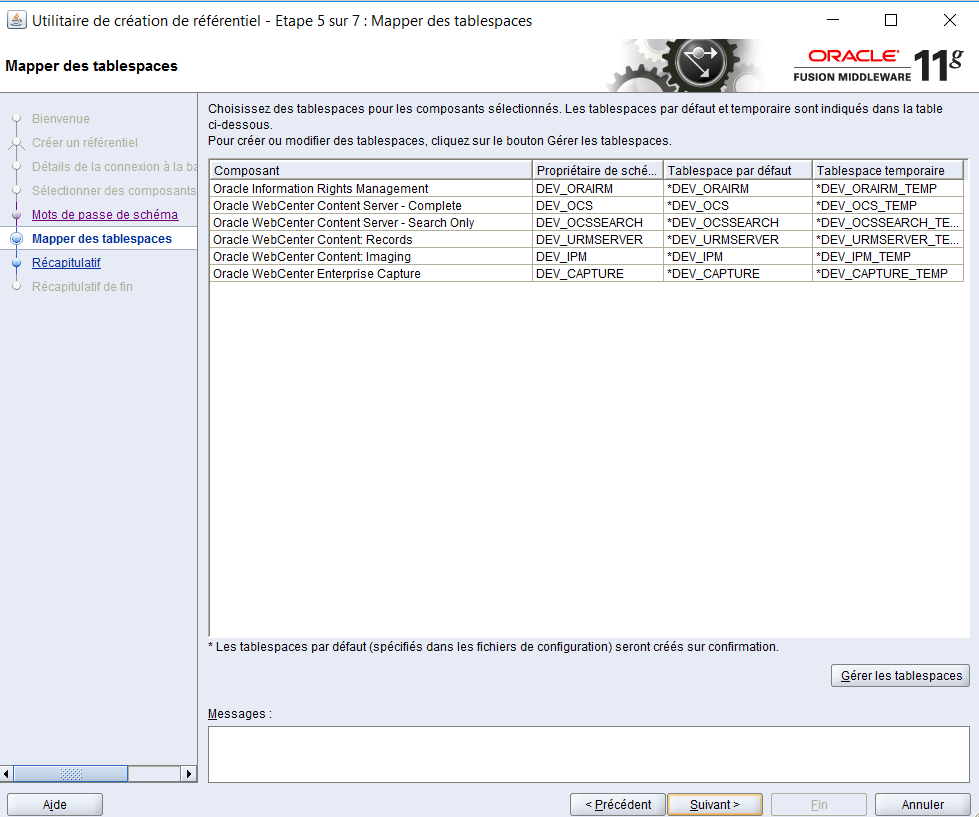
1. Creating Schemas with RCU :

2. Then , Installing WebCenter server :
In a command window enter:
cd c:\stageFMW\WCPS1\Disk1 setup.exe -jreLoc C:\Oracle\Middleware\..\jdk160_18
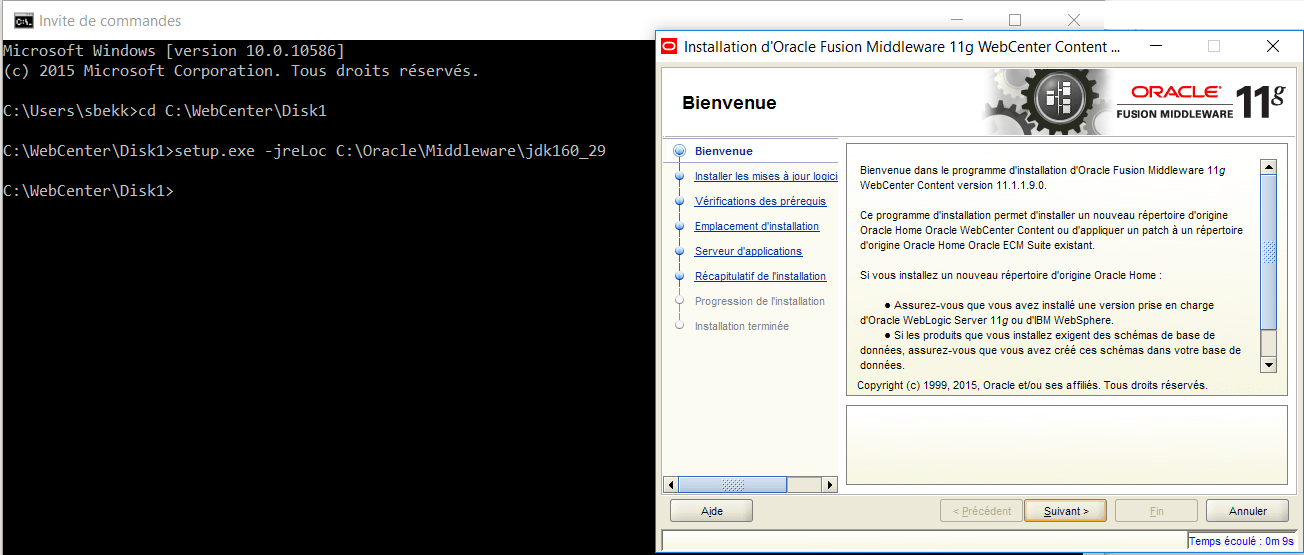
When the pre-requisites check completes, click on Next .
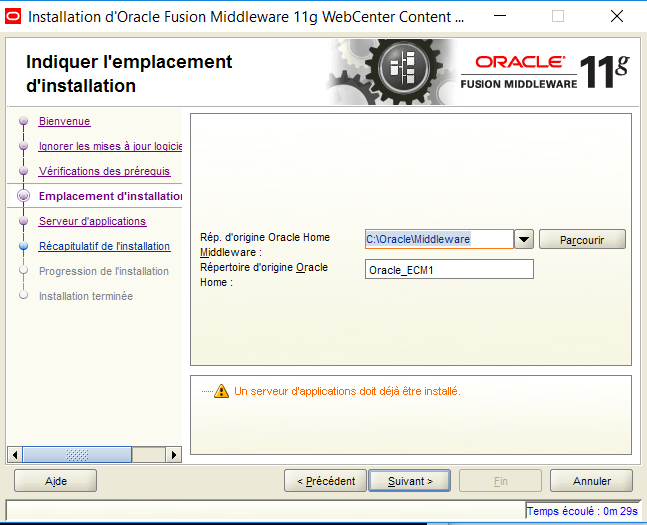
Select the Middleware home and enter the Oracle Home Directory . Click on Next .
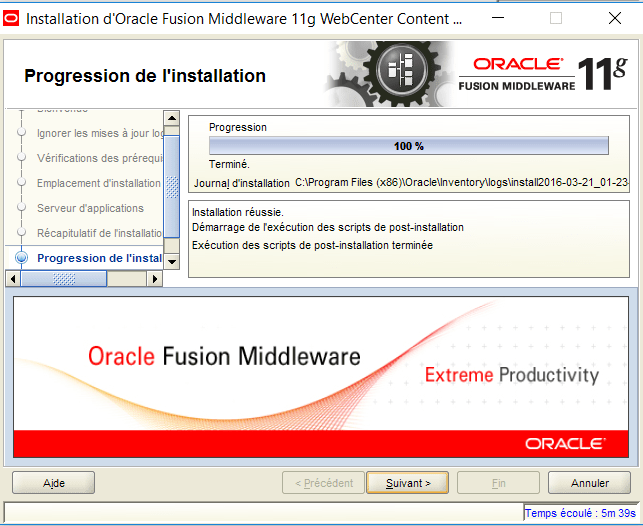
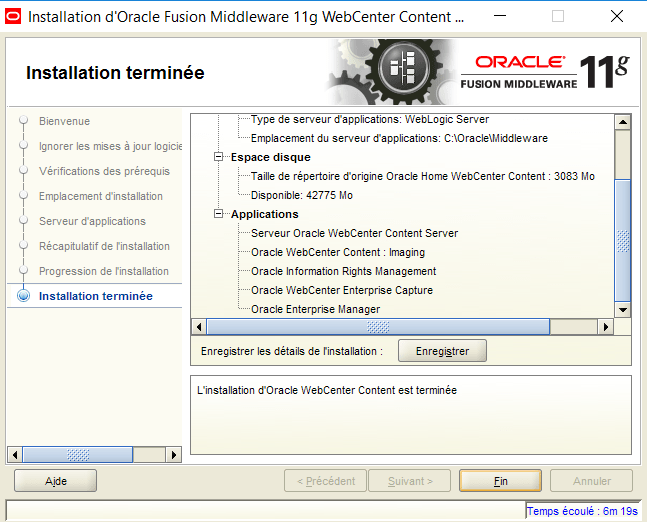
When the installation is complete, click on Save Installation Summary to save the summary to a file. This includes configuration and port information you may need later. Click on Finish
3. Extend WLS Domain for WebCenter :
Now that WebCenter and UCM are installed, you need to configure WebCenter to join your WLS domain.
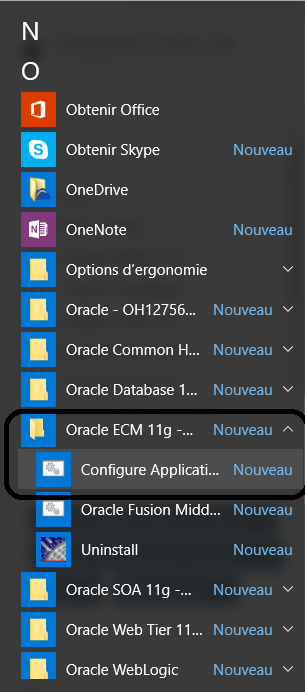
1. Or In a command window enter:
cd C:\Oracle\Middleware\home_ps2\Oracle_WC1\common\bin config.cmd
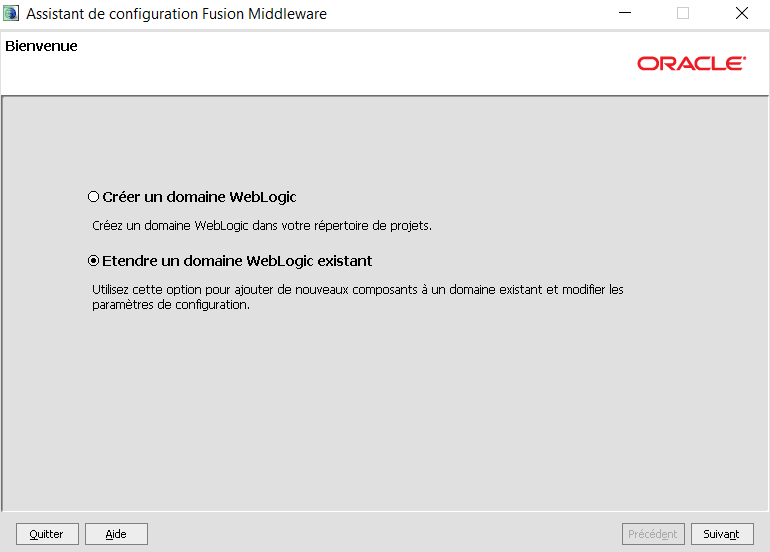
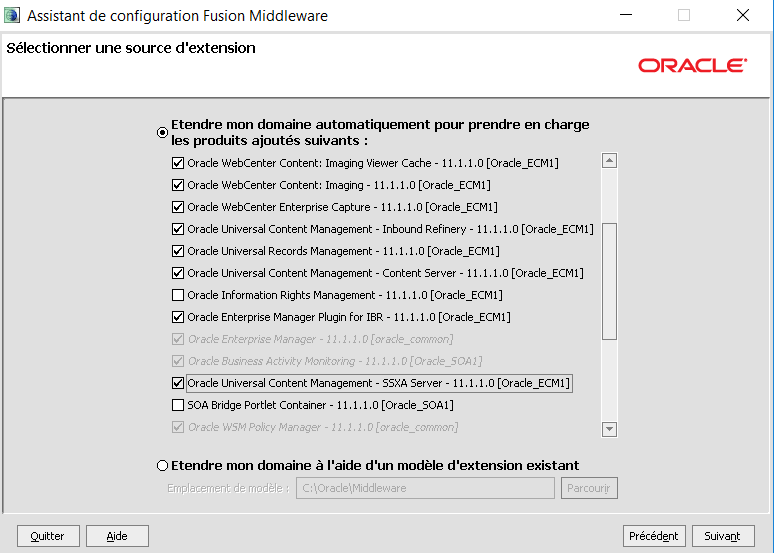
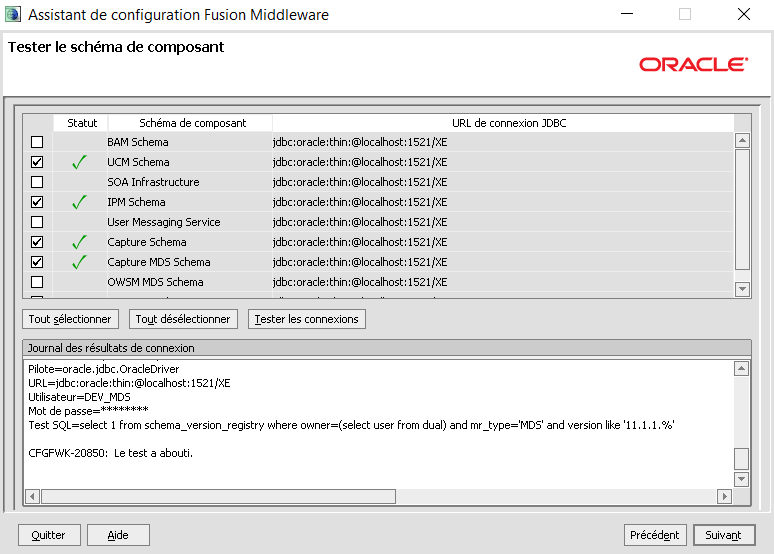
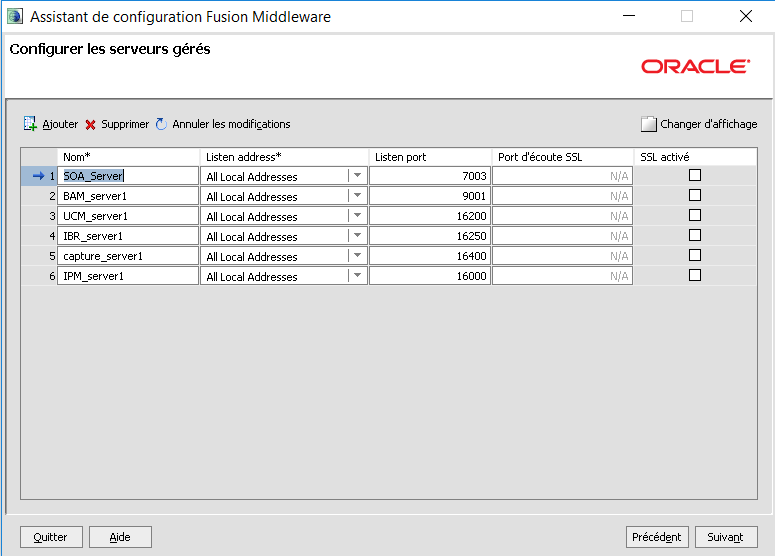
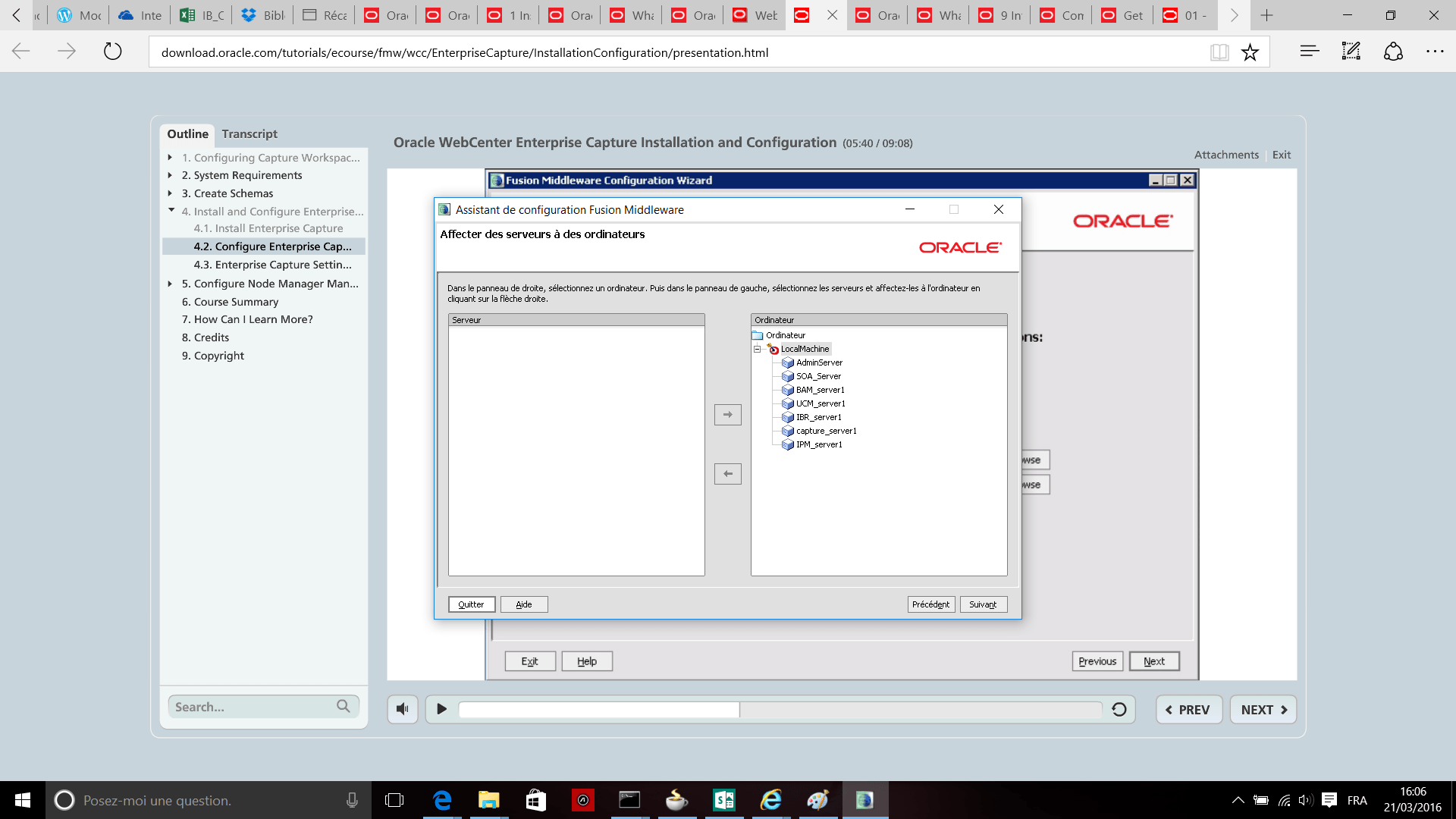
4. Additional Setting
** Execute Node Manager from wsl10.3 folder :
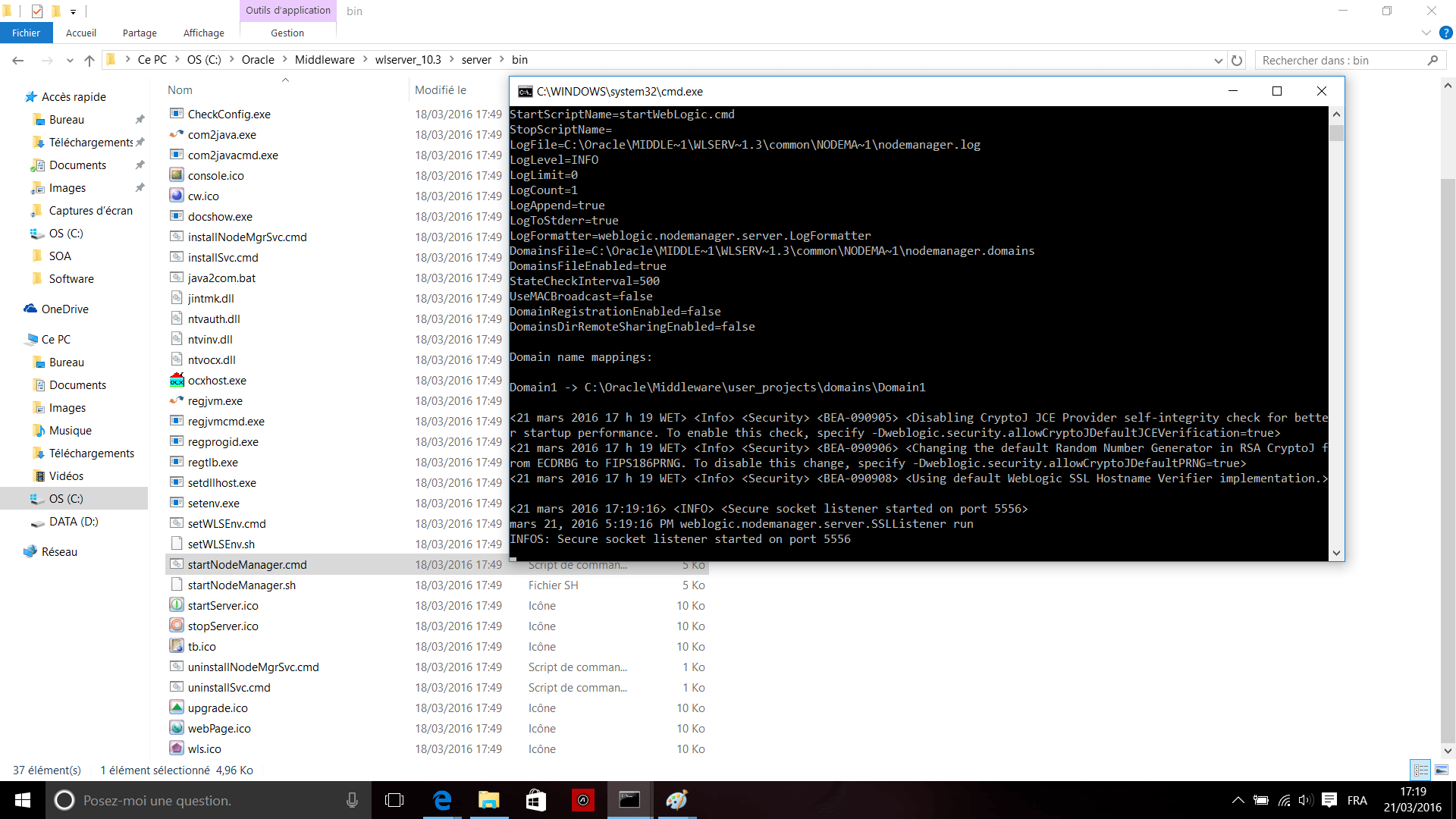
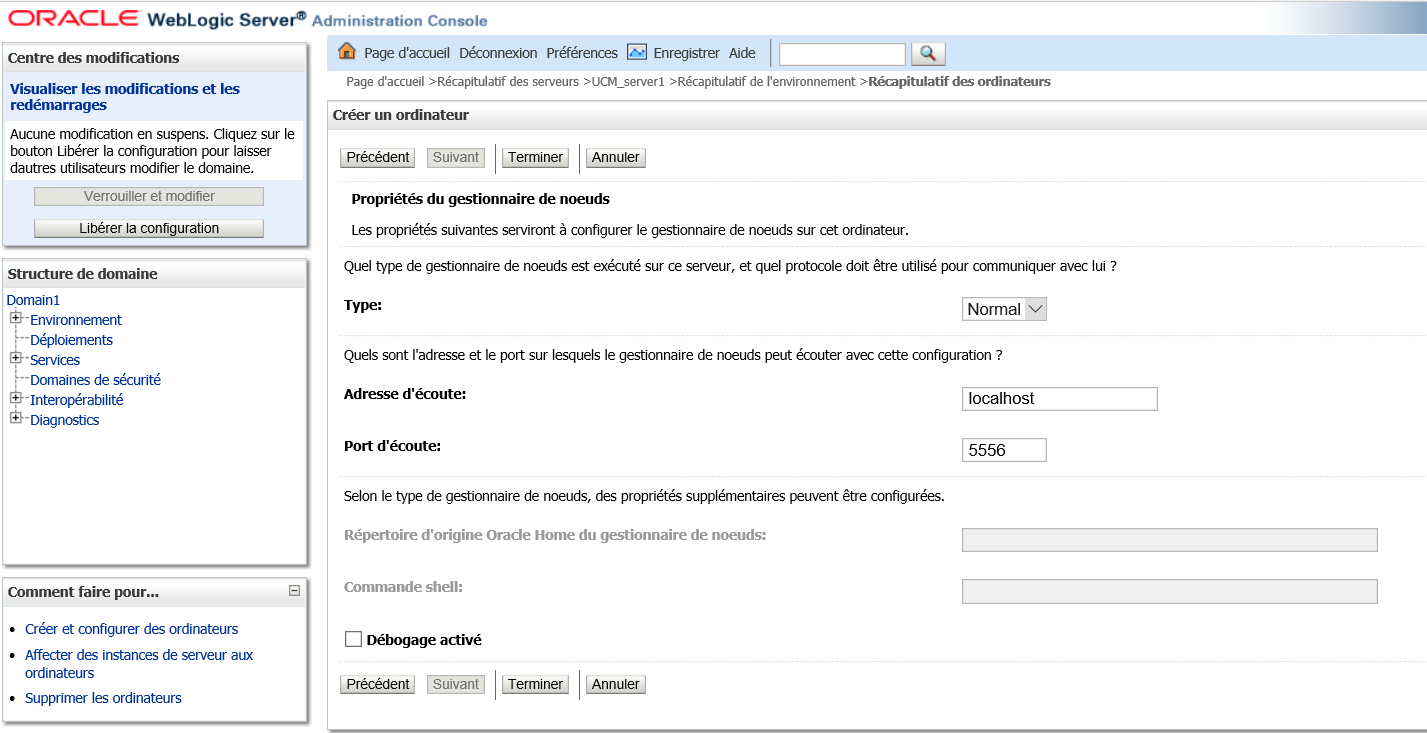
Node Manager Properties

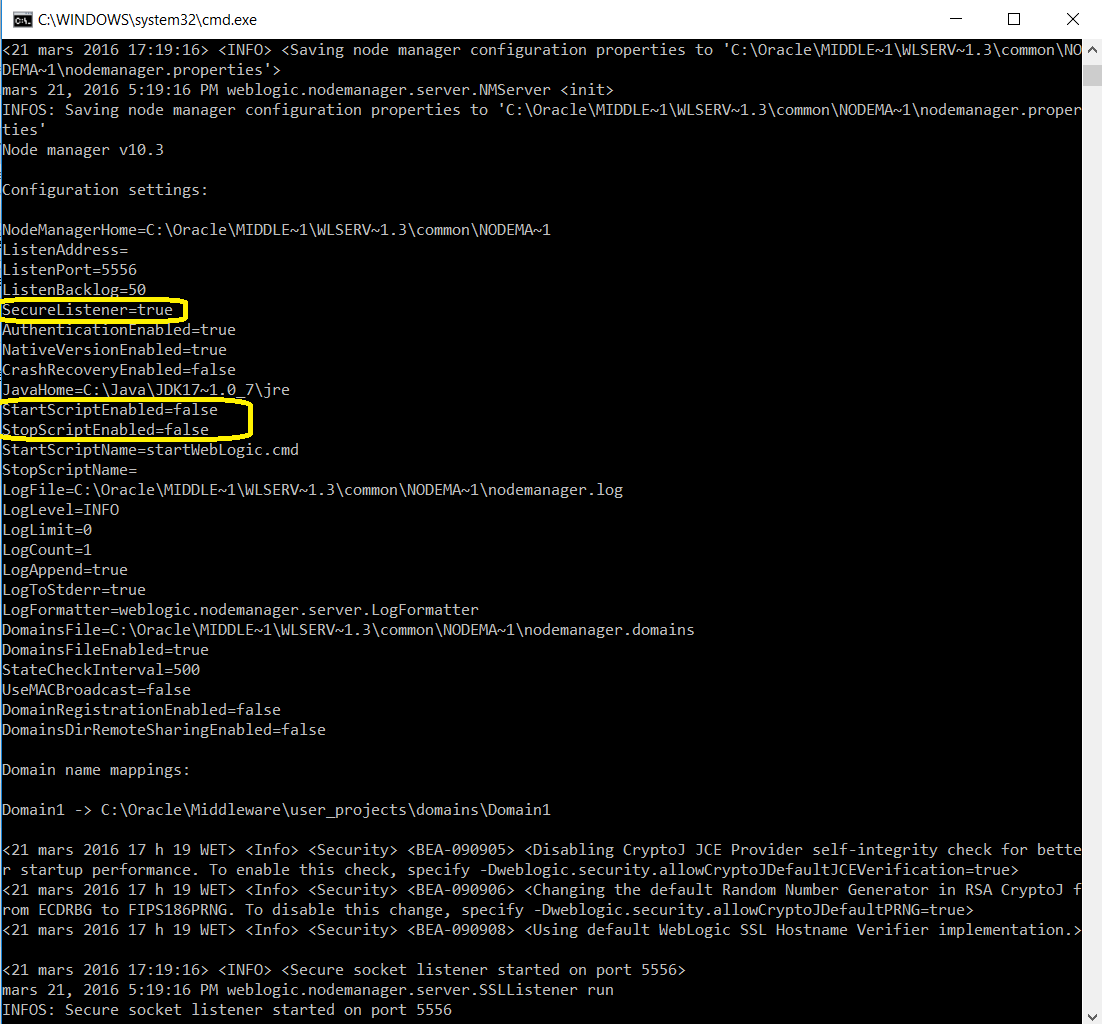
Then you change the cercle fields with the new value as similaire as shown in the following picture :
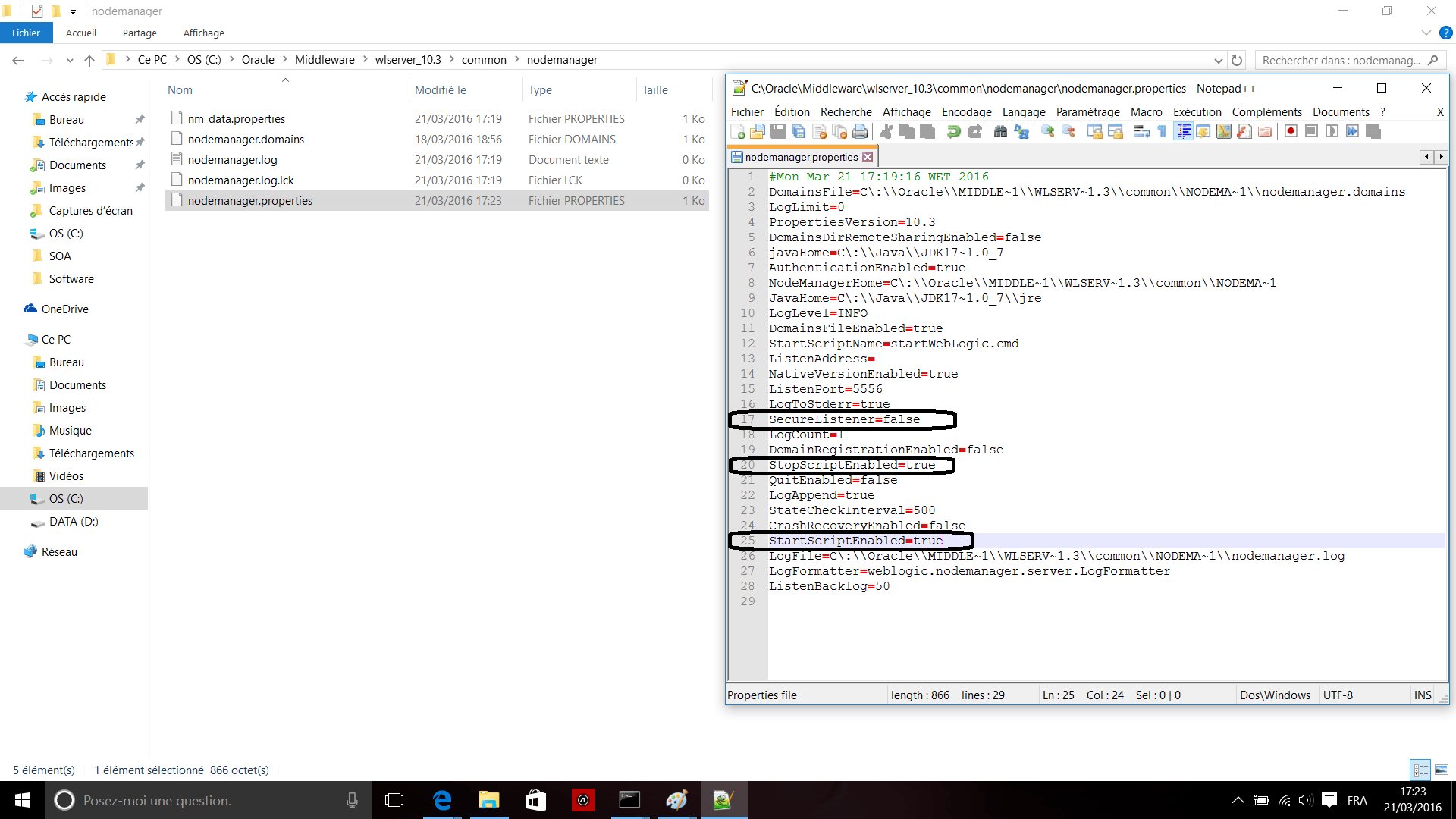
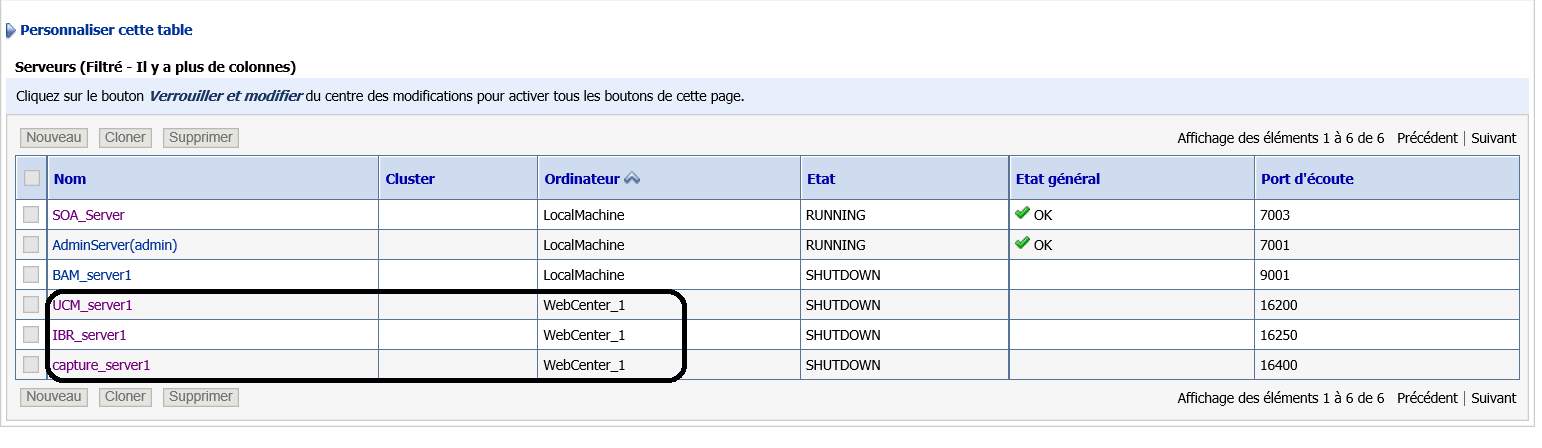
** Affect the servers : UCM_Server1 ; IBR_Server1 ; Capture_Server1 ; IPM_Server1 to new machine Webcenter_1 :
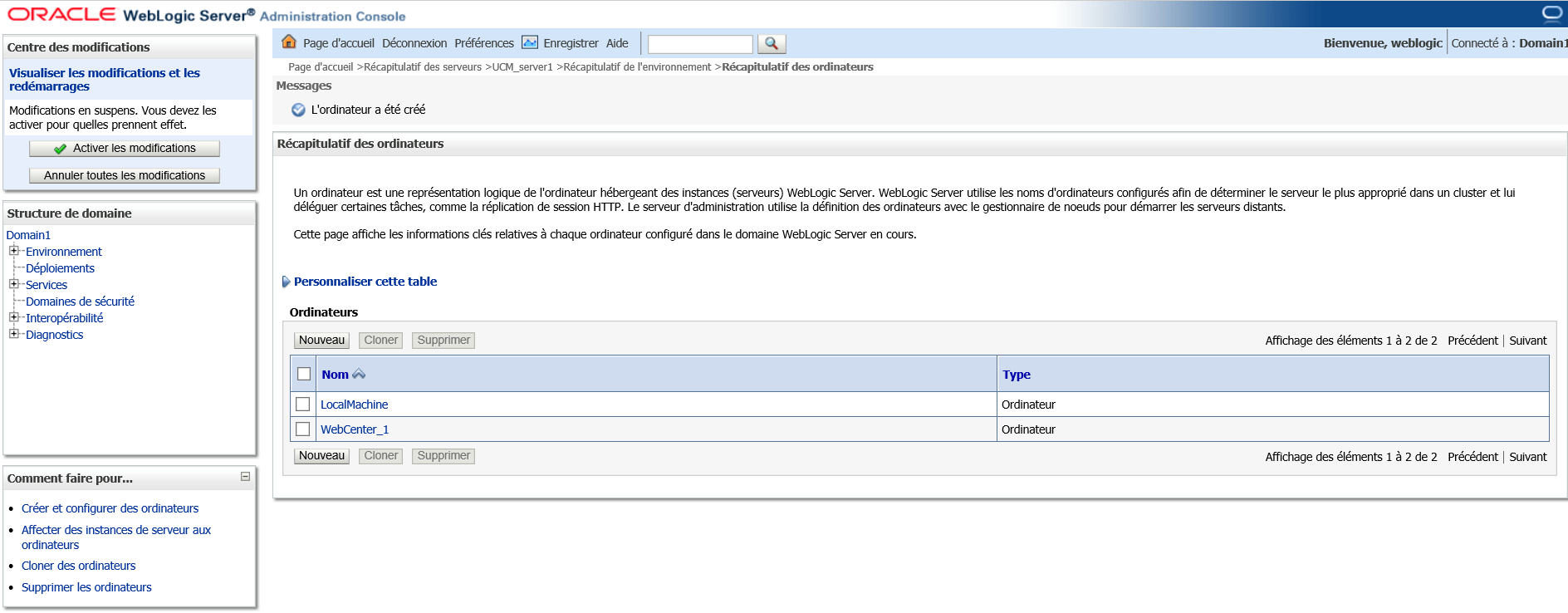
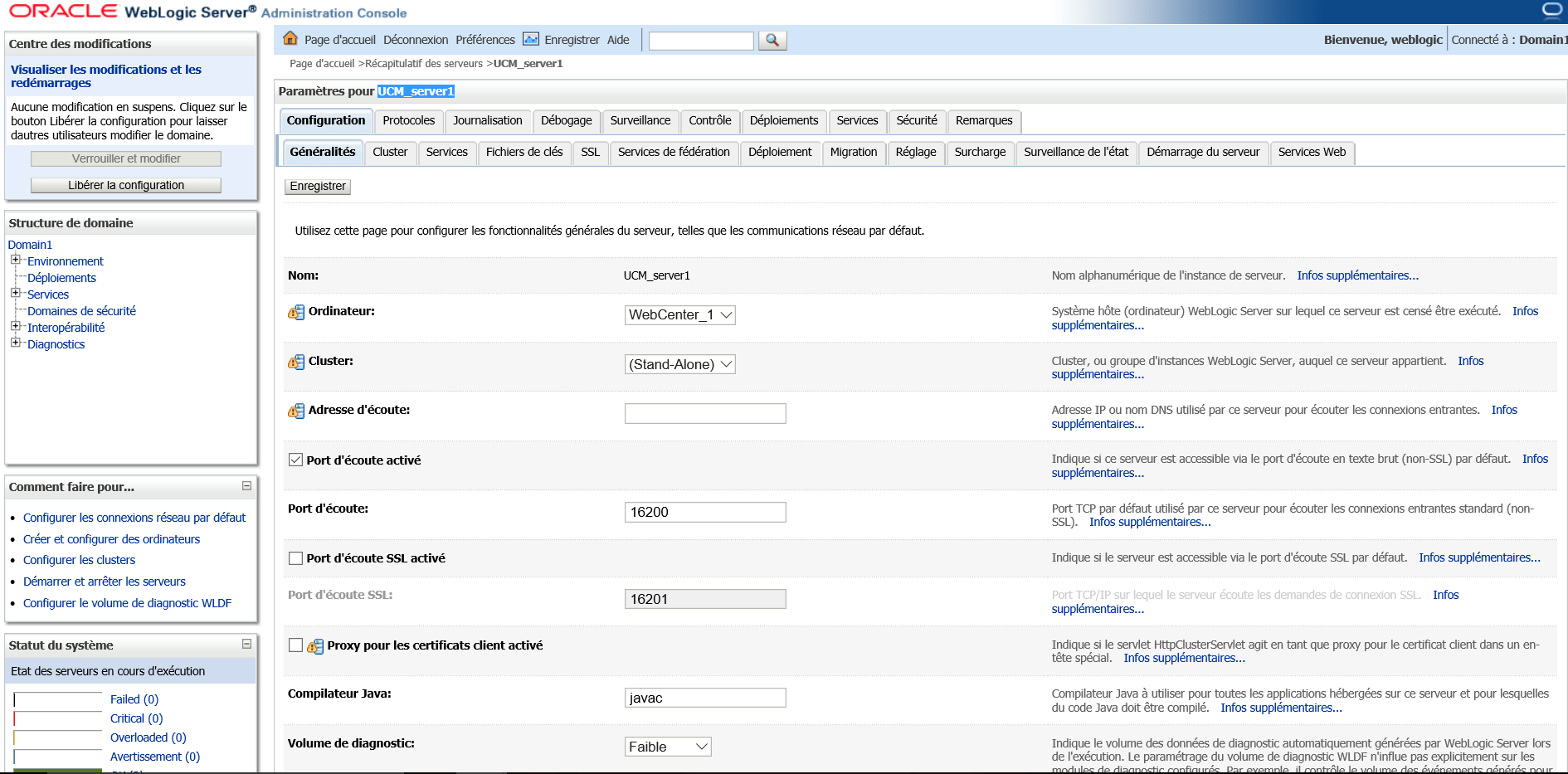
The result is :
4. Start Servers
Now that the domain is configured, it’s time to start the WebCenter servers.
1.
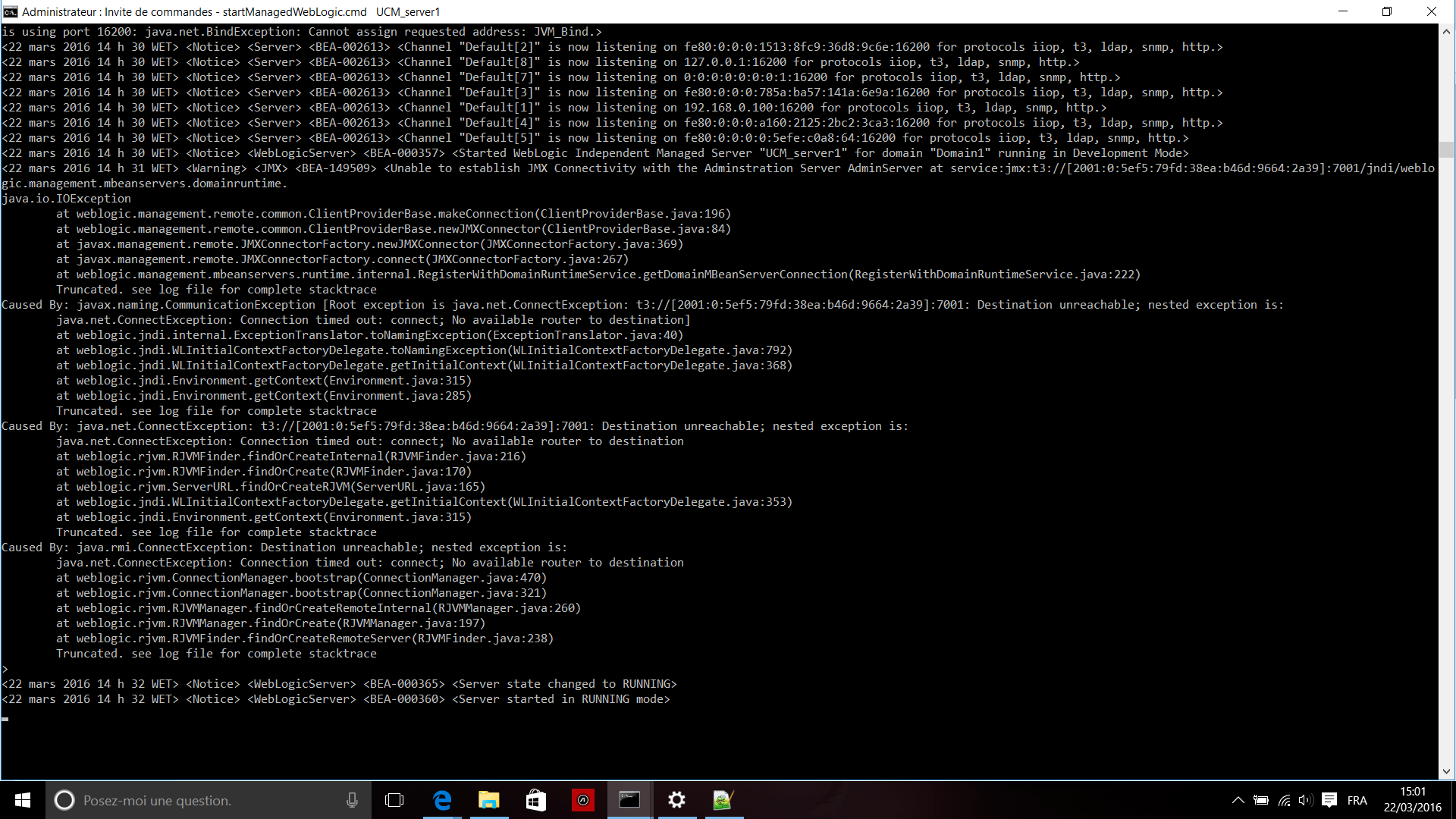
Start the WLS Managed Servers in a command window. This start script is in the bin directory.
You can choose to cd to the bin directory instead:
cd C:\Oracle\Middleware\home_ps2\user_projects\domains\domain1
bin\startManagedWebLogic.cmd UCM_server1 or IBR_server1 ou IPM_server1
2.
After Starting servers , create a boot.properties file after the managed server has started for the first time.
4.
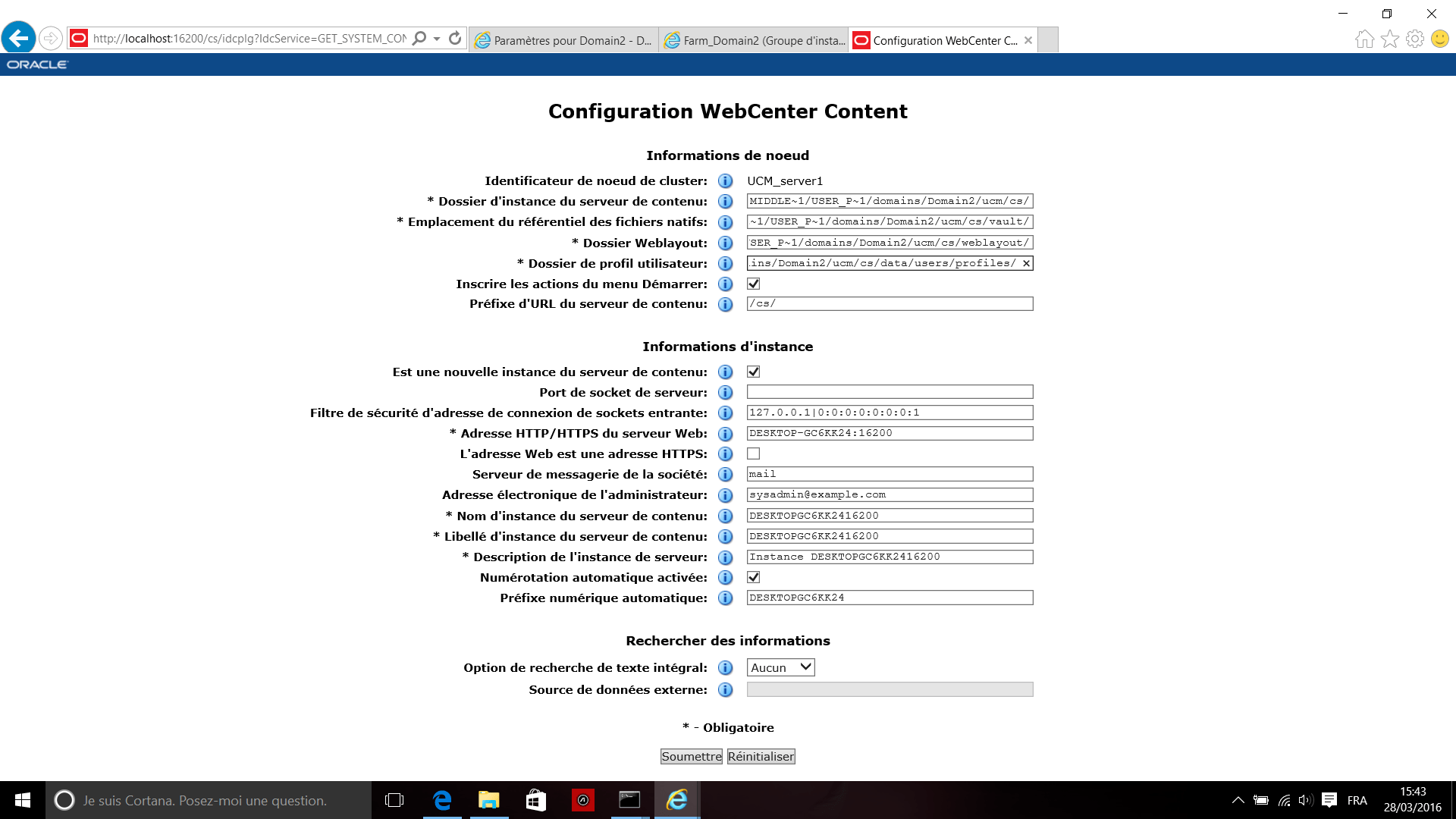
Access the WebCenter Content login page at: http://localhost:16200/cs/ , you show the Configuration WebCenter Content as follow :


 Sanae BEKKAR - My Blog -
Laisser un commentaire