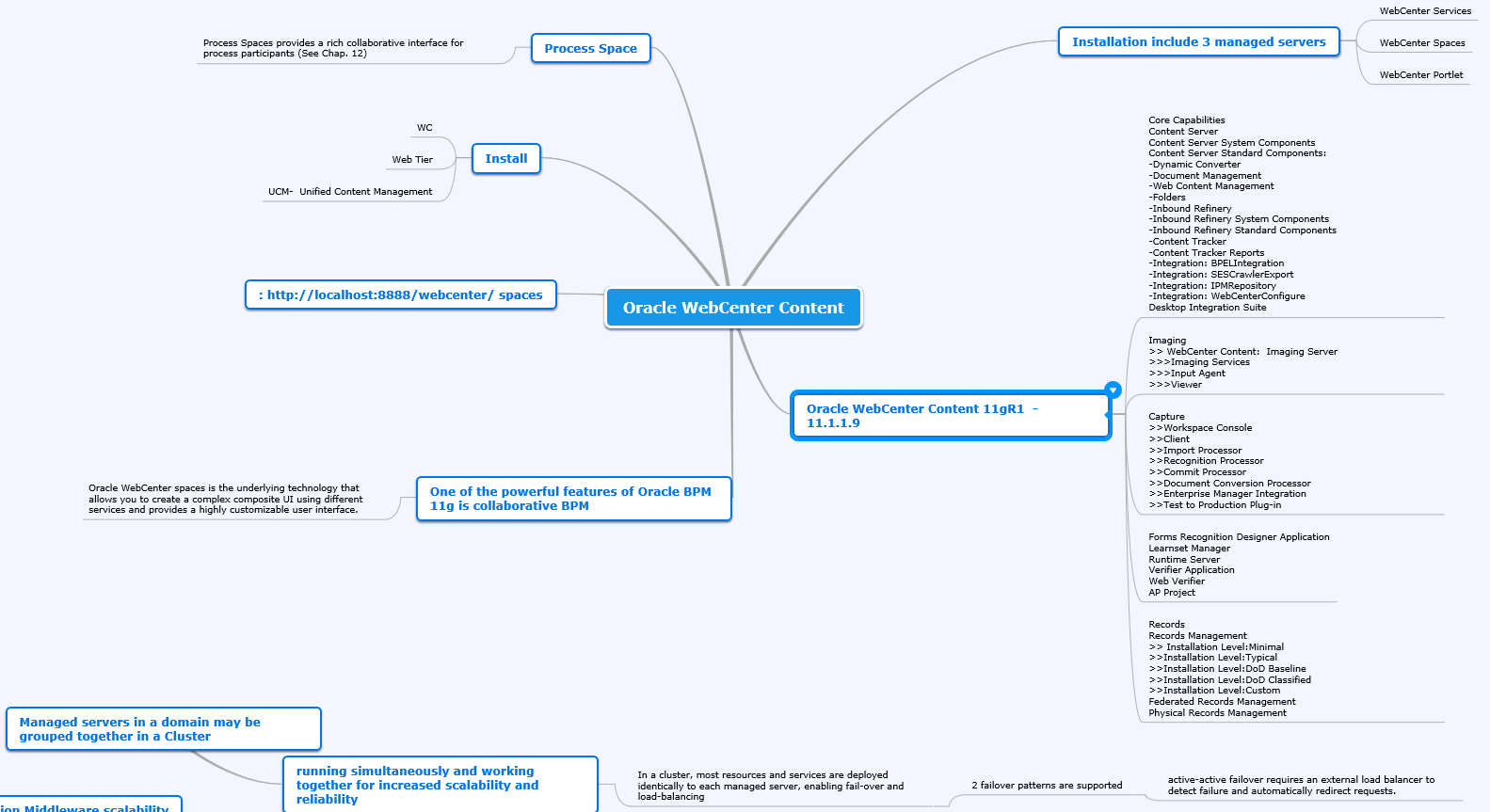
I – Preparing for installing UCM
Web Tier installation is a pre-requisite for installing Unified Content Management (UCM) along with WebCenter.
In addition, the following instructions assume that you need to install an HTTP server.
Installing Web Tier Web Tier is installed similar to SOA . WLS and SOA managed servers must be running.
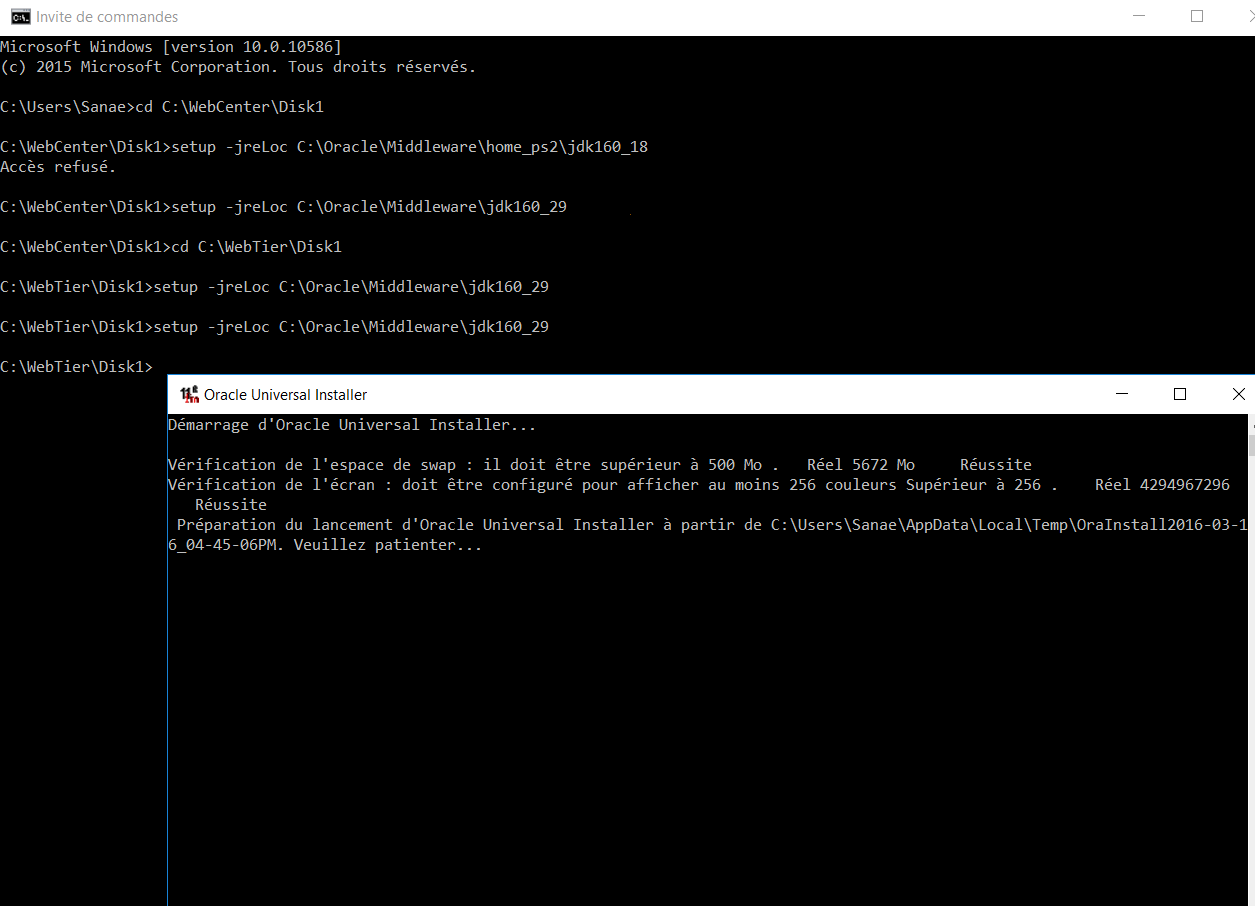
La pop up d’installation de Web Tier s’affiche :

Sélectionner Installer et Configurer :
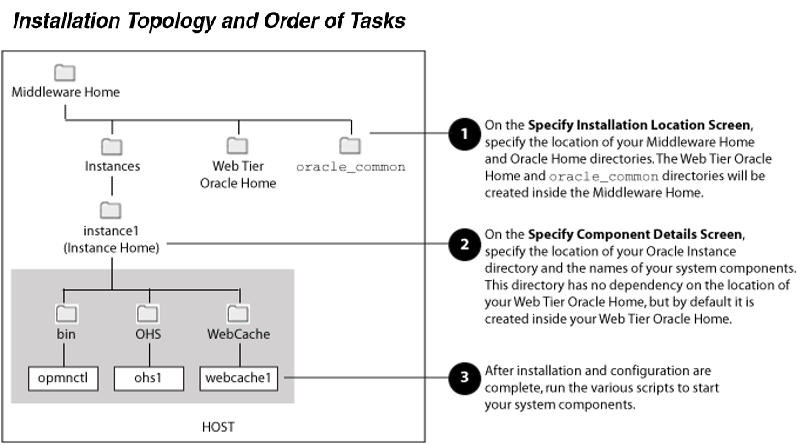
The Install and Configure option will install the product binaries in an Oracle Home directory and create and configure your system components in an Oracle Instance directory.
After this is complete, you should be able to access your products using the Administration Console or Enterprise Manager to begin configuring and managing your products
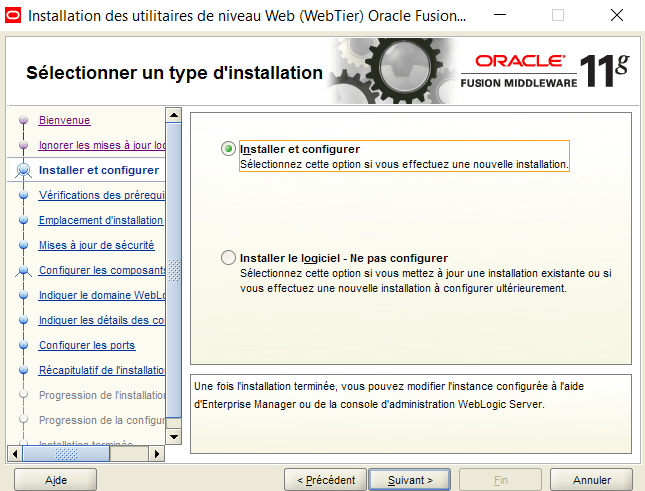
The Install Software – Do Not Configure option only installs the software binaries in an Oracle Home directory. You must then manually run the Configuration Tool from your Web_Tier_ORACLE_HOME/bin (on UNIX operating systems) or Web_Tier_ ORACLE_HOME\bin (on Windows operating systems) directory to configure your products before you can use them.
This option can be used to quickly create multiple instances of the software that share a common disk.
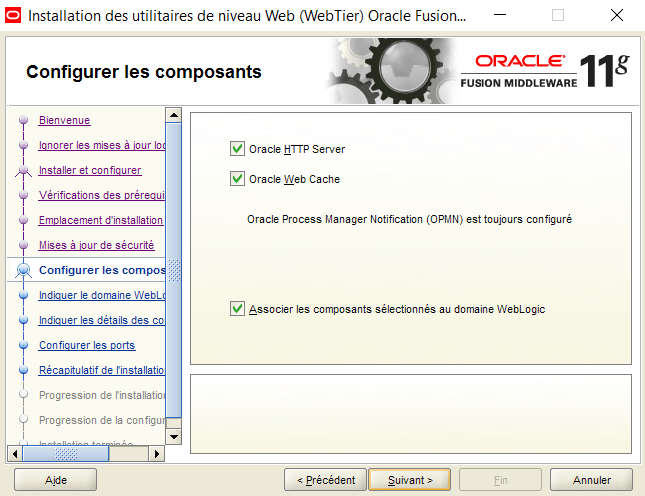
Par la suite ,Sélectionner les composants : Oracle HTTP Server , Oracle Web Cache , Associate Selected with WebLogic Domain :
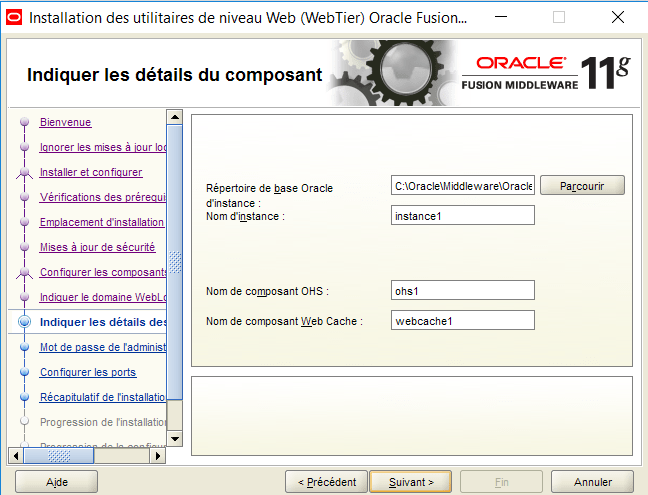
Spécifier les détails des composants .Les default values sont proposées :
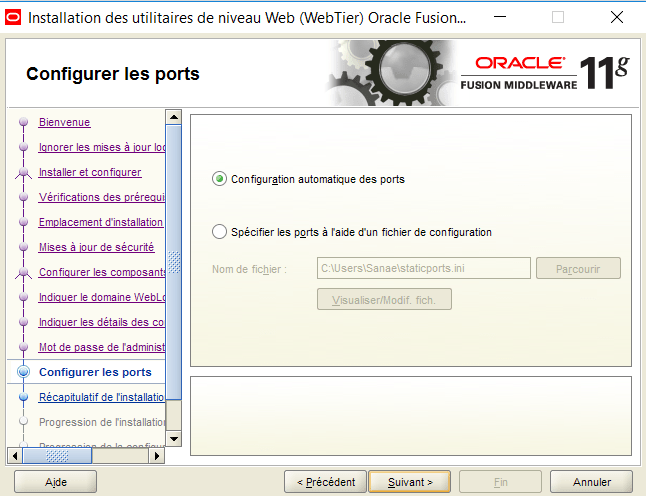
Sélectionner Auto Port Configuration :
All products in the Oracle Web Tier Utilities Suite will be installed and configured:
■ Oracle Process Manager Notification (OPMN)
■ Oracle HTTP Server (OHS)
■ Oracle Web Cache
Verifying the Installation
> Verifying the Installation Logs :
On Windows operating systems, the default location for the inventory directory is C:\Program Files\Oracle\Inventory\logs.
Verifying OPMN Status :
Run the opmnctl status command from the bin directory in your instance home location.
cd $INSTANCE_HOME/bin
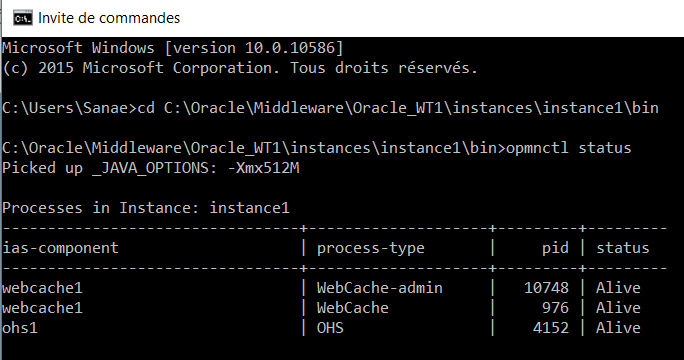
This information shows the components configured for this installation. The status « Alive » means the component is up and running.
Checking Browser URLs :
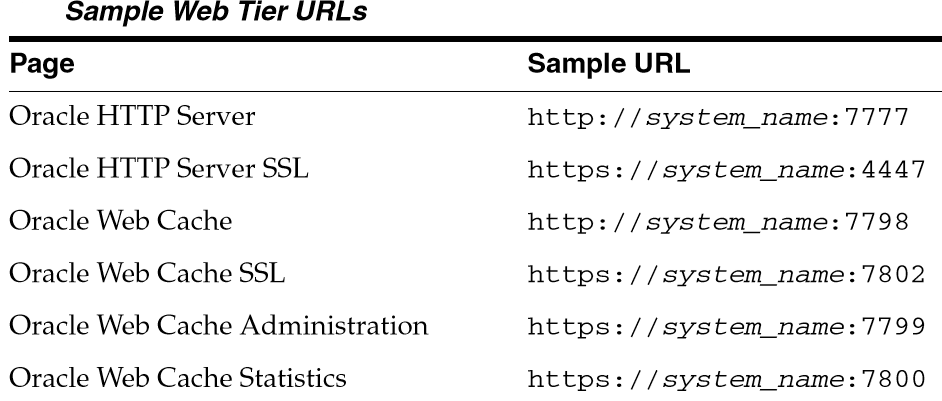
Run the opmnctl status -l command from the bin directory in your instance home location to obtain a list of ports used by the components.
cd $INSTANCE_HOME/bin

> the URLs in Table 1 to access the various pages from this configuration:
Deinstalling Oracle Web Tier
Starting the Deinstaller
To start the deinstaller, navigate to the Web_Tier_ORACLE_HOME/oui/bin (on UNIX operating systems)
or
Web_Tier_ORACLE_HOME\oui\bin (on Windows operating systems) directory
and start the deinstaller.
On UNIX operating systems:
./runInstaller -deinstall
On Windows operating systems:
setup.exe -deinstall
On Windows systems, you can also start the deinstaller from the Start menu by selecting Programs > Oracle Web Tier 11g – Home1 > Uninstall.
Current Errors :
Error .1. unable to validate non j2ee management application deployment on admin server
Are you using WLS 10.3 please open the console and goto preference in the top menu
Preference automatically aquire lock and Activate changes .
It is checked by default uncheck it and then release the lock and run the ant task.
turns out restarting the admin server fixed it.. (should have tried that first.. doh!)
Error.2. the oracle instance is not empty select a different location
Delete the folder of instance 1 and reinstall it .
 Sanae BEKKAR - My Blog -
Laisser un commentaire