Etape .1. Installation XE Database (10.2)
Après installation , Démarrer votre service OracleXE , et accéder à la commande SQL pour taper :
sqlplus sys/welcome1@XE as sysdba
SQL> show parameter session
SQL> show parameter processes
SQL> alter system reset sessions scope=spfile sid=’*’;
SQL> alter system set processes=300 scope=spfile;
SQL> shutdown immediate
SQL> startup
SQL> show parameter session
SQL> show parameter processes
Etape .2.Installer WebLogic server
Version : 10.3
Etape .3. Installer database schema using RCU
Version : 11.1.1.7
Configuring schema Now create the new schema. Open a command window and enter the following: cd c:\..\RCU\bin rcu.bat
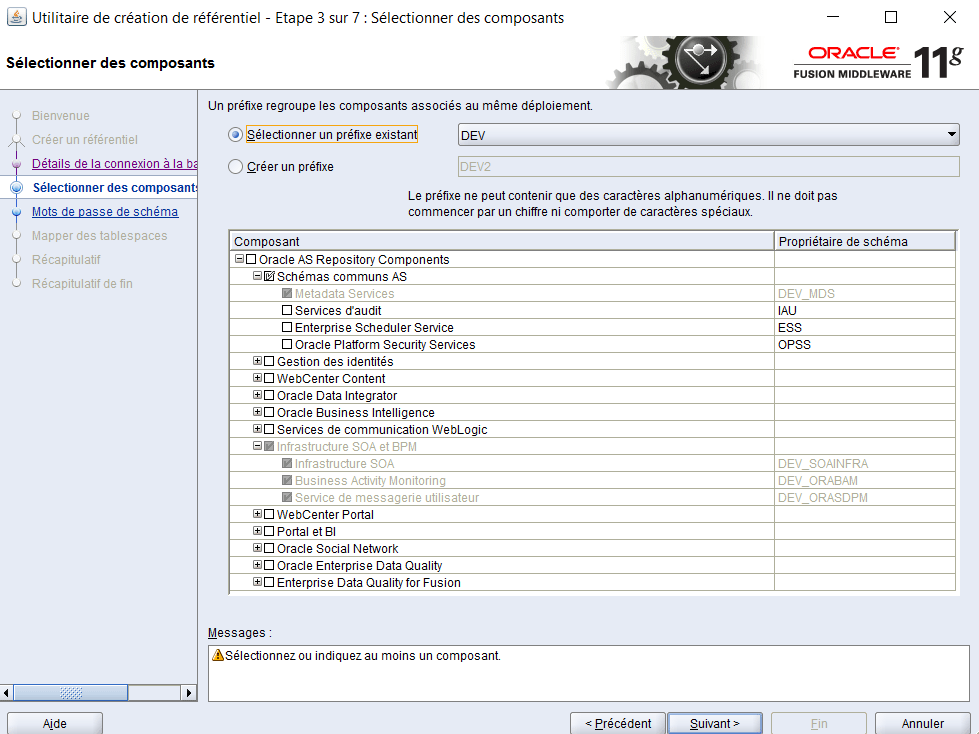
On the Select Components screen, enter DEV in the field for creating a new prefix.
Select the component SOA and BPM Infrastruture. Dependent schemas are selected automatically.
Etape .4. Installer BPM / SOA
Version : 11.1.1.9
In a command window enter: cd c:\..\..\Disk1 setup -jreLocC:\Oracle\Middleware\jdk160_29
Enter Oracle Home Directory: Oracle_SOA1.
Etape.5. Creating domain
Now that you have the software installed, you can create the WebLogic domain for the server. 1.
In a command window enter: cd C:\Oracle\Middleware\Home_ps2\Oracle_SOA1\common\bin config.cmd
Etape.6 . Installing JDeveloper
Open a command window and enter the following.
Make sure there is no space after the = sign and eliminate trailing spaces.
cd c:\stageFMW jdevstudio11113install.exe
or
set JAVA_HOME=C:\Oracle\Middleware\home_ps2\jdk160_29 %JAVA_HOME%\bin\java.exe -jar jdevstudio11119install.jar
You will see a message that the jar is extracting:
>%JAVA_HOME%\bin\java.exe -jar jdevstudio11119install.jar
Extracting 0%……………………..
Etape.7. Updating JDeveloper with latest SOA /BPM
Start JDeveloper if it is not already started.
Select Help/Check For Updates, Click on Next.
Select Fusion Middleware Products and Official Extensions.
In the Updates list scroll down to SOA Composite Editor or type SOA in the Available Updates search box and enable the check box for the SOA Composite Editor. and This time, you are looking for the BPM Studio. When it has finished downloading
Additional actions
Setting memory limits
Open for editing, the SOA domain environment file found here (make sure you have the SOA Domain environment file): C:\Oracle\Middleware\home_11gbeta\user_projects\domains\ domain1\bin\setSOADomainEnv.cmd
Here is the recommendation for Windows 32 bit:
set DEFAULT_MEM_ARGS=-Xms512m –Xmx1024m
set DEFAULT_MEM_ARGS=%DEFAULT_MEM_ARGS% -XX:PermSize=128m -XX: MaxPermSize=512m
Here is the recommendation for linux:
set DEFAULT_MEM_ARGS=-Xms512m –Xmx1536m
Starting and stopping
Follow these instructions to start and stop your managed servers or your single-server configuration:
Starting servers
1. If you have a single-server configuration, open one command window. If you have a managed server configuration, open three command windows, one for the WebLogic admin server, one for the SOA managed server, and one for the BAM managed server (you only start BAM when you need it for a BAM lab).
2. Start the Admin Server. cd c:\Oracle\Middleware\Home_ps2\user_projects\domains\domain1 startWebLogic.cmd
3. Wait for the Admin Server to finish starting up. It takes a few minutes—watch for the status RUNNING in the log console window.
For the managed server,
1.start the SOA Managed Server in the second command window as shown.
This start script is in the bin directory.
2. You can choose to cd to the bin directory instead.
cd C:\Oracle\Middleware\home_ps2\user_projects\domains\domain1 bin\startManagedWebLogic.cmd soa_server1
3. When prompted, enter the user name weblogic and password welcome1.
After the first time you start the managed server, create a file called boot. properties with the following content:
password=welcome1
username=weblogic
Store it to the following directory: C:\Oracle\Middleware\home_ps2\user_projects\domains\domain1\ servers\soa_server1\security
This folder does not exist until you have started the server the first time (you have to create the security folder).
This file allows your managed server to startup without prompting for a password.
The file is encrypted the first time it is accessed.
If you set the boot.properties as described above, you are no longer prompted during startup.
When needed, start the BAM Managed Server in the third command window:
cd C:\Oracle\Middleware\Home_ps2\user_projects\domains\domain1 bin\startManagedWebLogic.cmd bam_server1
8. When prompted, enter the user name weblogic and password welcome1.
After the first time you start the server, set the boot.properties as described above.
Watch for the RUNNING status.
Console URLS
Log in with weblogic/welcome1 for all consoles.
Use port 7001 in all URLs if you have a single-server configuration, otherwise use 8001 or 9001 as noted.
For the workspace and composer, you can also log in as an end user.
Weblogic console: http://localhost:7001/console
Enterprise Manager console: http://localhost:7001/em
BAM (must use IE browser): http://localhost:9001/OracleBAM
BPM workspace: http://localhost:8001/bpm/workspace
BPM composer: http://localhost:8001/bpm/composer
Stopping servers
Whenever you need to stop the server complete the following steps:
1. Stop the managed servers first by entering CTRL-C in the command window. Wait until stopped.
2. After the managed server stops, stop the admin server by entering CTRL-C in the command window.
 Sanae BEKKAR - My Blog -
Laisser un commentaire